
xSpeed Cache
xSpeed Cache: AI-Powered Performance Hub with MCP, Caching & CDN · by WPDeveloper
- active installs
- 10K+
- 24 ratings
- 5.0
- since last update
- 1d
- releases in 12 months
- —
- support threads resolved
- 100%
- avg daily downloads
- 1,543
- on WordPress.org
- 5 months
xSpeed Cache at a glance
xSpeed Cache is a free WordPress AI agent & MCP plugin by WPDeveloper with 10K+ active installs and a 5.0/5 rating from 24 reviews. It was last updated on Nov 8, 2026, is tested up to WordPress 7.1.4 and needs PHP 7.4+. It works with Google Gemini. All 1 of its published vulnerabilities have patched versions. Our quality score is 93/100.
What is xSpeed Cache?
xSpeed Cache is a WordPress performance plugin that handles page caching, code minification, compression, lazy loading and several other speed tasks in one place. It also ships a built-in MCP server, so an AI assistant such as Claude can inspect and tune the site's performance settings through the same tools the dashboard uses.
Its main technical claim is a static-file cache path. Cached pages are served by the web server before PHP loads, which the listing puts at 5 to 15 ms response time against about 85 ms for a PHP-served cache. This is set up automatically on Apache, nginx and LiteSpeed. The plugin comes from WPDeveloper.
It is aimed at site owners who want one plugin instead of a stack of cache, minify, CDN and database tools. Settings auto-save, and a three-step wizard covers first setup. A Pro tier adds an AI-powered site audit. The MCP connection is limited by the permissions you grant when you connect.
Best for
- Owners replacing several speed plugins with one
- Sites on Apache, nginx or LiteSpeed wanting server-level cache hits
- WooCommerce stores needing safe cache rules
- People who want an AI assistant to tune performance
xSpeed Cache features
Static page caching
Pages are saved as static HTML and served before WordPress loads. The cache rebuilds on publish, theme switch or plugin update.
MCP server for AI assistants
Claude or another MCP client can read status and change settings. Read-only connections refuse write actions, and credentials cannot be written without permission.
Automatic site optimization tool
The optimize_site tool measures the site, applies recommended settings one at a time and reverts any change that breaks the page.
Minify and combine code
Minify HTML, CSS and JavaScript, combine files, defer or delay scripts and load CSS asynchronously.
Lazy loading and fonts
Lazy load images, videos and iframes, add missing image sizes, apply font-display swap and preload key fonts.
Cache preloader
A sitemap-driven warmer rebuilds the cache after purges and after content updates.
Object cache and CDN
Connect Redis or Memcached, rewrite CDN URLs and use the Cloudflare integration for purging and development mode.
Database cleanup
Optimize tables and remove revisions, spam, trash, transients and orphaned meta, on a schedule if you like.
WP-CLI commands
Run purge, preloader status, score runs, optimize and settings commands from the command line.
xSpeed Cache free vs pro
Free WordPress.org version
- Page caching with static-file serving
- Minification, GZIP, lazy loading, font and browser cache settings
- Cache preloader, Redis and Memcached, CDN and Cloudflare support
- Database cleanup and bloat removal options
- MCP server and WP-CLI commands
Pro Paid version
- AI-powered site audit that rates which performance features will help most, with severity and reasons
The plugin is free on WordPress.org and a Pro version exists. The listing only names the AI site audit as a Pro feature and gives no prices. No AI provider key is mentioned for the MCP connection.
How to use xSpeed Cache
- Install the plugin
In wp-admin go to Plugins, then Add New, search for xSpeed Cache, install it and click Activate.
- Run the setup wizard
Open xSpeed Cache from the admin menu. The three-step wizard covers first-time configuration.
- Turn on caching
Enable page caching and exclude any URLs that must stay dynamic, such as cart and checkout pages.
- Enable other optimizations
Switch on minification, lazy loading, font handling and browser cache, then test your pages.
- Optionally connect an assistant
Use the MCP card on the Overview to create an AI connection. Choose read-only if you do not want changes made.
xSpeed Cache screenshots (8)
-
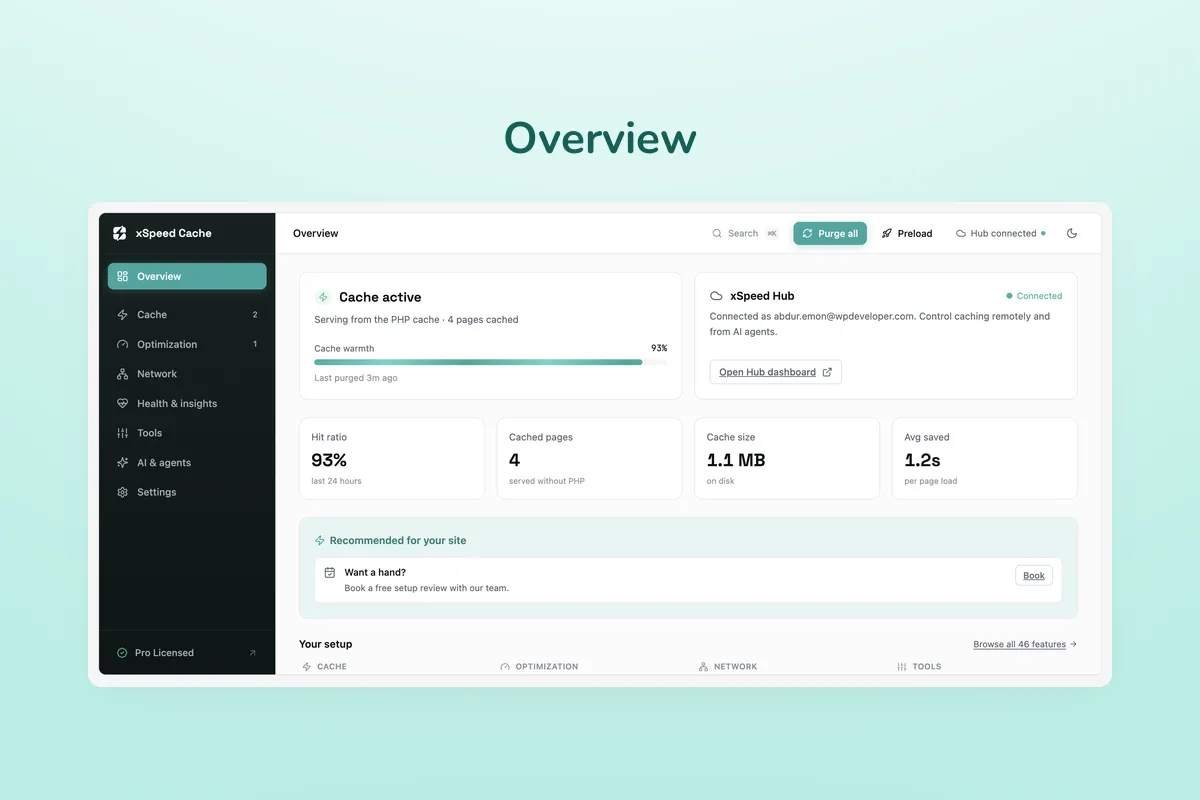
Overview — cache status, hit ratio, cached pages, cache size, and average time saved at a glance. -
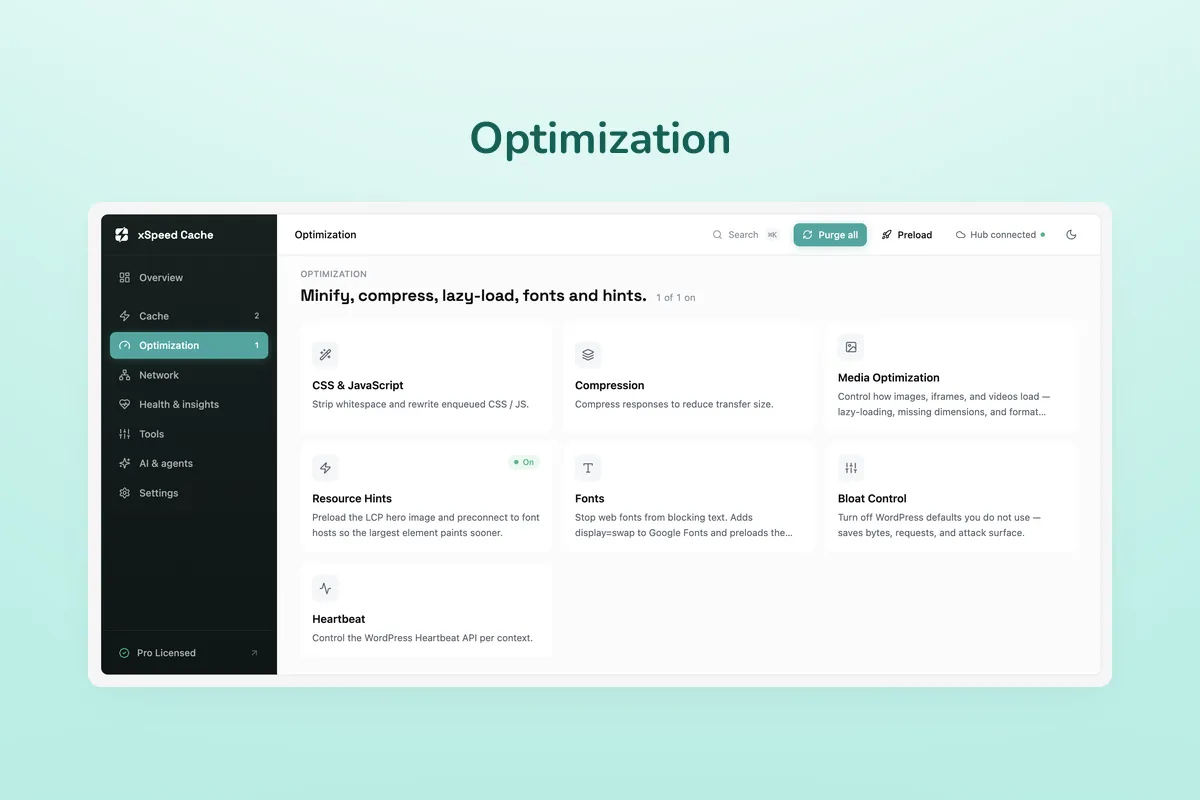
Optimization — minify, compress, lazy-load, resource hints, fonts, and bloat control in one place. -
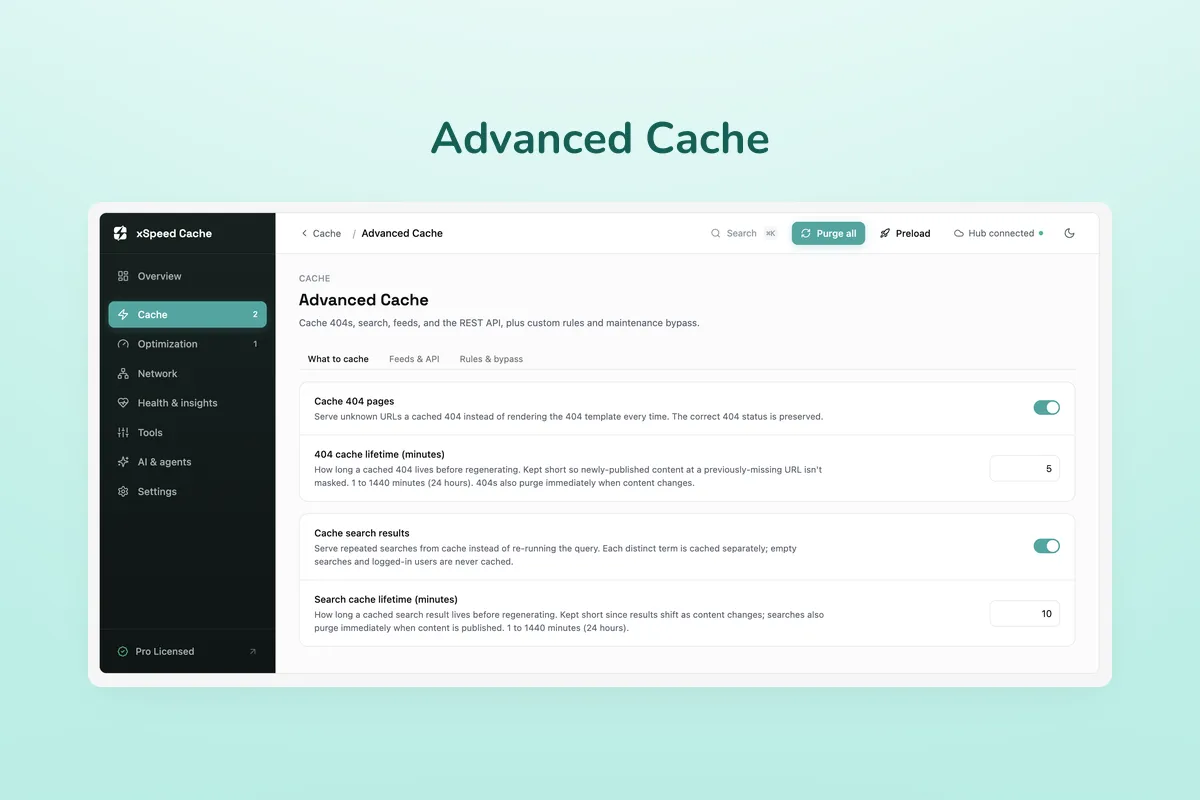
Advanced Cache — cache 404s, search results, feeds, and the REST API, plus custom rules and maintenance bypass. -
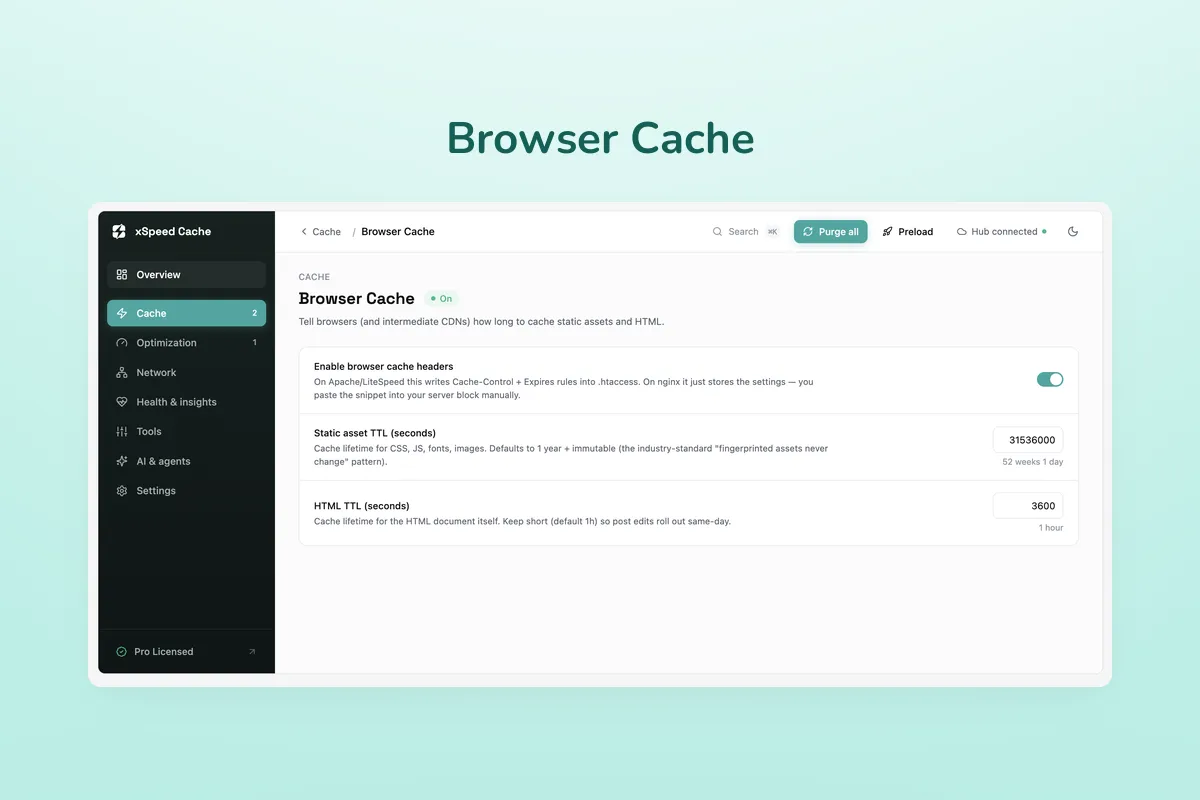
Browser Cache — Cache-Control and Expires headers with separate TTLs for static assets and HTML. -
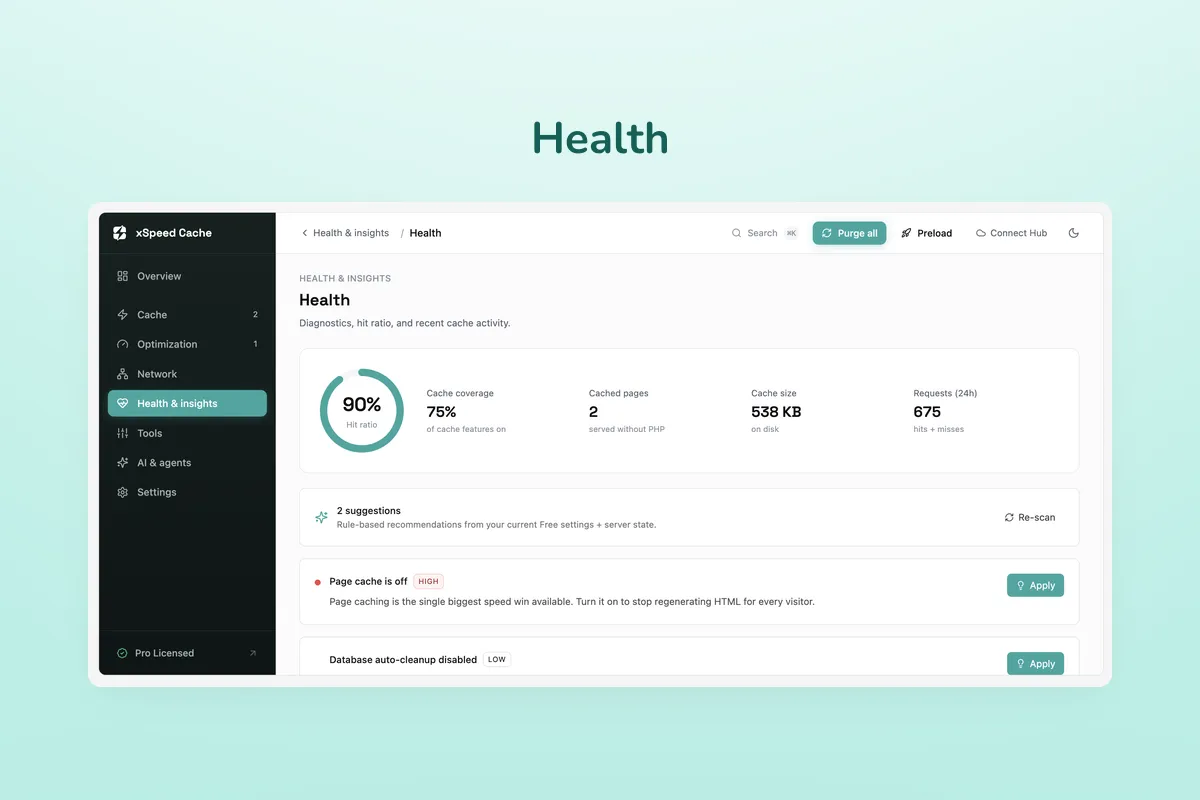
Health & Insights — diagnostics, hit ratio, cache coverage, and rule-based suggestions you can apply in one click. -
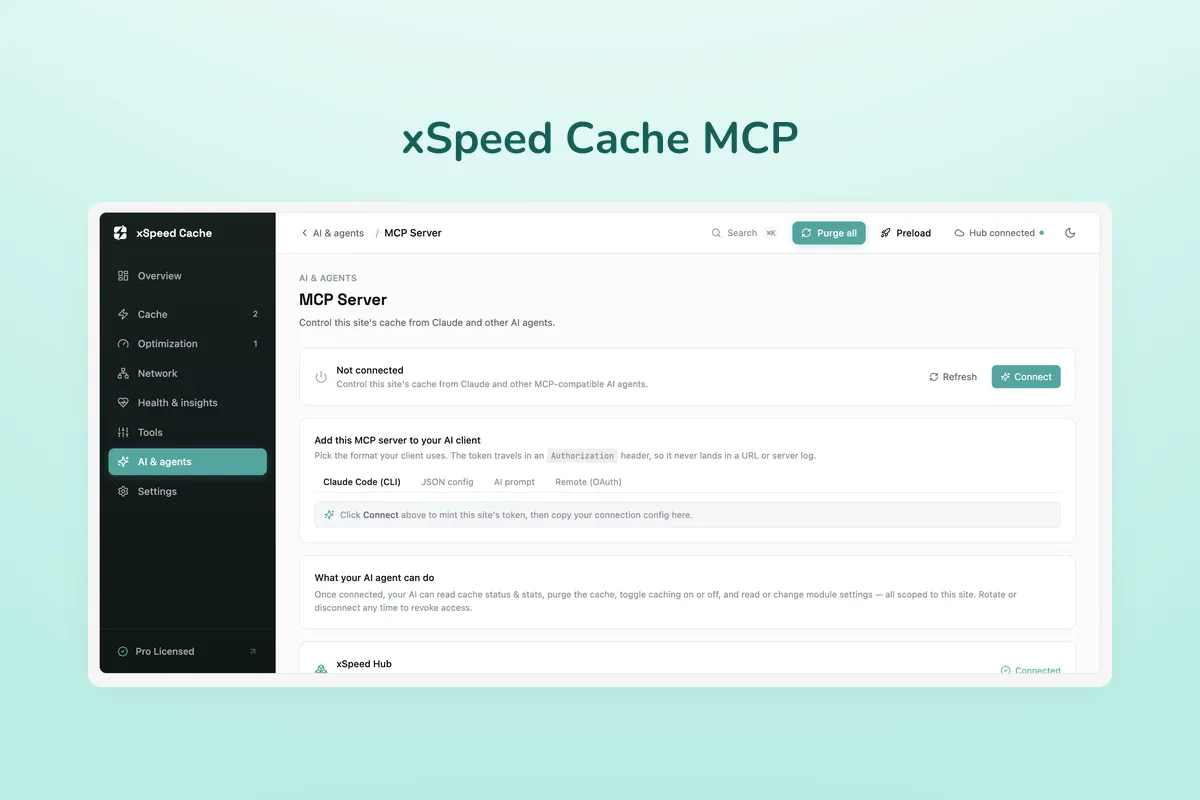
MCP Server — control this site's cache from Claude and other AI agents over a token-scoped connection. -
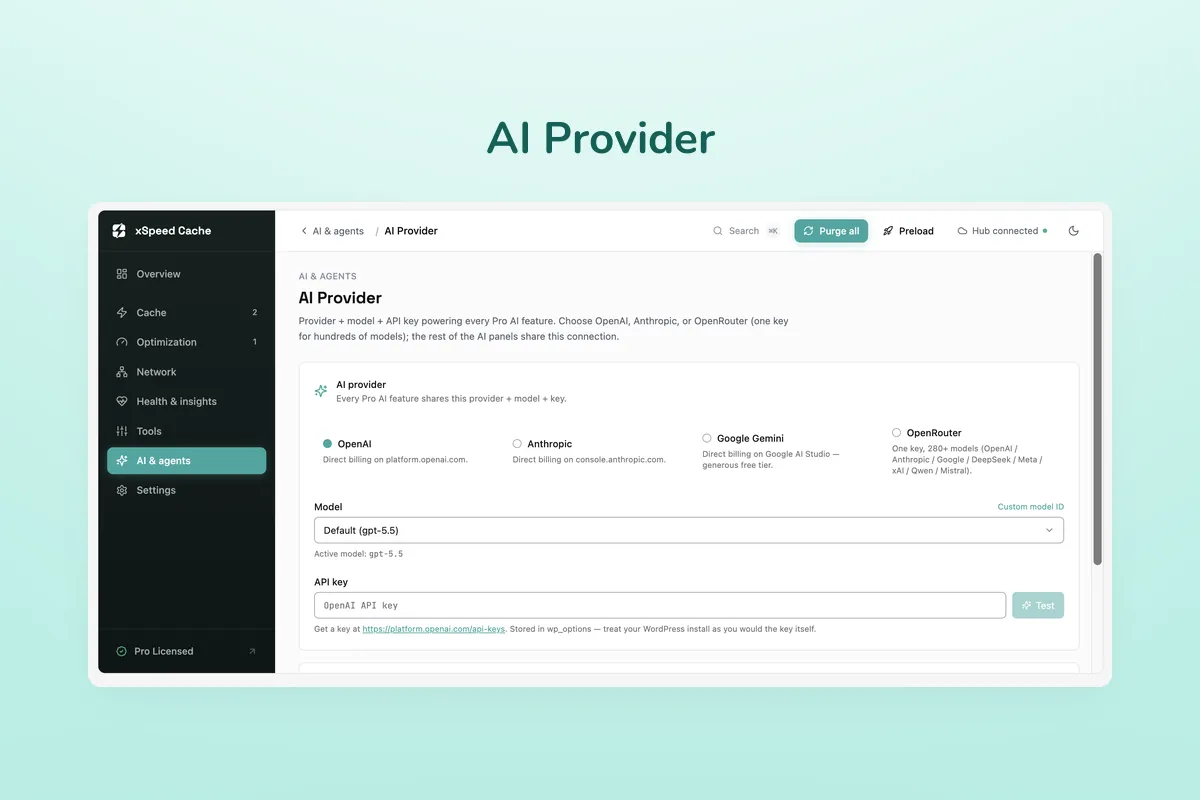
AI Provider — choose OpenAI, Anthropic, Google Gemini, or OpenRouter and set the model powering the AI features. -

Migration — import settings from WP Rocket, W3 Total Cache, WP Super Cache, or LiteSpeed Cache.
Important information
- Requires WordPress 6.0 or newer and PHP 7.4 or newer. Tested up to WordPress 7.1.4.
- If the LiteSpeed Cache plugin is active, xSpeed Cache turns off its own page cache and overlapping features to avoid running both.
- WooCommerce logged-in customers and checkout pages are never cached. Add other dynamic URLs to the exclude list.
- An MCP connection can change site settings. Use a read-only connection unless you want the assistant to write.
- One vulnerability has been published for this plugin and is marked patched. Keep it updated.
- Test the site after enabling minification or script delay, since these can break some themes and plugins.
From the xSpeed Cache readme
Straight from the developer's WordPress.org listing.
Full description
Your visitors decide to stay or leave in under 3 seconds. xSpeed Cache makes sure they stay.
Most caching plugins bury you in settings, charts and upgrade popups. xSpeed Cache does the opposite. Install it, flip one switch, and your site loads faster.
Built by the team at WPDeveloper, trusted by over 6 million WordPress users worldwide.
What This WordPress Caching Plugin Does
xSpeed Cache caches your pages, shrinks your code, compresses your files and serves everything as fast as your server can. The result is faster pages, better Google PageSpeed scores and better Core Web Vitals, without hiring a developer.
The Speed Advantage No Other Free WordPress Cache Plugin Offers
When xSpeed Cache caches a page, the web server serves it directly, bypassing PHP entirely.
• With xSpeed static cache: 5 to 15ms response time
• Without it (PHP-served cache): around 85ms response time
That is up to 17x faster page delivery on cache hits, set up automatically on Apache, nginx and LiteSpeed.
Features at a Glance
AI Assistants and the WordPress MCP Server
xSpeed Cache ships a WordPress MCP server, so Claude or any other MCP client can inspect and tune your site through the same tools the dashboard uses. Every action is limited to what you allow when you connect.
• Set up an AI connection from the MCP card on the Overview
• Read-only connections can read status, while write actions stay refused
• An AI assistant cannot write credentials unless you grant that permission when connecting
• WP-CLI parity: wp xspeed purge, wp xspeed preloader status, wp xspeed score run, wp xspeed optimize and wp xspeed settings list|get|update
• The optimize_site tool measures the site, applies recommended settings one at a time, re-checks the page after each change and reverts anything that breaks it
Disable Bloat
• Disable dashicons on the frontend
• Remove oEmbed, RSS feeds, XML-RPC, jQuery Migrate and REST API authentication headers
AI-Powered Site Audit (Pro)
xSpeed Pro scans your site and tells you which performance features will help the most, with severity ratings and concrete reasons.
Page Caching
Pages are saved as static HTML files and served before WordPress loads. The cache rebuilds itself when you publish a post, switch themes or update a plugin.
• Static-file rewrite path that bypasses PHP entirely for a 5 to 15ms TTFB
• Auto-purge on publish, update, comment and theme change
• One-click cache purge from the admin bar
• Exclude specific URLs such as /cart, /checkout and /my-account
• Set your own cache expiry, from 1 to 720 hours
• Separate mobile cache for phone and tablet visitors
• Per-post cache rules with custom expiry, or disable caching for individual posts
Code Minification
• Minify HTML, CSS and JavaScript
• Combine CSS and JS files to reduce HTTP requests
• Defer or delay JavaScript so it does not block page rendering
• Async CSS loading
• Removes ?ver= query strings from asset URLs (generated files under wp-content/uploads keep theirs, so a page-builder or consent-banner edit still reaches returning visitors)
• Safe-minify skips already-minified files and falls back if anything looks off
GZIP Compression
• Auto-configures GZIP on Apache and LiteSpeed
• Shows a ready-to-paste config snippet for nginx and IIS
• Detects if your server already has GZIP active, so there is no double-configuration
Lazy Load Images, Videos and Iframes
• Lazy load images, iframes and videos so they load when a visitor scrolls to them
• Adds missing image sizes so the layout does not jump
Font Optimization
• Adds font-display: swap so text is visible immediately while fonts load
• Preloads above-the-fold font files
• Removes the blank-text flash caused by slow Google Fonts responses
Browser Cache
• Sets Cache-Control and Expires headers for images, CSS and JS, with no manual configuration
Cache Preloader
• Sitemap-driven cache warmer, so the first visitor after a purge still gets a fast page
• Auto-warms the cache when you publish or update content
Redis and Memcached Object Cache
• Connect Redis or Memcached in seconds, as a drop-in persistent object cache
• View status and flush the object cache from the dashboard
CDN and Cloudflare
• Pull-zone URL rewriting for any CDN provider
• Cloudflare integration: connect your zone, auto-purge on publish and toggle development mode
Database Cleanup
• Optimize database tables
• Remove post revisions, spam, trash, transients and orphaned meta
• Schedule automatic cleanup
Built to Handle WordPress Edge Cases
• Multisite ready. Each site in the network gets its own cache and settings.
• LiteSpeed server? xSpeed Cache also clears the server’s LiteSpeed cache whenever it clears its own. If the LiteSpeed Cache plugin is active, xSpeed Cache will not turn on its own page cache or the other features that overlap, so the two never run at once.
• WooCommerce? Logged-in customers and checkout pages are never cached.
• WordPress Site Health. xSpeed Cache adds its own check under Tools → Site Health.
• Works on any server. Apache, nginx, LiteSpeed, IIS and any standard PHP host.
Designed for Everyone
Non-technical users: A 3-step setup wizard configures the plugin in under 2 minutes. Settings save automatically.
Developers: REST API at /wp-json/xspeed/v1/, developer filters (xspeed_skip_minify, xspeed_strip_asset_version, xspeed_cache_skip_for_post, xspeed_cache_expiry_for_post), WP_DEBUG awareness, and a React 18 and TypeScript admin UI.
Agencies: Use the xspeed_branding filter to white-label the dashboard for clients.
Private By Default
xSpeed Cache stores no IP addresses and sets no tracking cookies. Out of the box, the only request it makes is a check to your own site’s home URL to confirm GZIP is active, at most once an hour.
Usage analytics is optional and off by default. If you turn it on in the setup wizard or in xSpeed Cache → Settings → Privacy & usage data, it sends your email address and display name, your site’s setup and which xSpeed Cache features you use. Page content is never sent. See the External services section below for every service the plugin can contact.
If xSpeed Cache makes your site faster, please leave a review on WordPress.org.
External services
Out of the box, xSpeed Cache contacts only your own site (the gzip probe below). Every other service on this list runs only after an administrator turns it on, connects it or presses a button. None of them runs on a fresh install.
Usage analytics is off by default. The setup wizard shows it as an unticked switch, and xSpeed Cache → Settings → Privacy & usage data has the same switch. Nothing is sent until you turn it on. Turning it off stops all sending and clears the scheduled send. The deactivation survey is separate and sends nothing unless you click Submit. Speed tests and xSpeed Scan run only when you press Test or Scan, never on a schedule.
Self-hosted gzip probe
• What it does: Sends one GET request with Accept-Encoding: gzip to your site’s home URL, to see whether your server already gzips responses. Only the Content-Encoding header is read.
• When it runs: When the dashboard loads server status, at most once an hour.
• Where the request goes: Your own site. Nothing is sent anywhere else.
Third-party files (hosts you list)
• What it does: Downloads CSS and JavaScript files from other hosts and keeps a copy on your site, so visitors load the copy.
• When it runs: Only after an administrator turns on xSpeed Cache → Optimization → Third-party files. It is off by default. After that, a file is downloaded a minute or so after a page that uses it is first built, and checked again every 7 days (you can change this).
• Where the requests go: Only to the hosts on the list in that screen, which starts with cdnjs.cloudflare.com, cdn.jsdelivr.net, unpkg.com, code.jquery.com, ajax.googleapis.com, use.fontawesome.com, maxcdn.bootstrapcdn.com, stackpath.bootstrapcdn.com and cdn.datatables.net. A host you remove from the list is never contacted. An empty list contacts nobody.
• What is sent: A plain GET for the file, with no cookies, no site address and no visitor data.
• Limits: HTTPS only, files up to 1 MB by default, and CSS or JavaScript only.
xSpeed Hub (app.xspeedcache.com)
• What it does: Lets you manage this site, with other sites, from one xSpeed Hub account and one AI connection.
• When it runs: Only after an administrator connects the site to xSpeed Hub from xSpeed Cache → AI & agents. A site that was never connected makes no Hub requests.
• What is sent: The site URL and this site’s MCP token, which the Hub uses to call the site’s own MCP endpoint. The token is sent when the site is connected, when the connection status is checked, when the token changes (Rotate, or Connect after Disconnect), when you disconnect, and with speed-test requests you start.
• After an xSpeed Scan: When a scan you run from the plugin finishes on a connected site, the site sends the Hub that scan’s id, so the Hub can compare it with the site’s earlier scans. Only the id and the site URL are sent. The Hub reads the report from the scan service itself.
• Where the request goes: app.xspeedcache.com, operated by WPDeveloper.
• The broker URL: The AI & agents screen also shows an api.xspeedcache.com address that you can paste into an AI client. The plugin never contacts that address. Only your AI client does, and only if you set it up that way.
• Terms and privacy: Terms, Privacy.
Usage analytics and deactivation survey (send.wpinsight.com)
• What it does: Tells WPDeveloper which WordPress setups and xSpeed features are in use, so we can fix what breaks.
• When it runs: Only after an administrator turns on “Share usage data” in the setup wizard or in Settings → Privacy & usage data. It checks once a day and sends only what changed since the last send, and sends once more when the plugin is deactivated.
• What is sent: The site URL and name, WordPress and PHP versions, site language, charset, text direction, multisite status, server software, active and inactive plugins, theme name and version, the xSpeed version and xSpeed’s own settings. The send when you turn the switch on, and the one at deactivation, also include the email address and display name of the administrator who did it. The daily send runs without a logged-in user, so it has no email or name. Page content is never sent.
• Deactivation survey: If you pick a reason and click Submit when deactivating, the reason and any text you typed are sent. With analytics off, the survey sends only the reason, your text, the site URL, the WordPress, PHP and xSpeed versions, and the date. Skip & Deactivate sends nothing.
• Where the request goes: send.wpinsight.com, operated by WPDeveloper. Terms, Privacy.
Speed tests: Google PageSpeed Insights and GTmetrix
• What it does: Shows a Lighthouse or GTmetrix score next to the dashboard’s own timing benchmark.
• When it runs: Only when an administrator presses Test, or an AI agent you connected runs the speed-test command. There is no schedule. A GTmetrix test that is still queued is checked when you open its status, for at most 30 minutes.
• What is sent: The URL of the page being tested, the test strategy (mobile or desktop) and, if you entered one, your API key. GTmetrix always needs your own key.
• Where the request goes: www.googleapis.com (Google PageSpeed Insights: Terms, Privacy) or gtmetrix.com (GTmetrix: Terms, Privacy), whichever provider you chose.
xSpeed Scan (xspeedcache.com)
• What it does: Grades the site across speed, delivery, assets and stack, with a fix for every failed check.
• When it runs: Only when an administrator presses Scan, or an AI agent you connected runs the scan command.
• What is sent: The URL to scan, the test strategy, and whether the report should be listed. The scan service then loads that URL like any visitor would.
• Who can see the report: For a site that is not connected to xSpeed Hub, the report is listed on a public page for that domain. For a connected site, it is unlisted: kept off the public page, but anyone with its link can open it.
• Where the request goes: xspeedcache.com/api/scan, operated by WPDeveloper. Terms, Privacy.
Cloudflare API (api.cloudflare.com)
• What it does: Purges Cloudflare’s cache for your zone, turns development mode on or off, and checks your credentials.
• When it runs: Only after an administrator enters Cloudflare credentials and turns the integration on. It then runs when you press Purge, Verify or Development mode, and each time xSpeed clears its own cache if “Clear Cloudflare with xSpeed” is on.
• What is sent: Your API token (or email and Global API key), your zone ID, and the URLs to purge.
• Where the request goes: api.cloudflare.com, operated by Cloudflare. Terms, Privacy.
YouTube video posters (i.ytimg.com)
• What it does: “Click-to-play videos” (off by default) replaces YouTube embeds with a poster image and a play button.
• When it runs: On pages with a YouTube embed, once the option is on. The request comes from your visitors’ browsers, not from your server.
• What is sent: The browser requests the video’s poster image, so YouTube receives the visitor’s IP address, browser details and the video ID. The full YouTube player, which sends more, loads only when the visitor clicks play.
• Where the request goes: i.ytimg.com, operated by Google. Terms, Privacy.
Local Analytics (www.googletagmanager.com)
• What it does: “Serve Google Analytics from this site” (off by default) downloads the Google Analytics 4 script, gtag.js, that your pages already load, and serves it from your uploads folder with your own cache headers.
• When it runs: Only after an administrator turns the option on. The script for each measurement ID found on your pages is downloaded in the background, then again once a day. Never during a visitor’s request.
• What is sent: A GET request for https://www.googletagmanager.com/gtag/js?id=<your measurement ID>. No data about your site’s visitors is sent. Your pages keep sending analytics data to Google exactly as they did before.
• Where the request goes: www.googletagmanager.com, operated by Google. Terms, Privacy.
Image size lookup for images on other sites
• What it does: “Add missing image sizes” (on by default) adds width and height to images that lack them, so the page does not jump as they load. Images in your media library are measured locally. For an image hosted on another site, xSpeed Cache reads the start of the file to get its size.
• When it runs: Only while the cache is being warmed by the preloader, a cron task or WP-CLI, never during a visitor’s request. Each URL is looked up once and the result is stored.
• What is sent: A GET request for the first …
Installation
• Upload the xspeed folder to the /wp-content/plugins/ directory, or install the plugin through the WordPress Plugins screen directly.
• Activate the plugin through the Plugins screen in WordPress.
• Open xSpeed Cache from the admin menu. The 3-step setup wizard walks you through first-time configuration in under 2 minutes.
• Settings auto-save, so there is no Save button to forget.
Developer FAQ (15)
- Does this WordPress cache plugin work on my server?
- Yes. xSpeed Cache works on Apache, nginx, LiteSpeed, IIS and any standard PHP host. GZIP auto-configures on Apache and LiteSpeed, and a ready-to-paste config snippet is provided for nginx and IIS.
- Will it conflict with LiteSpeed Cache?
- No. xSpeed Cache detects the LiteSpeed Cache server module and steps back to avoid conflicts.
- Is it safe for WooCommerce?
- Yes. Logged-in customers and checkout pages are never cached, and you can exclude specific URLs such as /cart, /checkout and /my-account.
- Does it support multisite?
- Yes. Each site in the network gets its own cache and settings.
- Is this a WordPress MCP adapter?
- Not exactly. A WordPress MCP adapter usually exposes core WordPress data. The xSpeed Cache MCP server exposes the performance tools this plugin owns, such as cache purging, preloader status, score runs and settings reads and writes, so an assistant works on speed rather than on content.
- Can I connect Claude to it?
- Yes. A WordPress MCP Claude connection uses OAuth discovery, and the MCP server appears on the Overview as a capability card so you can set it up without hunting for a panel. Read-only connections stay read-only.
- Is xSpeed Cache the best free WordPress cache plugin?
- That is for you to judge, but here is the honest basis for comparison. The static-file rewrite path serves cached pages before PHP loads, across Apache, nginx and LiteSpeed, which most free plugins do not do. Object caching, CDN support and database cleanup are included rather than reserved for a paid tier.
- Can it replace my separate WordPress page speed plugin and CDN plugin?
- In most cases yes. Page caching, minification, GZIP, lazy loading, font optimization, browser caching, object caching, WordPress CDN support and database cleanup are all in one plugin, so you are not stacking a WordPress page speed plugin on top of a cache plugin on top of a database tool.
- Will it help my Core Web Vitals?
- It targets the parts a plugin can influence. The static cache improves server response time, the LCP preload picks the largest image on the page rather than the first, lazy loading defers offscreen media, and the automatic Cumulative Layout Shift fix stops the layout jumping. Page weight and DOM size are reported to you, since only a person can fix those.
- What is the MCP server for?
- The MCP server lets an AI assistant connect to your site and use the same tools the dashboard uses, such as purging cache, checking preloader status, running a score and reading or updating settings. Read-only connections stay read-only, and credentials cannot be written unless you explicitly grant that permission when connecting.
- Will this break my site?
- Very unlikely. xSpeed Cache includes safety checks for every optimization: minification falls back to the original if anything looks off, and the cache bypasses logged-in users, admin pages, AJAX and REST requests automatically. If something ever looks wrong, you can toggle any feature off individually.
- How do I clear the cache?
- Click Purge in the xSpeed Cache dashboard, or use Purge xSpeed Cache in your admin bar. The cache also clears itself automatically whenever you publish or update content.
- Can I use xSpeed Cache alongside Cloudflare?
- Yes. The built-in Cloudflare module connects your zone and auto-purges Cloudflare’s cache whenever xSpeed Cache purges its own, so both caches stay in sync.
- Can I disable minification temporarily for debugging?
- Yes. Either toggle the option off in the admin UI, enable WP_DEBUG (xSpeed Cache automatically skips HTML minification when debug is on), or use the xspeed_skip_minify filter.
- Does xSpeed Cache send my data anywhere?
- By default, no. The only request is a check to your own site’s home URL to confirm GZIP is active. Everything else, including usage analytics, speed tests, xSpeed Scan, Cloudflare and click-to-play video posters, runs only after you turn it on or press a button. Each service is listed in the External services section.
Downloads, last 30 days
Trend vs previous period: -13.2%
Average daily downloads: 1,355 over the last 7 days , 1,543 over 30 days.
Security history
Past CVEs, patched · 1 published vulnerability (Wordfence) · most recent Oct 16, 2026
- Patched 6.4 Medium xSpeed Cache: AI-Powered Performance Hub with MCP, Caching & CDN <= 1.4.2 - Authenticated (Contributor+) Stored Cross-Site Scripting via 'post_content' Parameter CVE-2026-109985 · Oct 16, 2026 · affects *-1.4.2 · fixed in 1.4.3
xSpeed Cache FAQ
Does it work on my server?
Yes. It works on Apache, nginx, LiteSpeed, IIS and standard PHP hosts. GZIP is configured automatically on Apache and LiteSpeed, and a config snippet is given for nginx and IIS.
Does it conflict with LiteSpeed Cache?
No. It detects the LiteSpeed Cache module and steps back to avoid overlap.
Is it safe for WooCommerce?
Yes. Logged-in customers and checkout pages are not cached, and you can exclude URLs such as cart, checkout and my account.
Does it support multisite?
Yes. Each site in the network gets its own cache and settings.
What is the MCP server for?
It exposes the performance tools this plugin owns, such as cache purge, preloader status, score runs and settings. An assistant works on speed, not site content.
Can I connect Claude?
Yes. The connection uses OAuth discovery and is set up from the MCP card on the Overview. Read-only connections stay read-only.
Can it replace separate cache, CDN and database plugins?
In most cases it covers page caching, minification, GZIP, lazy loading, fonts, browser and object cache, CDN support and database cleanup in one plugin.
xSpeed Cache alternatives

Build faster in Elementor with 90+ Elementor widgets and addons, 600+ ready-made Elementor templates, without writing code. Premium Addons powers 600,000+ websites with the Elementor carousel, mega menu, blog posts…

Your WordPress site just became MCP-ready. WPVibe is the Model Context Protocol server for WordPress, connecting your self-hosted site to any AI assistant or AI agent that speaks MCP: Claude, ChatGPT, Cursor,…

Your WordPress site, now in the conversation Jetpack connects your WordPress site to ChatGPT, Claude, and the other AI agents you already use. Ask in plain language to draft a post, see which pages got the most…

This plugin provides Google AI (Gemini) integration for the PHP AI Client SDK. It enables WordPress sites to use Google’s Gemini models for text generation, image generation, text to speech, and other AI…

Secure WordPress MCP server for Claude, ChatGPT and AI agents. Easy MCP AI is a free plugin that turns your own site into a Model Context Protocol (MCP) server. Connect Claude to WordPress , connect ChatGPT to…

miniOrange Secure MCP Server is a complete WordPress MCP server plugin that turns your WordPress site into a fully working Model Context Protocol (MCP) server. Once installed, you can connect Claude to WordPress,…
Listing data from WordPress.org and the Wordfence vulnerability feed, refreshed Nov 9, 2026; listing details fetched Nov 14, 2026. Screenshots are from the plugin's WordPress.org listing. Not affiliated with WPDeveloper.