
AI to Elementor
AI to Elementor - HTML Importer for Elementor · by georget777
- active installs
- 1K+
- 3 ratings
- 5.0
- since last update
- 17d
- releases in 12 months
- —
- support threads resolved
- 0%
- avg daily downloads
- 74
- on WordPress.org
- 5 months
AI to Elementor at a glance
AI to Elementor is a free WordPress AI website builder plugin by georget777 with 1K+ active installs and a 5.0/5 rating from 3 reviews. It was last updated on Oct 23, 2026, is tested up to WordPress 7.1.4 and needs PHP 7.4+. It works with OpenAI. It has no published security vulnerabilities in the Wordfence database. Our quality score is 80/100.
What is AI to Elementor?
AI to Elementor converts a page of HTML code into a native Elementor template. Instead of pasting code into an HTML widget, you get real Elementor containers, headings, text, images, buttons and videos that you can edit visually in the Elementor editor.
It is built for HTML that comes from AI code generators, static sites, hand-coded landing pages or client mockups. You paste the HTML or upload an HTML or ZIP file, click Convert, and open the new template. The conversion runs on an external service, not on your server, and the plugin sends your HTML there.
It converts one page at a time, so a multi-page site means repeating the process for each page. The plugin is free with nothing locked, but the conversion service gives one free conversion per site and charges for more through optional subscription plans.
Best for
- Turning ChatGPT or other AI-generated pages into Elementor templates
- Moving static HTML pages into WordPress
- Agencies converting client mockups to Elementor
- Anyone who wants editable widgets, not code embeds
AI to Elementor features
HTML to native Elementor
Output uses real Elementor widgets instead of HTML widgets, so layouts stay editable.
Paste or upload
Paste HTML for one page, or upload an HTML or ZIP file that holds a single page with its images and CSS.
Style preservation
Keeps fonts, colors, spacing and layout, and handles flexbox and grid CSS.
Wide element support
Covers containers, sections, headings, text, images, buttons, videos, icons and more.
Media Library import
Images from a ZIP upload are added to the Media Library automatically.
Google Fonts detection
Fonts found in the HTML are detected and registered through Elementor.
Elementor 4 compatibility
Converted pages import as classic elements, which Elementor 4 supports alongside Atomic elements. The vendor verified this on Elementor 4.2.
Data and privacy options
A Data and Privacy setting lets you opt out of the vendor keeping a copy of submitted HTML.
AI to Elementor free vs pro
Free WordPress.org version
- The plugin is free with every feature unlocked
- One free conversion per website, no sign-up or key needed
- Works with the free version of Elementor
Pro Paid version
- Optional subscription plans with higher monthly conversion quotas from the service operator
The plugin is free, but conversion runs on an external metered service. You get one free conversion per site, and paid subscription plans raise the monthly quota. The listing does not state prices, and no AI provider key is required.
How to use AI to Elementor
- Install the plugin
In wp-admin go to Plugins, then Add New, search for AI to Elementor, then install and activate it. Elementor must be installed and active.
- Open the converter
Go to AI to Elementor, then Convert, in the admin menu.
- Add your HTML
Paste the HTML for one page, or upload one page as an HTML or ZIP file.
- Convert
Click Convert to Elementor and wait for the template to be created.
- Edit and repeat
Open the new template in Elementor, then convert each further page separately.
AI to Elementor screenshots (4)
-
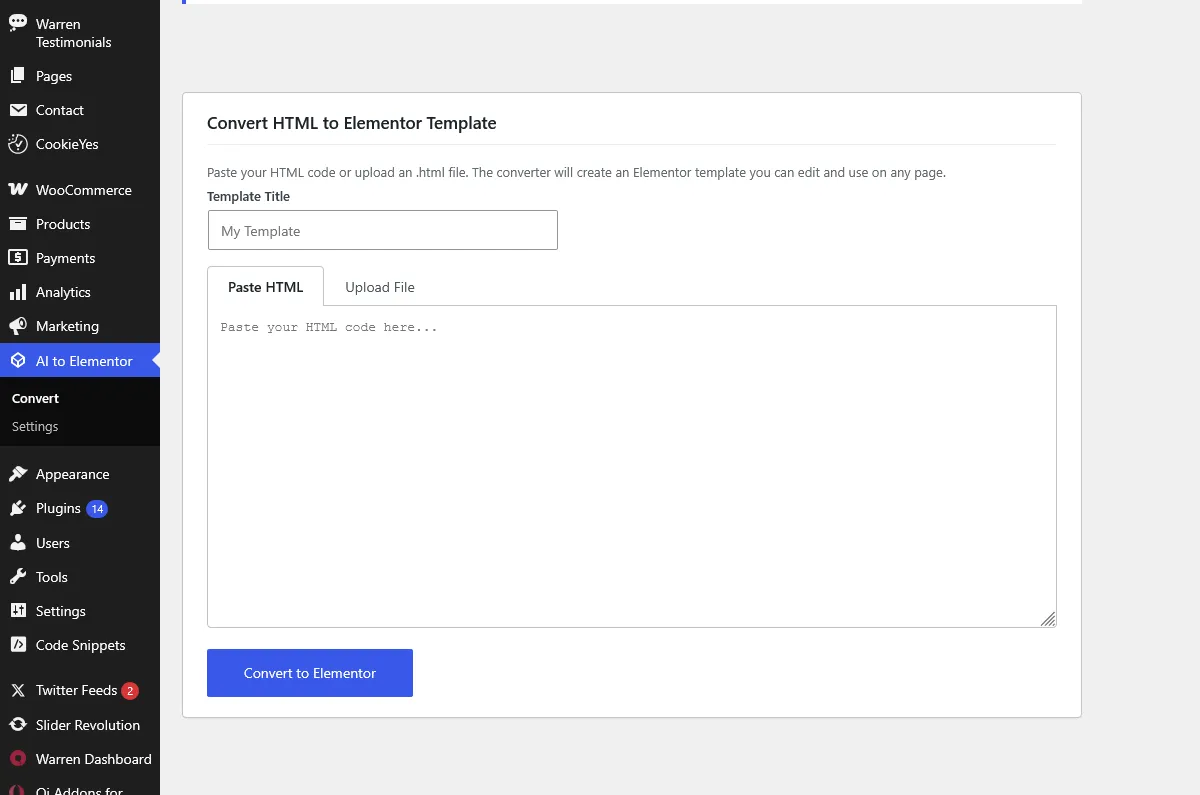
Main conversion screen — paste HTML or upload a file -
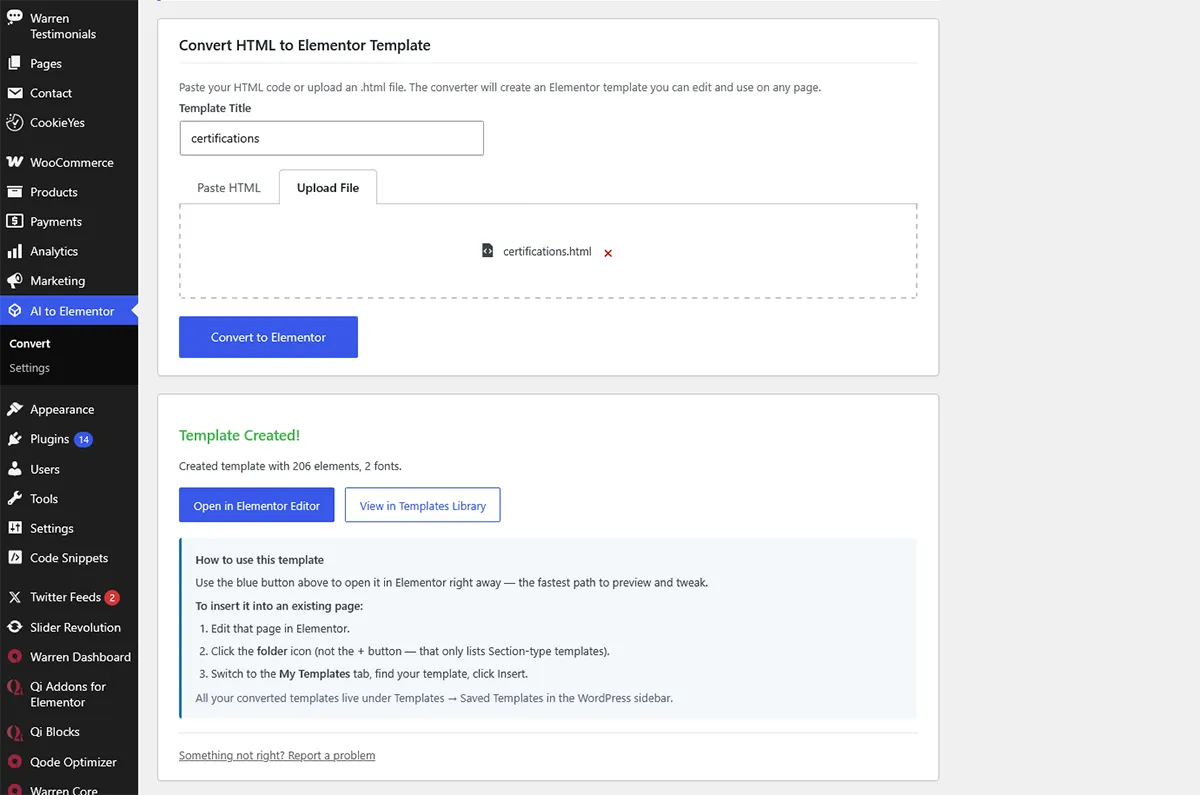
Successful conversion with template link -

Converted template in the Elementor editor -
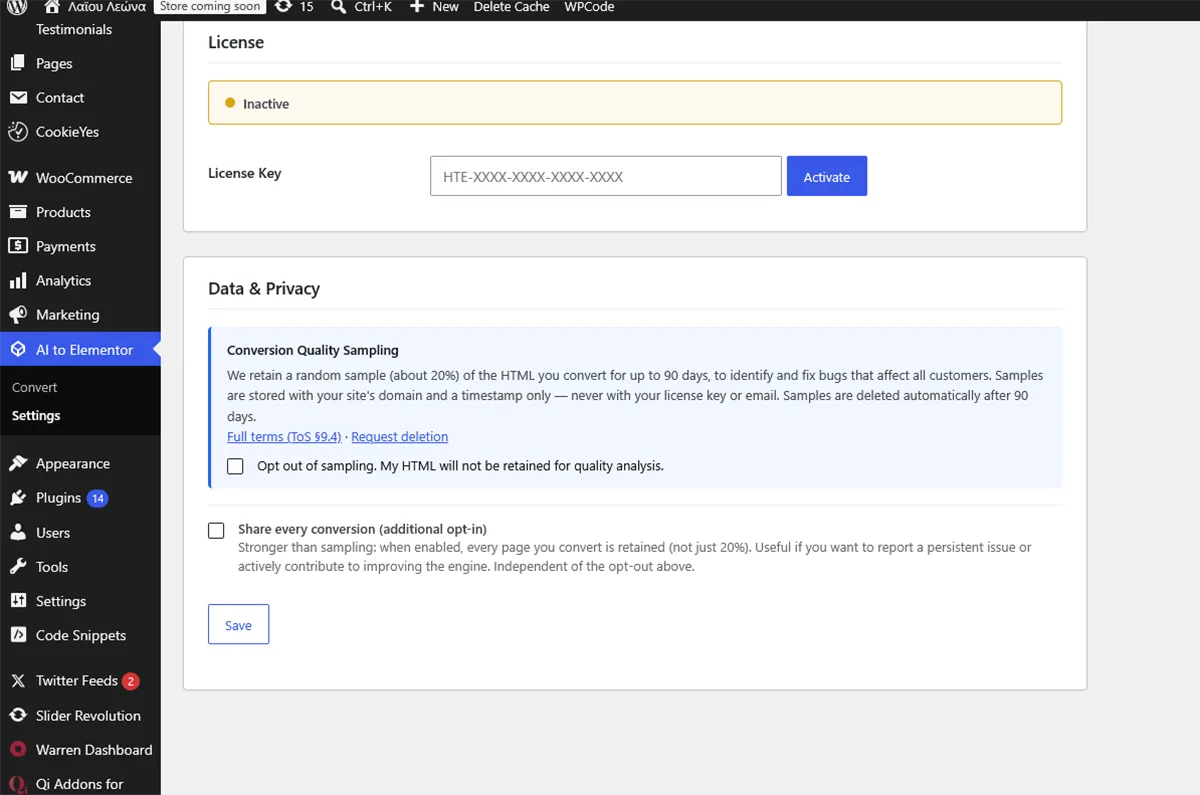
Settings page — service connection and data preferences
Important information
- Your HTML, template title and site domain are sent to the external conversion service. The vendor says it keeps a copy for up to 90 days to fix bugs, and you can opt out in settings or ask for deletion.
- Only one page converts at a time. It is not a whole-site importer, and a ZIP should hold a single page.
- Requires WordPress 5.8 or later, PHP 7.4 or later and Elementor. Elementor Pro is not required.
- If a converted page shows blank, enable Elementor's Flexbox Container feature. The plugin shows a warning and a button for this.
- Cleaner, well-structured HTML converts more accurately. Heavily nested or obfuscated markup is harder to map.
From the AI to Elementor readme
Straight from the developer's WordPress.org listing.
Full description
AI to Elementor — HTML Importer for Elementor converts HTML code into native Elementor templates — no copy-pasting into HTML widgets, no broken layouts. Your HTML becomes real Elementor containers, headings, text editors, images, buttons, and videos that you can edit visually.
This plugin is an independent project and is not affiliated with, endorsed by, or sponsored by Elementor Ltd. “Elementor” is a trademark of Elementor Ltd. This plugin is a conversion bridge for Elementor.
Perfect for:
• AI-generated pages from ChatGPT, Lovable, bolt.new, v0, or any code generator
• Static HTML websites you want to migrate to WordPress + Elementor
• Landing pages built in code that need to become editable templates
• Agencies converting client HTML mockups into Elementor sites
How it works:
• Paste the HTML for one page, or upload that page as an .html/.zip file
• Click “Convert to Elementor”
• Open your new template in the Elementor editor
• Repeat for each additional page
Important — convert one page at a time: This is a page converter, not a
whole-site importer. Each conversion turns a single HTML page into one editable
Elementor template. To migrate a multi-page site, convert each page separately
(e.g. index.html, about.html, contact.html — one at a time). A .zip may contain
one page’s HTML plus its images and CSS, but it should not contain an entire
website.
For the best results, follow our HTML guidelines — cleaner, well-structured
HTML converts far more accurately (especially for AI-generated pages):
https://aitoelementor.com/ai-guidelines/
Features:
• Converts HTML to native Elementor widgets (not HTML widgets)
• Preserves fonts, colors, spacing, and layout
• Supports containers, sections, headings, text, images, buttons, videos, icons, and more
• ZIP upload with automatic image import to Media Library
• Google Fonts detection and registration
• Works with Elementor 4 — converted pages import as classic elements, which Elementor 4 officially supports and lets you edit alongside its new Atomic elements (verified on Elementor 4.2)
What it costs (straight answer):
The plugin is free and every feature is unlocked — nothing is disabled in the
code. The conversion itself runs on an external service (see below), and that
service is metered:
• Free tier: one (1) free conversion per website, no sign-up and no key
required. Use it to try the plugin on a real page and see the quality before
you decide anything.
• Paid tiers (optional): if you need to convert more pages, the service
operator offers subscription plans with higher monthly conversion quotas at
aitoelementor.com. You enter the key in Settings.
This is a service quota, not a crippled plugin — the plugin code is identical on
the free and paid tiers. When you reach the free limit the plugin keeps working
and simply tells you the quota is reached; nothing breaks or disappears.
External Service: AI to Elementor Conversion API
This plugin sends HTML content to the AI to Elementor conversion service for processing. The conversion is performed by a Node.js-based engine that runs on the service’s external servers — it is not feasible to ship the engine inside a PHP plugin (the engine is ~17 MB of bundled JavaScript that uses headless-browser APIs, a CSS-tree parser, and other Node-only dependencies that cannot run in PHP).
What the plugin sends to the service:
• Your HTML content (the page you want to convert)
• The template title you choose
• Your site’s domain (used by the service to associate usage with your account)
• Your subscription key, if you have entered one in Settings (optional — without a key the service allows one free conversion per site)
What the service keeps:
• A copy of the HTML you submitted, retained for up to 90 days to identify and fix conversion bugs, then deleted automatically. Stored with your site’s domain and a timestamp only — never with your subscription key or email. Not shared with third parties and not used to train any model offered to others. This applies on the free tier as well as paid plans, and you can opt out in Settings > Data & Privacy or request deletion at privacy@aitoelementor.com. Full terms: Section 9.4 of the Terms of Service linked below.
What the service returns:
• Elementor-compatible JSON template data, which the plugin saves as an Elementor template on your site
• A list of Google Fonts detected in your HTML, which the plugin registers via Elementor
Service operator and policies:
• Service URL: https://api.aitoelementor.com
• Operator website: https://aitoelementor.com
• Terms of Service: https://aitoelementor.com/terms-and-conditions/
• Privacy Policy: https://aitoelementor.com/privacy-policy
The service has a free tier that allows one (1) conversion per website with no key, and optional paid subscription tiers with higher monthly conversion quotas. Both tiers use the same plugin code; the subscription is purely a service-side relationship with the operator and is not a condition of using the plugin. The plugin works fully on the free tier without any subscription. Quotas (if reached) are enforced by the external service and reported back to the plugin as plain error messages.
The service URL can be changed in Settings → AI to Elementor if you operate your own compatible conversion endpoint.
Installation
• Upload the plugin folder to /wp-content/plugins/ (or install directly from the WordPress Plugins screen → Add New)
• Activate the plugin through the “Plugins” menu in WordPress
• Ensure Elementor is installed and activated
• Go to “AI to Elementor” > “Convert” in the admin menu
• Paste HTML or upload a file and click “Convert to Elementor”
Developer FAQ (15)
- Do I need Elementor Pro?
- No. The plugin works with the free version of Elementor.
- Does it work with Elementor 4 (the Atomic editor)?
- Yes. Converted pages import as classic elements, which Elementor 4 officially supports alongside Atomic — you edit them exactly as before, and classic elements have no deprecation date. Verified on Elementor 4.2. If your site ships a widget your template uses as “legacy” (off by default), the plugin tells you exactly which one and how to enable it after the import.
- What HTML can I convert?
- Any valid HTML page — from AI code generators, static websites, landing page builders, or hand-coded HTML. The converter handles modern CSS layouts including flexbox and grid.
- How do I get the best conversion quality?
- Cleaner, well-structured HTML converts more accurately — semantic tags, sensible class names, and standard CSS layouts all help, while heavily-nested or obfuscated markup (common in some AI exports) is harder to map. We publish a short set of HTML guidelines with concrete do’s and don’ts here: https://aitoelementor.com/ai-guidelines/ — worth a look before converting AI-generated pages.
- Can I import a whole website at once?
- No — and this is important. The plugin converts one page per conversion, not an entire site in a single step. Each conversion produces one Elementor template from one HTML page. If you have a multi-page website, convert each page on its own: paste or upload index.html and convert it, then about.html, then contact.html, and so on. If you upload a .zip, it should contain a single page’s HTML plus that page’s images and CSS — not a full-site export. Trying to convert a whole site in one go will not work as expected.
- My converted page is blank / empty on the front end — why?
- The most common cause is that Elementor’s Flexbox Container feature is turned off on your site. Converted templates are built from containers, so with that feature disabled the page renders blank (even though the template imported correctly). The plugin now detects this and shows a warning with a one-click Enable Flexbox Containers button (for administrators). You can also enable it manually at Elementor → Settings → Features → Flexbox Container (set it to Active and save). After enabling, reload the page — it will render.
- My icons came in as markup instead of editable images — why?
- Icons drawn as inline SVG can be imported two ways. By default they are kept as markup: they render exactly as designed, but they are not editable through Elementor image controls, and the import notice tells you how many were kept that way. The alternative is to save each icon into your Media Library as a real file, which makes it an ordinary Elementor Image widget. That is off by default on purpose — writing SVG into a Media Library is a security decision that belongs to the site owner, not to a plugin. Every icon is re-sanitised through a geometry allowlist and Elementor’s own SVG sanitizer before anything is written, and the permission is scoped to the import itself rather than switching on SVG uploads site-wide. To enable it, add this to a small plugin or your theme functions.php: add_filter( 'htel_import_svg_icons', '__return_true' ); Convert the page again afterwards — the setting applies at import time, so pages already imported keep the markup they arrived with.
- What happens to images in my HTML?
- If you upload a ZIP file containing your HTML and images folder, all images are automatically imported to your WordPress Media Library and the paths are updated in the template.
- How many conversions do I get for free?
- The conversion service includes one (1) free conversion per website — no sign-up or key required — so you can try it on a real page first. If you need to convert more, the service operator offers optional paid subscription plans with higher monthly quotas; you enter the key in Settings. The plugin itself requires no subscription and locks no features — the quota is on the external conversion service, and the plugin works the same on both tiers.
- Where does my HTML go?
- To the conversion service at api.aitoelementor.com. See the “External Service” section above for full details, including the operator’s Terms of Service and Privacy Policy links.
- Where are my converted templates?
- Templates are saved to the Elementor Template Library. Go to “Templates” > “Saved Templates” in your WordPress admin, or use the direct link provided after conversion.
- Which AI page generators does it work with?
- It works with the HTML output of any code generator — ChatGPT, Claude, Lovable, bolt.new, v0, Cursor, and Anthropic Stitch are all supported, including the offline/bundled export formats some of them produce. It also works with plain hand-written HTML and static site exports. If it’s valid HTML, the converter can process it.
- What happens after I use my 1 free conversion?
- The plugin keeps working — you simply see a plain message from the service saying you’ve used your free conversion for this site. Nothing in the plugin is disabled or locked. If you need to convert more pages you can optionally subscribe to a paid plan on the service operator’s website and paste the key into Settings.
- Is my HTML kept or shared?
- Your HTML is sent to the conversion service to perform the conversion, and the service also keeps a copy for up to 90 days to find and fix conversion bugs. It is stored with your site’s domain and a timestamp only — never with your subscription key or email — and is deleted automatically. It is not shared with third parties and is not used to train any model offered to others. This applies on the free tier as well as paid plans. You can switch it off: untick sampling in the plugin’s Settings > Data & Privacy, and nothing further is kept. You can also ask for anything already collected from your site to be deleted by emailing privacy@aitoelementor.com with your domain. Full terms are in Section 9.4 of the operator’s Terms of Service, linked in the “External Service” section above. The plugin does not send anything in the background — it only contacts the service when you click Convert, enter a key, or save Settings.
- The conversion failed or my page looks off — what do I do?
- The result screen auto-diagnoses common causes (security/optimization plugins like Wordfence or SG Security blocking the request, outbound HTTPS blocked, or request-body size). Follow the on-screen guidance for your specific setup. For best fidelity, upload a ZIP that includes your HTML plus its images and CSS files so the converter has the full page.
Downloads, last 30 days
Trend vs previous period: -28.8%
Average daily downloads: 46 over the last 7 days , 74 over 30 days.
Security history
No known CVEs · 0 published vulnerabilities (Wordfence)
Recent releases
- v1.3.51
Changed: converting a page now needs a user who may save unfiltered HTML, the right WordPress asks for before it stores scripts and styles: an administrator or an editor on a standard site, the...
- v1.3.50
New: an AI tool connected to your site can run the conversion. On WordPress 6.9 or later the plugin registers a WordPress ability, `aitoel/convert-html`. An AI client connected to the site, for...
- v1.3.49
Fixed: backslashes were removed from what the plugin saved. A backslash in CSS - an escaped class name like `.md\:flex`, or a quote mark written `content:"\201C"` - was lost from a converted...
- v1.3.48
Fixed: an image whose web address has no file extension (Unsplash's, for example) stayed linked to the site it came from after import. When such an image arrives as an Image widget or a...
- v1.3.47
Improved: less CSS in a converted heading's Title field. When a word inside a heading was styled (a coloured accent word, say), opening the Heading showed that styling as code, like ` `. The...
Show 7 older releases
- v1.3.46
New: a "Go Premium" link in the AI to Elementor menu, under Settings, for sites without an active licence. Clicking it opens the plans on aitoelementor.com in a new tab. Nothing else changes:...
- v1.3.45
Fixed: after clicking Convert, the page now takes you to the result. It was always being shown - the template link, the conversion limit notice, the "your CSS file is missing" warning - but 1.3.43...
- v1.3.44
Improved: when icons on your page are kept as markup instead of becoming editable images, the import now says so and how many. This already happened - some pages arrived with a dozen icons as raw...
- v1.3.43
The import screen now points to the free design skill: one text file you hand to Claude, which writes the page for a real business before you convert it. Nothing installs on your site, and there...
- v1.3.42
ZIP uploads: an image referenced by a stylesheet from its own folder - for example a stylesheet in css/ using ../images/photo.jpg, which is how most site builders lay a site out - is now found in...
- v1.3.41
ZIP uploads: a stylesheet, image or background referenced with a cache-busting query string (for example style.css?v=2) is now found inside your archive and imported. Previously the reference was...
- v1.3.40
Global Typography: with “Add the page's colours and fonts to my Elementor Site Settings” enabled, headings and body text now arrive as full Global Font presets (size, weight, line height,...
AI to Elementor FAQ
Do I need Elementor Pro?
No. It works with the free version of Elementor.
Does it work with Elementor 4?
Yes. Converted pages import as classic elements, which Elementor 4 supports next to Atomic elements. The vendor verified this on Elementor 4.2.
What HTML can I convert?
Any valid HTML page, whether from AI generators, static sites, landing page tools or hand coding. Modern flexbox and grid layouts are handled.
How can I get better results?
Use clean, well-structured HTML with semantic tags, sensible class names and standard CSS layouts. Heavily nested markup is harder to convert.
Can I import a whole website at once?
No. Each conversion creates one template from one page. Convert each page on its own, and keep any ZIP to a single page with its assets.
Why is my converted page blank?
The usual cause is Elementor's Flexbox Container feature being off. Enable it under Elementor, Settings, Features, then reload the page.
AI to Elementor alternatives

Website Templates, Page Templates and Block Patterns for WordPress Starter Templates is a growing library of 300+ ready-to-use website templates for WordPress. Import a complete website design, a single page…

🚀 Explore Powerful 15+ FAQ & Accordion Blocks 📚 Start with 200+ Ready FAQ & Accordion Patterns 🌐 Visit the Official Website Easy Accordion ❤️ 176+ ⭐⭐⭐⭐⭐ Reviews & 4.9/5 Happiness Rating on Trustpilot Create…

Spectra Blocks is a complete rebuild of Spectra on WordPress’s modern core-block APIs - an AI website builder built directly into the Block Editor. Describe the page you want. Zip AI, our AI companion plugin,…

Build Anywhere. Own It In WordPress. Start from a prompt, a client brief, a Figma design, or an AI build. UiChemy turns it into native, editable WordPress you own, in the builder you already use. Building For…

Listdom is a directory system builder for WordPress, built for real directory projects rather than just listing cards. Create business directories, real estate portals, service directories, local guides, and…

CREATE A COMPELLING DARK MODE VERSION OF YOUR WEBSITE ✨ Create a dark mode version of your website without any complicated setup. Activate the plugin and your site visitors will experience a dark mode or light mode…
Listing data from WordPress.org and the Wordfence vulnerability feed, refreshed Nov 9, 2026; listing details fetched Nov 14, 2026. Screenshots are from the plugin's WordPress.org listing. Not affiliated with georget777.