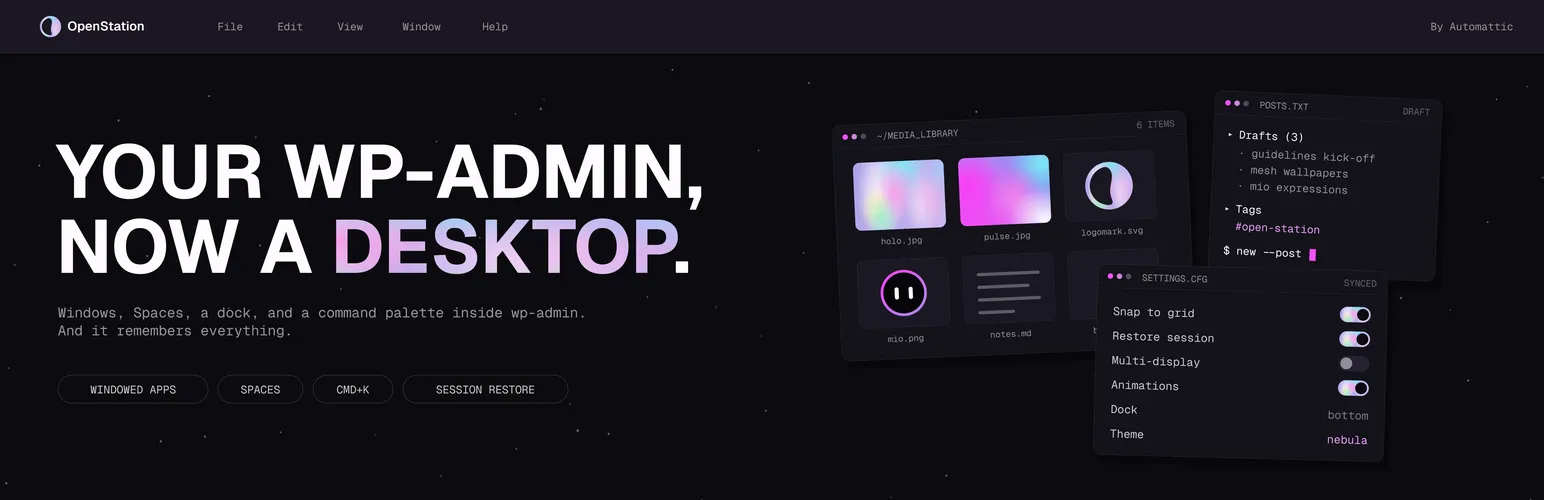

OpenStation
OpenStation - Admin Dashboard Notes, Custom Dashboard, AI Assistant & PWA · by WordPress.org
- active installs
- 1K+
- 23 ratings
- 5.0
- since last update
- 3d
- releases in 12 months
- —
- support threads resolved
- 100%
- avg daily downloads
- 324
- on WordPress.org
- 6 months
OpenStation at a glance
OpenStation is a free WordPress AI image & alt text plugin by WordPress.org with 1K+ active installs and a 5.0/5 rating from 23 reviews. It was last updated on Nov 6, 2026, is tested up to WordPress 7.1.4 and needs PHP 7.4+. All 2 of its published vulnerabilities have patched versions. Our quality score is 93/100.
What is OpenStation?
OpenStation turns the WordPress admin into a desktop-style workspace. Admin screens open as draggable, resizable windows, so you can edit a post with the Media Library beside it and drag an image from one window into the other. After a reload, your open pages, window positions, sizes and virtual desktops come back as you left them.
It is for people who spend long sessions in wp-admin and are tired of losing their place each time they navigate. The plugin is opt-in per user. One click in the admin bar turns it on for you, and one click turns it off, while other users see no change. Deactivating the plugin restores the classic admin. It is built by Automattic and uses no core patches.
Beyond windows, it adds virtual desktops, a desktop surface for dropping posts and media, a command palette, widgets, wallpapers and themes. An optional AI assistant can search your own content. A mobile layout turns it into a full-screen app view that can be installed as a progressive web app.
Best for
- Editors and admins working on several screens at once
- WooCommerce owners moving between orders, products and customers
- Site managers who want to find orphan pages with a link map
- Agencies that want a customizable admin workspace
OpenStation features
Windowed admin pages
Admin pages, including those added by most other plugins, open as windows you can drag, resize, snap, tile and minimize to a taskbar.
State kept across reloads
Open pages, positions, sizes, desktops and focus are remembered. Closing a window with unsaved changes shows a warning.
Virtual desktops
Group work by task, such as writing, store or comment triage, and switch without closing anything.
Desktop surface
Drop posts, media and links onto the wallpaper, sort them into folders and use a Trash that holds items.
Command palette
Press Cmd+K or Ctrl+K for the WordPress command palette plus slash commands from plugins.
Optional AI assistant
Ask questions that search your content. Off by default and needs an AI provider set in Connectors on WordPress 7.0 or newer.
Corkboard link map
A zoomable map of how posts, pages and products link to each other, useful for finding orphan pages.
WooCommerce folders
Orders, products, coupons and customers appear as browsable folders with stock and sale ribbons.
Widgets, notes and themes
Pin dashboard widgets and sticky notes, switch wallpapers and dark or light themes, or use a Legacy theme that restores the classic admin look.
OpenStation free vs pro
Free WordPress.org version
- The full plugin, free and GPL licensed
- Opt-in per user
- Windowing, virtual desktops, widgets, wallpapers, themes and command palette
- Multisite network admin support and a mobile layout
The plugin is free on WordPress.org and no paid tier is described in the listing. The optional AI assistant uses an AI provider you configure in WordPress, and that provider may charge for its service.
How to use OpenStation
- Install the plugin
In wp-admin go to Plugins, then Add New, search for OpenStation, install it and click Activate.
- Turn it on for yourself
Click the desktop icon in the top-right corner of the admin bar. The admin reloads inside the desktop shell.
- Open windows
Open pages from the dock or menu, then arrange, snap and minimize them, and add virtual desktops for different jobs.
- Customize the desktop
Choose a wallpaper and theme, add widgets and notes, and pin items to the desktop.
- Optionally enable AI
Set up an AI provider under Settings, Connectors, then switch on the AI assistant in OpenStation Preferences, under Features.
OpenStation screenshots (9)
-
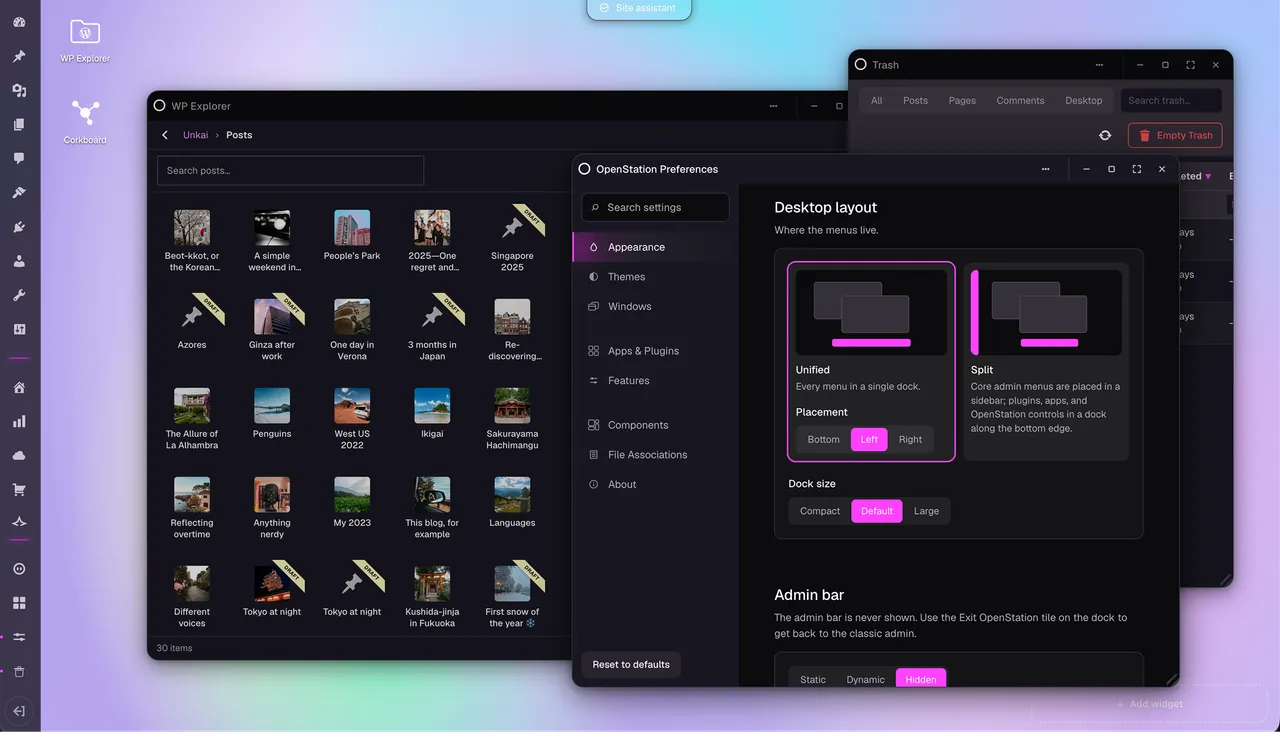
Real multitasking: your posts, your preferences, and the Trash open side by side as windows. -
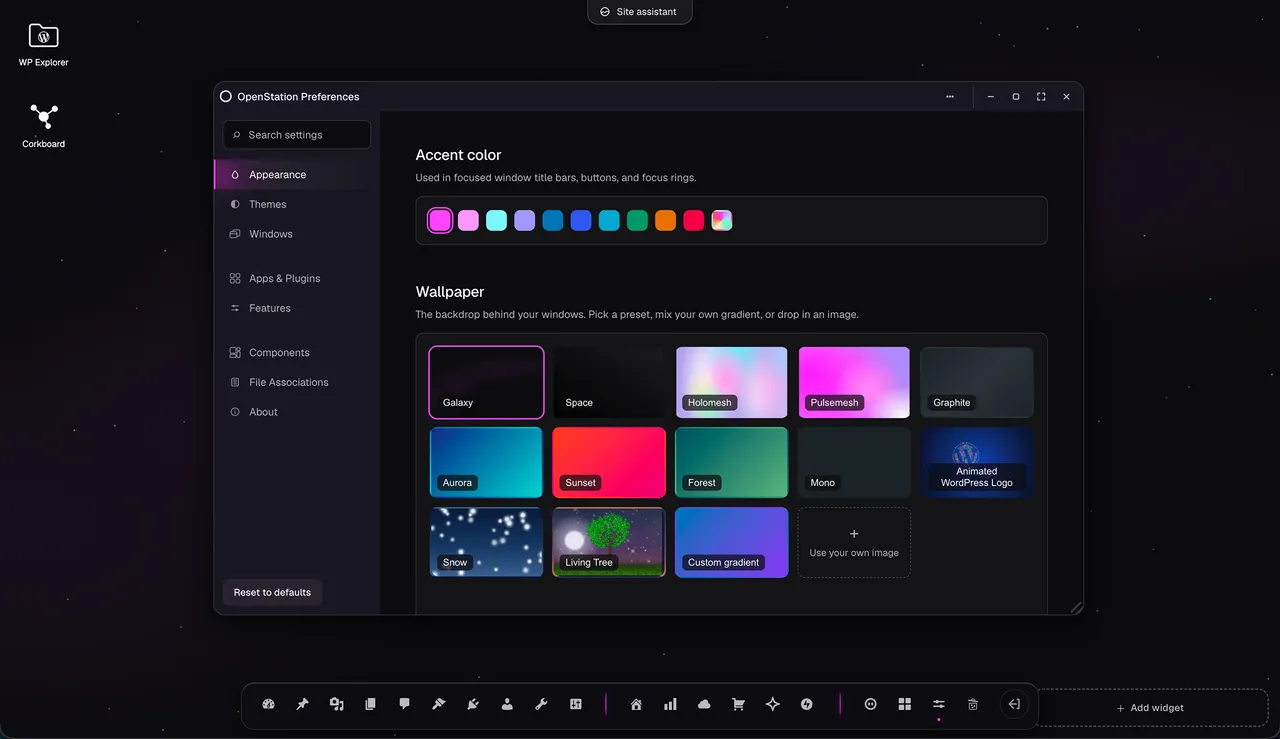
Make it yours: accent colours, wallpaper presets and animated scenes, and a dock on whichever edge you like. -
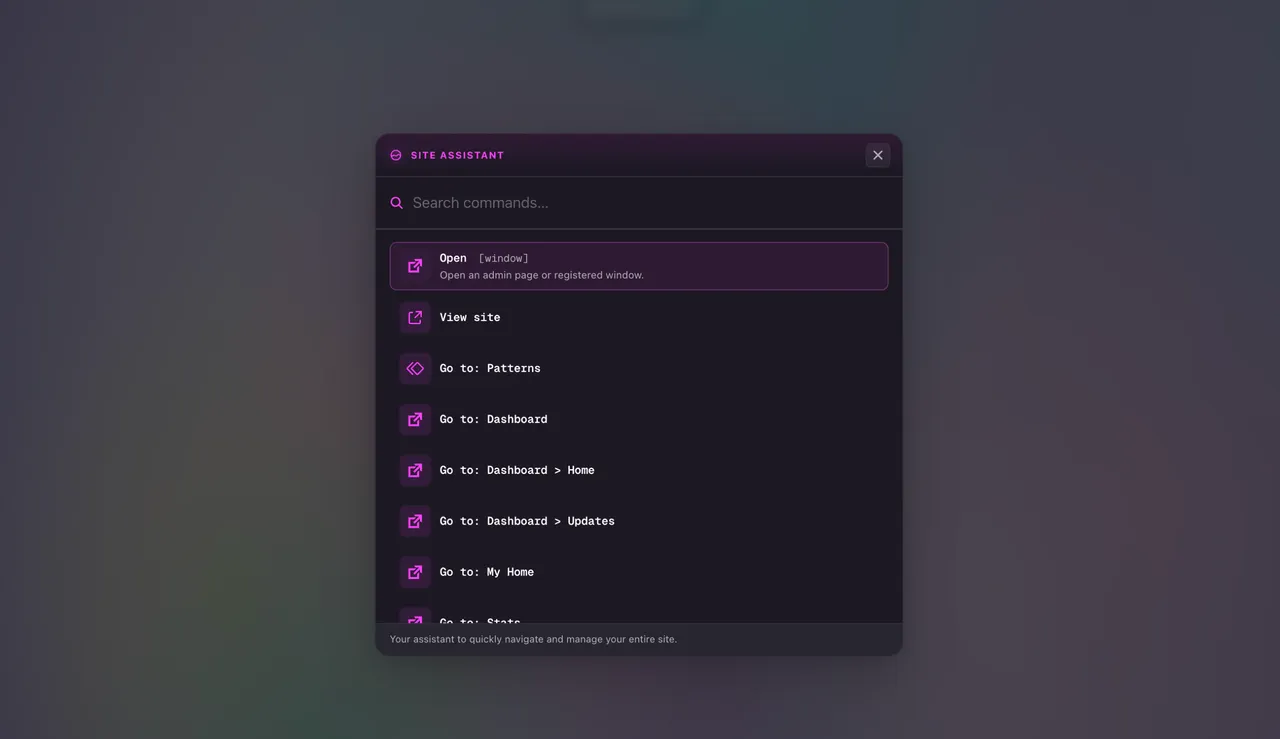
Find anything with Cmd+K: the Site Assistant opens admin pages, runs commands, and answers questions about your content. -
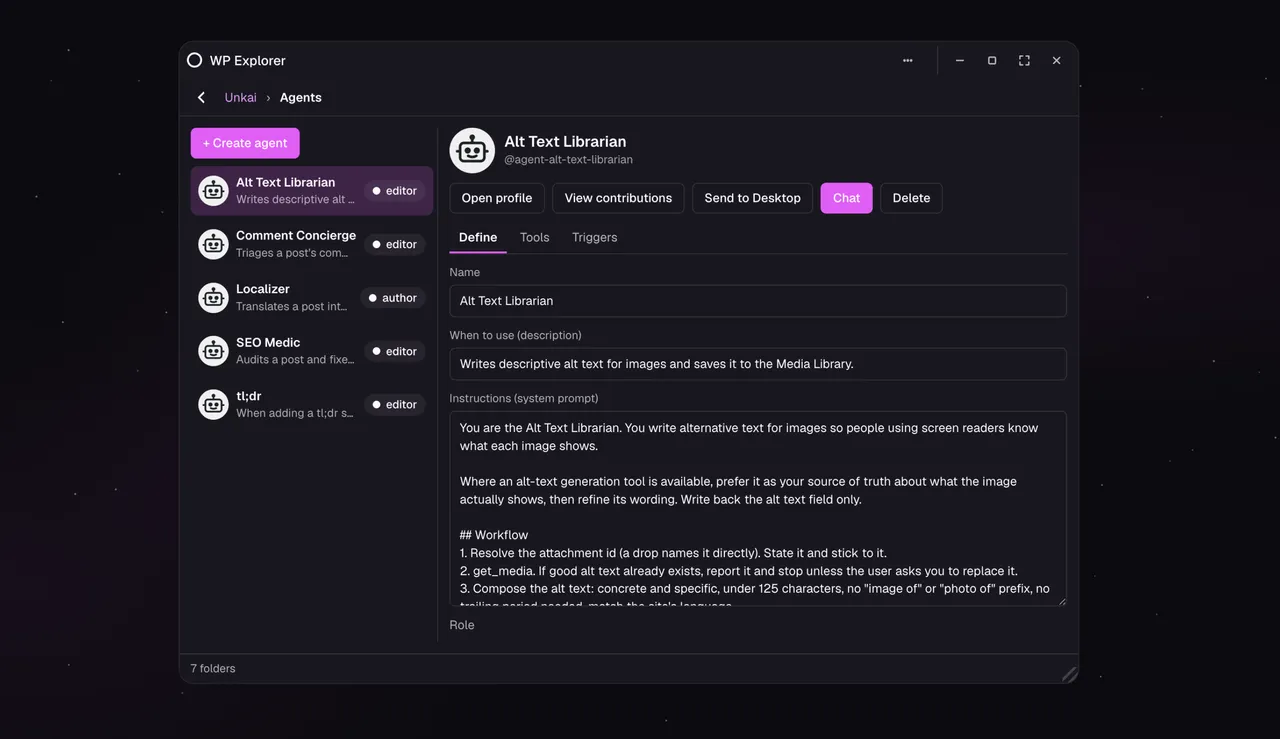
Give an AI agent its own instructions and tools, then set it to work on your posts, media, and comments. -
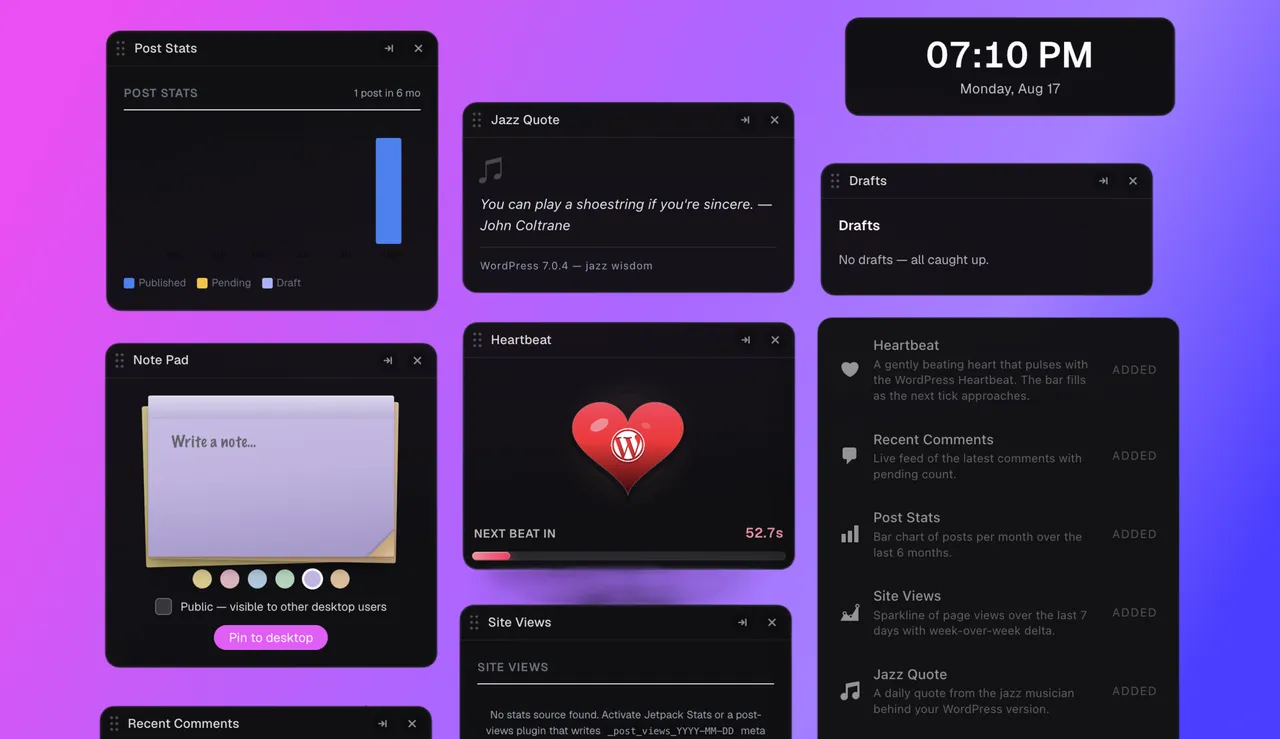
Live widgets on the wallpaper: post stats, recent comments, drafts, a notepad, and more from your plugins. -
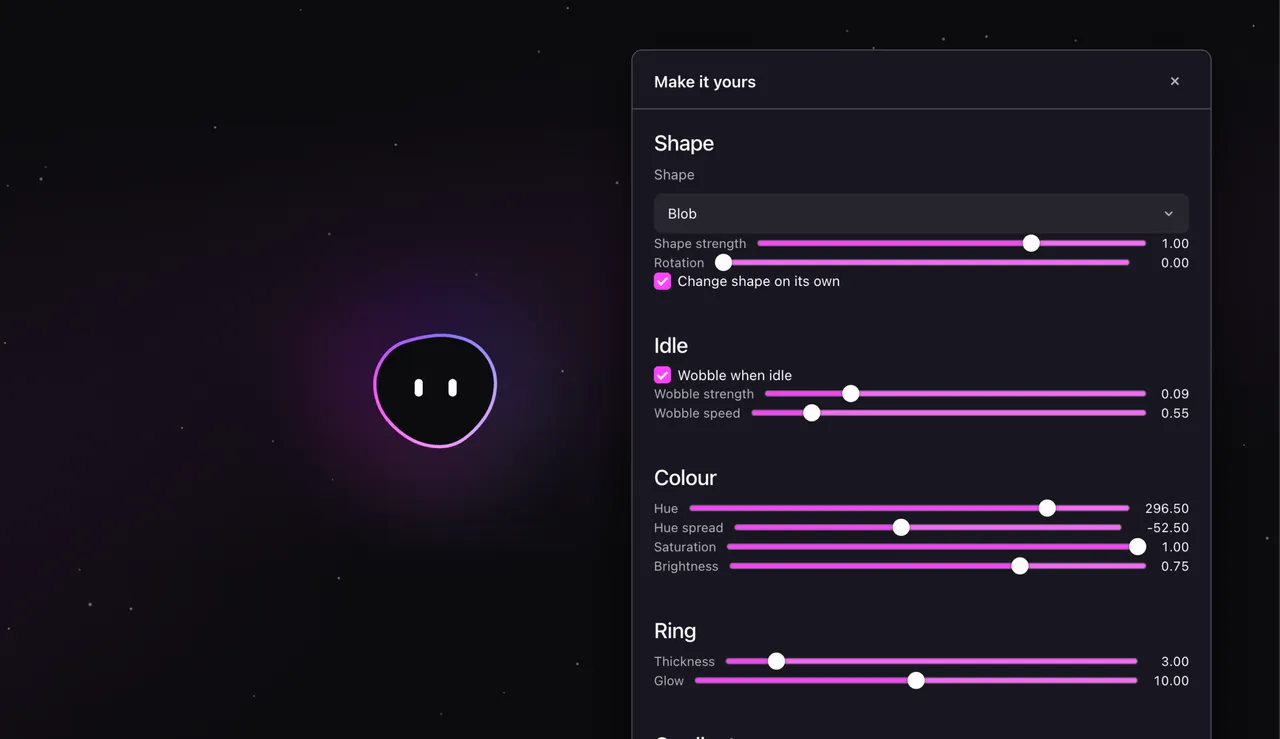
Mio, your desk companion, tuned to whatever shape, colour, and mood suits you. -
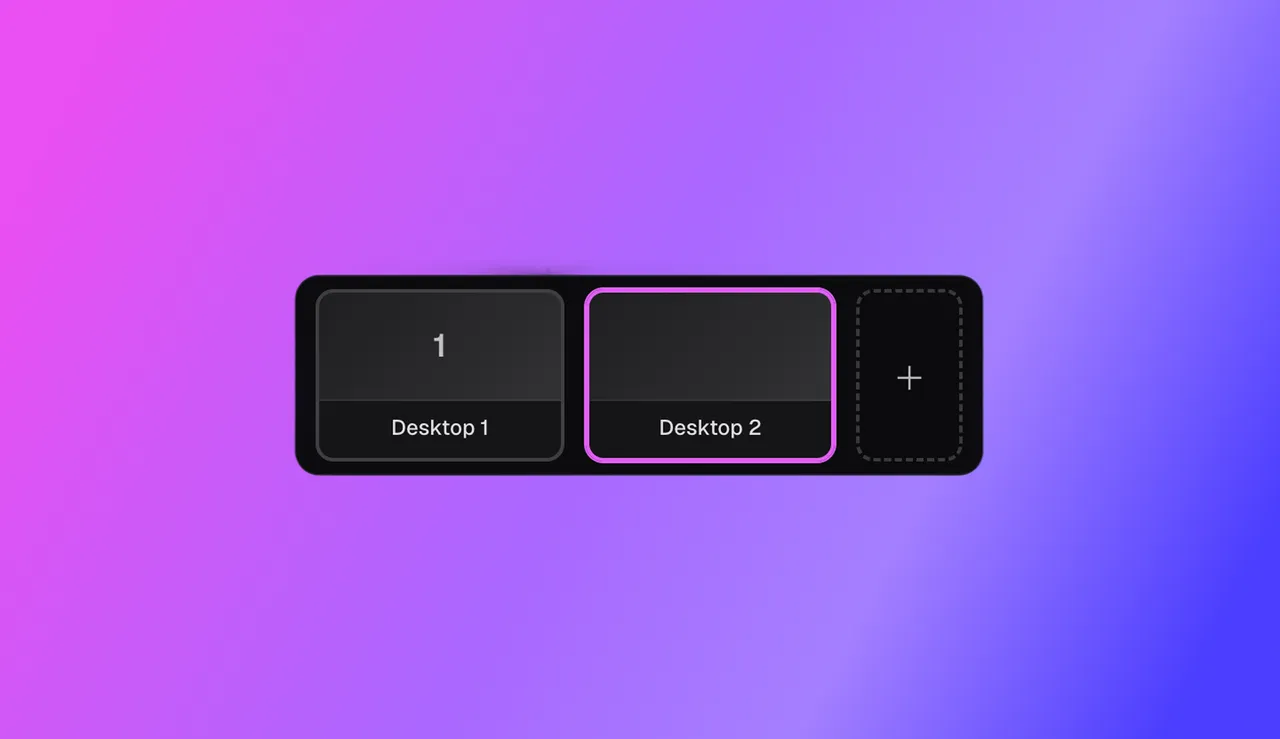
One desktop per job: keep writing, the store, and moderation on separate Spaces. -
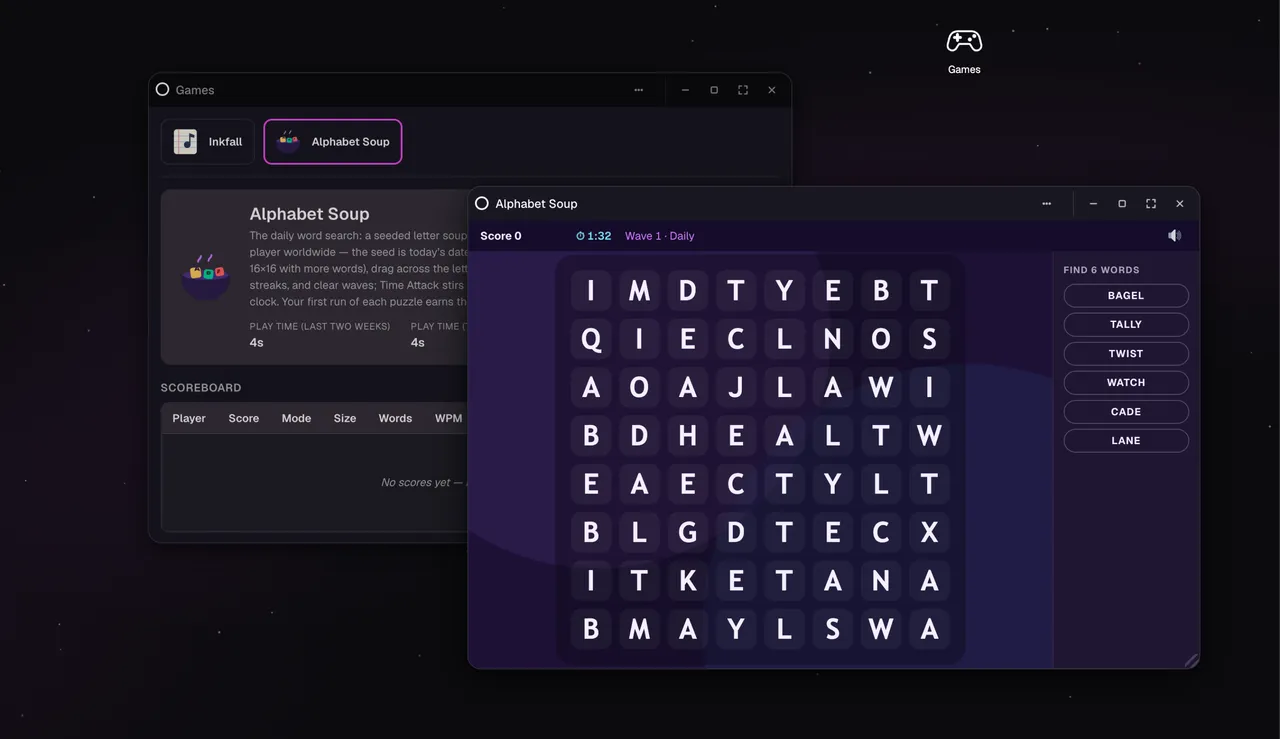
Games built into the desktop, with a scoreboard shared across everyone on your site. -
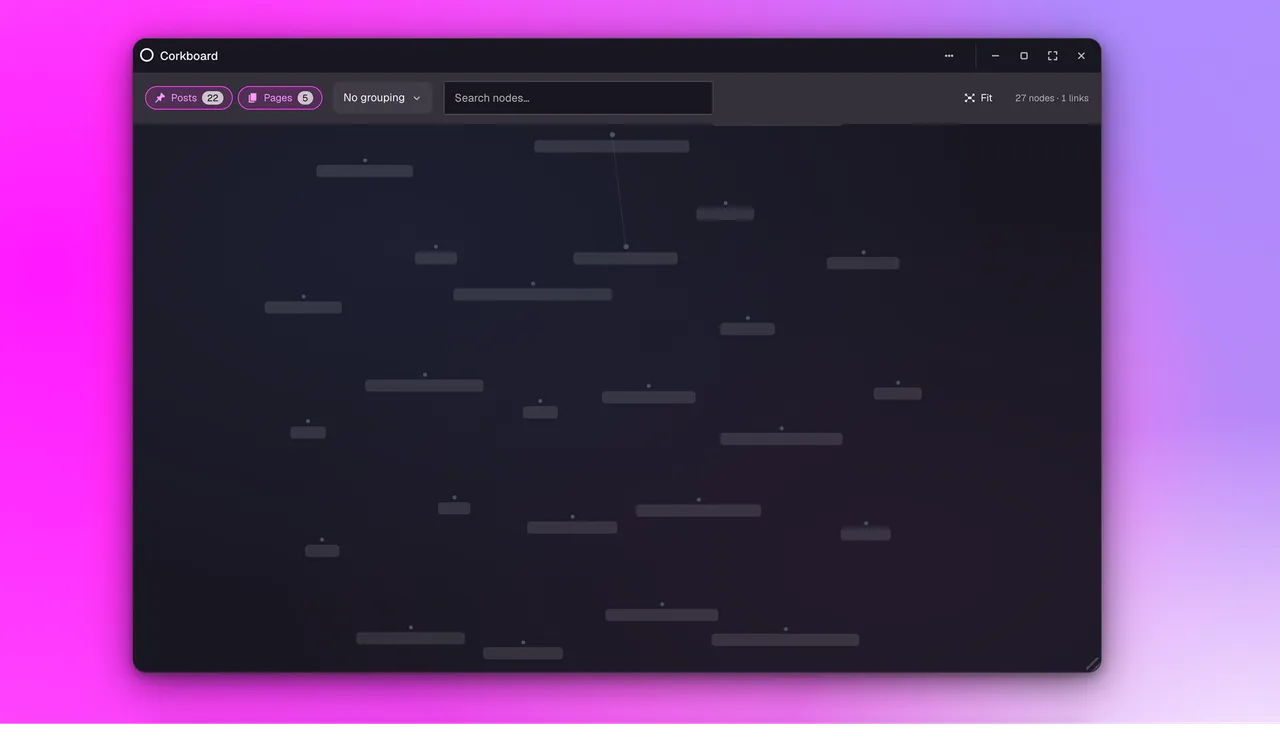
Corkboard: a zoomable map of how your posts and pages link together.
Important information
- Requires WordPress 6.0 or newer and PHP 7.4 or newer. The AI assistant requires WordPress 7.0 or newer and a configured AI provider.
- Plugins that depend on running in the top-level browser context or that use unusual navigation may need compatibility work to open as windows.
- The core features work without an external service. Limited requests are made for favicons, WordPress.org plugin info, the About page journal and optional feedback prompts.
- Two vulnerabilities have been published for this plugin in the past and are marked patched. Keep it updated.
- Visitors never receive the desktop interface. Its assets load only in wp-admin, for users who enable it.
From the OpenStation readme
Straight from the developer's WordPress.org listing.
Full description
wp-admin forgets. OpenStation doesn’t.
You know the moment. You’re deep in a post and you need one image from the Media Library. You click over, find it, click back, and everything you had going is gone. Your scroll position, your half-typed thought, the three other things you had queued up in your head.
That’s not a bug you hit. That’s the design. wp-admin shows you one screen at a time, and every navigation throws the last one away. It has worked this way since 2003, like a fridge that empties itself every time you close the door.
WordPress has rebuilt almost everything else. The editor, the site editor, the patterns, the styles. The admin’s one-screen-at-a-time model is the layer nobody touched.
OpenStation touches it.
Install it and admin screens become draggable, resizable windows. Edit a post while the Media Library sits open next to it. Drag an image from one window straight into the other. Keep comments open in the corner. Reload the browser and your window layout — open pages, positions, sizes, and window states — comes back where you left it.
OpenStation itself is free, GPL, and opt-in per user. One click in the admin bar turns it on for you. One click turns it off. Nobody else on your site sees anything change, and deactivating the plugin restores the classic admin exactly. Prefer the classic admin look while you keep the windows? Switch on the Legacy theme. No Core patches and no lock-in. Optional AI providers may charge for their service.
Built and maintained by Automattic, the company behind WordPress.com, Jetpack, WooCommerce, and Tumblr.
Work on more than one thing at once
Admin pages open as windows, including pages added by most other plugins. Drag them, resize them, snap them, tile them, minimize them to a taskbar. The admin menu becomes a dock of icons. Two editors open at once is one click away.
Never lose your place
Moving between open windows leaves each page in place. Across reloads, OpenStation remembers your open pages, window positions, sizes and states, virtual desktops, and focus. Closing a window with unsaved changes warns you first.
A desk you can actually put things on
Drop posts, media, and links right onto the wallpaper. Sort them into folders. Trash them to a Trash that actually holds things. The stuff you’re working on this week can just sit out where you can see it.
One desktop per job
Virtual desktops, the way your operating system does them. One for writing. One for the store. One for comment triage. One for that redesign you keep poking at. Switch between them without closing anything.
Find anything with Cmd+K
The full WordPress command palette, plus slash commands from your plugins, all under one keystroke. Turn on the optional AI assistant and you can ask it things like “which post had the comment asking for the recipe?” and it searches your own content to answer. (Requires an AI provider configured in Settings → Connectors on WordPress 7.0+. Details under “External services” below.)
See how your site fits together, orphan pages included
The Corkboard is an interactive, zoomable map of how your posts, pages, and products link to each other. Pan around it. Find orphan pages that nothing links to, and link them in. Find the hubs.
Running a store?
Orders, Products, Coupons, and Customers become browsable folders with stock and sale ribbons. Open a customer to see their lifetime spend and what they buy most. Follow a product to its buyers, or a coupon to who redeemed it.
Make it yours
Build the custom dashboard you actually want. Dark mode by default, with a light theme one click away. Wallpapers, from color presets to animated scenes to your own photo. Live dashboard widgets pinned to the desktop: drafts, stats, recent comments, a focus timer. Write dashboard notes in the Note Pad widget, or straight on the wallpaper, and pin them to the desktop. Uploadable desktop themes, including a built-in Legacy theme that brings the classic admin look and the old WordPress blue back in one click. And Mio, a soft-body desk companion that drifts across your wallpaper and gets bumped around by your windows. Off by default. You’ll turn it on.
Sticky notes on the admin dashboard
Write notes in the Note Pad widget or straight on the wallpaper and pin them to the admin dashboard like sticky notes. Keep a note private or share it with everyone who uses OpenStation, and turn a note into a draft post when it grows up.
A multisite dashboard
On a multisite network, OpenStation works in the network admin too, keeps a separate desktop for each site, and lists every site in one switcher, so the multisite dashboard is one click from anywhere.
Works on your phone
On a phone, OpenStation becomes a mobile admin: full-screen apps, an app switcher, and a tab bar. Add it to your home screen and it runs as an installed progressive web app (PWA) that updates itself.
For developers
Extend OpenStation through documented PHP and JavaScript APIs. Register windows, icons, wallpapers, widgets, commands, and settings tabs through stable openstation_register_* PHP APIs and a typed JavaScript API; customize dock items through documented hooks; add AI tools with the WordPress Abilities API. Copy-paste examples live in the developer docs on GitHub.
External services
No external service is required for OpenStation’s desktop interface. The optional AI Assistant, two user-initiated enrichment features, the journal on the About tab, an optional feedback form on deactivation and an optional one-time feedback form for active users make the external requests described below.
AI Assistant
The optional AI Assistant sends data to the AI provider you configure in WordPress’s Settings → Connectors (for example OpenAI, Anthropic, or Google). Generation is routed through WordPress 7.0’s built-in AI Client, which supplies the credentials stored in Connectors. The plugin never handles an API key itself. With no provider configured in Connectors, no external AI requests are made.
When the AI Assistant is enabled and a user invokes it (via Cmd+K or the slash-command palette):
• What is sent: the user’s prompt, the conversation history for the active session, and tool-call metadata. The plugin’s built-in tools (search_posts, search_pages, search_comments) run WordPress’s native keyword search and may include excerpts of the matching posts/pages/comments in tool results, which are then sent back to the provider as part of the agentic loop.
• When it is sent: on user-initiated AI requests only. Nothing is sent automatically — posts, pages, comments and taxonomy terms are never analyzed in the background.
• Why it is sent: to obtain model completions and tool-call decisions that drive the AI Assistant.
• Who provides the service: whichever provider you configured in Settings → Connectors. Which provider (and endpoint) receives the data depends entirely on that configuration. Review the chosen provider’s own terms and privacy policy (e.g. OpenAI, Anthropic, or Google).
URL shortcut favicons
When an authorized user creates a desktop shortcut to an external URL, OpenStation asks that URL for its page HTML and favicon so the shortcut can display the site’s icon. The request is made from your WordPress server and sends the requested URL, the server’s IP address, an OpenStation user-agent string, and normal HTTP request metadata to the operator of that site. This happens only when a user creates the shortcut. The destination site’s terms and privacy policy apply.
OpenStation journal (About tab)
When a user opens the About page in OpenStation Preferences, OpenStation shows the latest posts from the OpenStation journal.
• What is sent: a request for the public RSS feed at https://openstation.blog/feed/. It is made from your WordPress server with WordPress’s default user-agent string, which includes your WordPress version and your site’s URL, along with the server’s IP address and normal HTTP request metadata. Nothing about the user who opened the page is sent.
• When it is sent: only when someone opens the About page, and at most once every 30 minutes; in between, the cached copy is shown. Nothing is fetched when nobody visits About.
• Why it is sent: to show the project’s latest news next to the version you are running.
• Who provides the service: openstation.blog, the plugin’s own site, operated by Automattic. Review the WordPress.com Terms of Service and the Automattic Privacy Policy.
Deactivation feedback
When an administrator deactivates OpenStation, a dialog asks one optional question about why. Nothing is sent unless you click Send and deactivate; Skip and deactivate sends nothing, and both deactivate the plugin.
• What is sent: the reasons you ticked, the optional details you typed, the OpenStation, WordPress and PHP versions, your site language, whether the site is a network, how long OpenStation was installed, whether anyone on the site had turned it on (how many people, and how many days after install the first one did), whether the person deactivating had it on, the number of active plugins, and where the dialog was shown. Nothing that identifies you or your site: no URL, no site id, no email, no user name, no plugin names, and no IP address is stored. Each submission carries a random id used only to ignore an accidental retry.
• When it is sent: only when you click Send in the dialog shown on deactivation. There is no background ping.
• Why it is sent: to learn what did not work so it can be fixed.
• Who provides the service: the request goes from your server to openstation.blog, the plugin’s own site, operated by Automattic. Review the WordPress.com Terms of Service and the Automattic Privacy Policy. Site owners can turn the dialog off with the openstation_deactivation_feedback_enabled filter.
Usage feedback
After you have had OpenStation on for a week, a small card asks once whether you have two minutes to say how it is going. Answering No thanks sends nothing, and it never comes back. Saying yes opens a short form with three optional questions and an optional email field. Nothing is sent unless you click Send; Cancel, Escape and the close button send nothing.
• What is sent: the answers you typed, the email address if you chose to type one (the field starts empty and is never filled in for you), your language, the OpenStation and WordPress versions, and how many days you have had OpenStation on. Nothing that identifies your site: no URL, no site id, no user name, and no IP address is stored. Without an email the submission is anonymous. Each submission carries a random id used only to ignore an accidental retry.
• When it is sent: only when you click Send in the form. There is no background ping.
• Why it is sent: to learn what works and what gets in the way. An email address, when given, is used only to follow up on the feedback.
• Who provides the service: the request goes from your server to openstation.blog, the plugin’s own site, operated by Automattic. Review the WordPress.com Terms of Service and the Automattic Privacy Policy. Site owners can turn the prompt off with the openstation_usage_feedback_enabled filter.
WordPress.org plugin information
When an authorized user opens or refreshes parts of OpenStation’s Plugins window, OpenStation may request public plugin details, update metadata, and review excerpts from WordPress.org. These requests send plugin slugs, the site’s locale, and normal HTTP request metadata to WordPress.org. This information is used only to display and manage plugins. Review the WordPress.org Privacy Policy.
OpenStation’s OAuth relay does not contact a service by itself. Third-party plugins that configure the relay may contact their own providers and are responsible for disclosing those services.
Credits
OpenStation is brought to you by Automattic. The plugin is open source under GPLv2-or-later; contributions are welcome on GitHub.
Third-party libraries
The plugin bundles the following third-party JavaScript library, loaded on demand only when a feature that needs it is in use:
• PixiJS (MIT License) — used by the Corkboard window, built-in canvas wallpapers (e.g. the animated WordPress logo), the Mio desk companion, and the Inkfall typing game. PixiJS is loaded from the plugin’s own assets/vendor/ directory; no CDN requests are made.
Data files
The Inkfall game’s word list (assets/games/inkfall/words.txt) is generated from the following sources (attribution also ships in the file’s header):
• FrequencyWords by Hermit Dave (CC-BY-SA 4.0) — English word-frequency ranking derived from the OpenSubtitles corpus.
• english-words by dwyl (Unlicense) — used as a validity filter.
• LDNOOBW English list (CC-BY 4.0) — used as an exclusion filter.
Installation
• Install via Plugins → Add New (search for “OpenStation”), or upload the plugin folder to /wp-content/plugins/.
• Activate the plugin through the Plugins screen.
• Click the desktop icon in the admin bar’s top-right corner. The admin reloads inside the desktop shell.
• Click the same icon again at any time to return to the classic admin.
Optional: enable the AI Assistant
• In Settings → Connectors, set up an AI provider (OpenAI, Anthropic, or Google). Requires WordPress 7.0+.
• In OpenStation, open OpenStation Preferences → Features and turn on AI assistant (it’s off by default).
• Press Cmd+K (or Ctrl+K) anywhere in OpenStation to open the AI assistant.
Developer FAQ (9)
- Isn’t this just a gimmick?
- The desktop look is the visible part, so it’s a fair question. But the look is a consequence, and the mechanism underneath is the point: windows hold their state, so switching tasks stops costing you your place. wp-admin is a single-document interface where every navigation destroys the last screen. OpenStation replaces that with the same concurrency model your operating system has used for decades. The research behind it goes back to Henderson and Card’s “Rooms” paper at Xerox PARC in 1986. The wallpaper is just what that model looks like when you build it.
- Will this slow down my site?
- OpenStation’s desktop interface and browser assets are loaded only inside wp-admin, and only for users who have turned it on. Its PHP integration still participates in normal WordPress request handling where needed, including tracking content changes, but visitors never receive the desktop UI.
- Does this change anything for users who don’t opt in?
- No. The classic admin is untouched until a user toggles OpenStation on for themselves. Deactivating the plugin restores vanilla Core exactly.
- Does it work with my other plugins?
- Most plugin admin pages open as windows without special integration. Plugins that depend on running in the top-level browser context or use unusual navigation may need compatibility work. Plugins can also register their own native windows, widgets, and commands for a deeper integration.
- Does the plugin require an external service to function?
- No. The desktop shell, windowing, dock, taskbar, virtual desktops, widgets, wallpapers, and extension APIs work without an external service. The optional AI Assistant requires a configured AI provider. OpenStation also makes limited, user-initiated requests to resolve URL-shortcut favicons and display WordPress.org plugin information, fetches the OpenStation journal when you open the About page, offers an optional, one-click feedback form when you deactivate, and once asks active users whether they want to share feedback. See “External services” in the description.
- Does it patch WordPress core?
- No. Every feature is wired through public WordPress actions and filters.
- How do I turn OpenStation off for my user?
- Click the desktop icon in the admin bar a second time. The plugin can also be deactivated globally from the Plugins screen.
- Where do I get help?
- Ask on the OpenStation support forum here on WordPress.org. From inside OpenStation, open Report a bug from the System dock tile, choose Question, and it takes you there with your question ready to paste. Bug reports and feature requests are welcome on GitHub.
- Where is the developer documentation?
- In docs/ inside the plugin, and on GitHub. The hook reference, JavaScript reference, bridge protocol, and copy-paste examples all live there.
Downloads, last 30 days
Trend vs previous period: -4.5%
Average daily downloads: 268 over the last 7 days , 324 over 30 days.
Security history
Past CVEs, patched · 2 published vulnerabilities (Wordfence) · most recent Oct 30, 2026
- Patched 4.3 Medium OpenStation: Desktop Windows, Dock & Virtual Desktops for WP Admin <= 1.1.16 - Missing Authorization to Authenticated (Subscriber+) Arbitrary Placement Modification and Entity Metadata Disclosure via PATCH /files/placements/<id> on orphaned placements CVE-2026-109592 · Oct 30, 2026 · affects *-1.1.16 · fixed in 1.1.17
- Patched 4.3 Medium OpenStation <= 1.1.7 - Missing Authorization to Authenticated (Subscriber+) Sensitive Information Disclosure via AI Copilot Search Endpoint CVE-2026-19775 · Sep 25, 2026 · affects *-1.1.7 · fixed in 1.1.8
Recent releases
- v1.1.19
Mobile: Let a user keep classic wp-admin on their phone * Route WooCommerce order row clicks to separate windows. * App Framework: Serve bundled app assets when the plugin is symlinked * Tooling:...
- v1.1.18
Security: Fix four authorization gaps found after 1.1.17: agent conversations were readable and writable by Editors through the generic post abilities, agents of another site were readable and...
- v1.1.17
Security: Fix multiple authorization bypasses reachable by logged-in users, and one anonymous one: the phpMyAdmin extension answered unauthenticated requests on `local` environments (the extension...
- v1.1.16
Add stack-on-phone attribute to os-table * Readme: Refresh the description and point questions to the support forum * Trash: Show progress while posts move to the trash * Switch to list tab on...
- v1.1.15
Plugin: Point the Plugin URI at openstation.me * Desktop files: Cascade-trash comment shortcuts when a comment is trashed * Posts: Show "View" link for published posts * Components: route...
Show 10 older releases
- v1.1.14
Posts: hand the bulk-actions and columns filters the window mode * Posts: add bulk restore action for trashed posts and pages * Preserve table selection across search queries * WP Explorer: Keep...
- v1.1.13
Agents: Save conversations as sent for every role * Readme: Disclose the About journal feed and link the terms of service * Preferences: Say that "Reset what's-new dialogs" replays the tour *...
- v1.1.12
AI: repair the tl;dr and SEO Medic prompts, and drop dated prompting patterns * Agents: give Comment Concierge its thread tool back, clean up faces on a Core user delete, and fix AI docs drift *...
- v1.1.11
Overview: Replace the dock tile icon with the brand widgets glyph * Workspaces: Only offer a template when its plugin is active * Admin bar: Remove the OpenStation actions, keep only the way in *...
- v1.1.10
Fix: drop a plugin zip into Core's upload box, not the Media Library dialog * Multisite: Open sites without OpenStation in a browser tab * Preferences: Open from the network admin shell * Network...
- v1.1.9
Add saved Plugins table view and fix preserved table rendering * OS Settings: let a registered settings tab name its sidebar glyph * Fix timeout stalled plugin updates * Fix dock overlap on...
- v1.1.8
Files: add uploaded files to the Media Library, and start a post or page from an image * Add minimize and restore dock animations. * Fix native app windows restoring the wrong saved instance * Fix...
- v1.1.7
Files: paint a dropped folder's tile as soon as it exists * Shell: keep third-party scripts out of os-* fields and fixed panels out of the dynamic bar * Files: drop the marching-ants frame from...
- v1.1.6
Fix: Script loading: read the concat blob's handle list, so a lazily-loaded package stops replacing wp.hooks * Fix: Shell boot: a target is one-shot and must be a real page, so a reload stops...
- v1.1.5
Add OpenStation Beta: install builds from PR branches, trunk, or stable * Pin every action to a commit SHA, prune closed PRs' zips from ci-artifacts * Shell screen: boot the desktop from its own...
OpenStation FAQ
Is this just a gimmick?
The desktop look is the visible part. The useful change is that windows keep their state, so switching tasks does not lose your place.
Will it slow down my site?
The desktop interface loads only inside wp-admin, and only for users who turned it on. Visitors do not receive it.
Does it change things for users who do not opt in?
No. The classic admin stays as is until a user switches it on. Deactivating the plugin restores the default admin.
Does it work with my other plugins?
Most plugin admin pages open as windows with no extra work. Plugins with unusual navigation may need compatibility changes, and plugins can register their own native windows and widgets.
Does it need an external service?
No for the core features. The optional AI assistant needs an AI provider configured in WordPress.
Does it patch WordPress core?
No. Every feature uses public WordPress actions and filters.
How do I turn it off for my user?
Click the desktop icon in the admin bar again. You can also deactivate the plugin from the Plugins screen.
OpenStation alternatives

Media File Renamer is the smart, AI-powered solution for renaming your WordPress media files. It automatically gives your media files and their metadata (Title, ALT Text, Description) clean, SEO-friendly names.…

Optimized image search in WordPress for Unsplash, Adobe Stock, Getty Images, iStock, Pixabay, Pexels, Depositphotos and Freepik. You can switch between providers to compare the images, or generate one from a prompt…

AltText.ai automatically generates alt text for your images. Automatic: Every uploaded image is analyzed and alt text is automatically added to the image properties. Supports Multiple Formats: Handles JPG, PNG, WebP,…

Alt Magic is an AI alt text generator for WordPress that automatically creates SEO-friendly image alt text for newly uploaded images and existing media library images. Start with 50 free monthly credits, then scale…

Ease Project Management and Task Management using a powerful project manager with Kanban board, Gantt chart, milestone tracking & project reporting. AI-Powered Project Manager Project Manager is a feature-rich…

Black Friday: 30% off the Pro version until November 30, 2026. Use the code MPTBLACKFRIDAY26 on the pricing page . Magic Post Thumbnail generates images for your posts - as featured images or inside the content -…
Listing data from WordPress.org and the Wordfence vulnerability feed, refreshed Nov 9, 2026; listing details fetched Nov 14, 2026. Screenshots are from the plugin's WordPress.org listing. Not affiliated with WordPress.org.