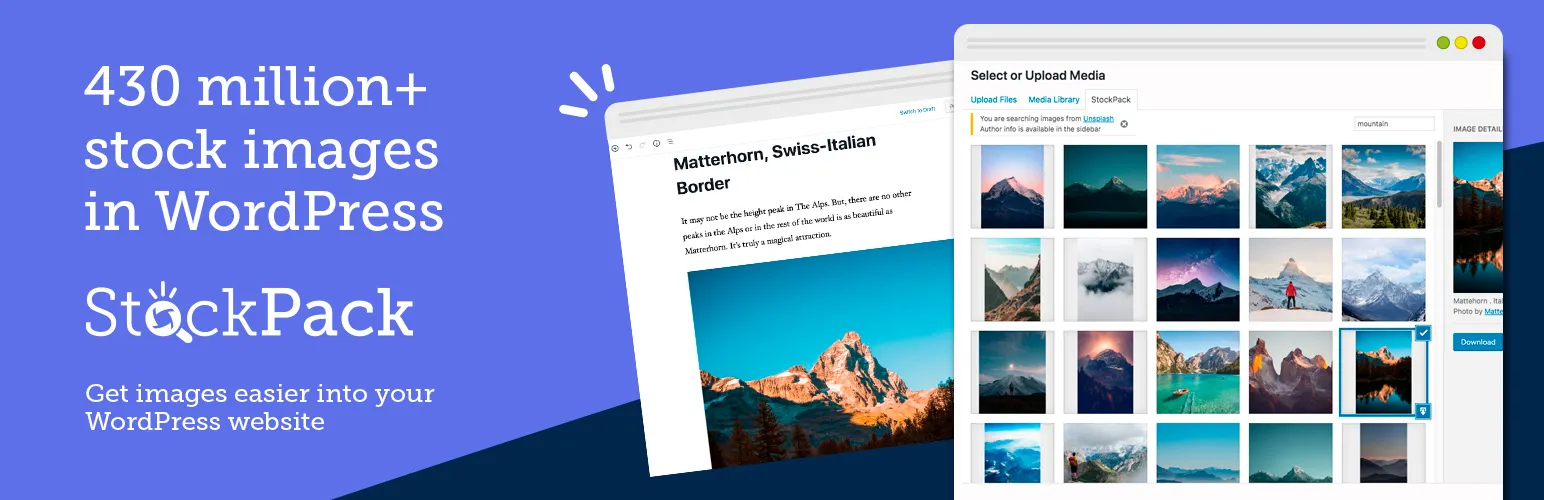

StockPack
StockPack - Stock photos and AI images from Unsplash, Adobe Stock, Freepik and more · by StockPack
- active installs
- 7K+
- 24 ratings
- 4.4
- since last update
- 3d
- releases in 12 months
- —
- support threads resolved
- —
- avg daily downloads
- 465
- on WordPress.org
- 6.9 years
StockPack at a glance
StockPack is a free WordPress AI image & alt text plugin by StockPack with 7K+ active installs and a 4.4/5 rating from 24 reviews. It was last updated on Nov 6, 2026, is tested up to WordPress 7.1.4. It has no published security vulnerabilities in the Wordfence database. Our quality score is 91/100.
What is StockPack?
StockPack adds a tab to the WordPress media library for searching and inserting stock photos. It connects to Unsplash, Adobe Stock, Getty Images, iStock, Pixabay, Pexels, Depositphotos and Freepik, which now trades as Magnific. Images are downloaded straight to your server, so you skip the manual download and upload steps.
It is useful for bloggers, marketers and agencies who source images from several providers and want to compare them in one place. You can switch provider at any time. Free sources need no account. Licensed sources from Adobe Stock, Getty and iStock need you to connect your own account to license a picture, and watermarked copies can be used for testing.
The AI part is image generation and upscaling through Magnific AI. Pick it in the provider list, type a prompt and choose a model. You pay either through your own Magnific API key or with prepaid StockPack credits. The listing says the cost per image is shown before you spend anything.
Best for
- Bloggers and marketers who use stock photos often
- Agencies working across providers
- Sites that need a record of image licenses
- Users who want AI images in the media library
StockPack features
Media library image search
A StockPack tab inside the media library lets you search eight stock providers without leaving WordPress.
Provider switching
Change providers at any time to compare results, from the dashboard or a dropdown in the plugin.
AI image generation
Choose Magnific AI, write a prompt, pick a model and the result goes to your media library. You can refine a generated image with a new prompt.
Upscaling
Upscale an image by 2x or 4x from the media library. The plugin asks first, since price depends on the size of the result.
Price shown up front
The cost per generated image appears next to the button and changes with the model you pick.
License history
Records the date, site, source page, author and license of every image you insert since 13 October 2026. The list is in the dashboard on paid plans.
Direct download to server
Images go straight to your server, which the listing says saves time and bandwidth.
Captions and file names
Fills captions with attribution automatically, lets you set a custom file name, and can add a source citation to any image.
Builder and multisite support
Works with Gutenberg, Elementor, Bricks, Divi and other builders, and with WPML. A global token can be set for multisite.
StockPack free vs pro
Free WordPress.org version
- The plugin and a free StockPack account plan
- Search and insert from Unsplash, Pexels and Pixabay without provider accounts
- Watermarked images from licensed providers for testing
Pro Paid version
- Standard and Premium StockPack plans include the License history list in the dashboard
- Licensing images from Adobe Stock, Getty or iStock through your own connected account
- AI generation and upscaling, paid with StockPack credits or your own Magnific key
The plugin and the base StockPack account are free, with an account needed after a certain usage limit. Paid StockPack plans exist, and prices are not given in the listing. Credits for AI generation start at $5 for a prepaid pack, with one credit equal to one US cent. There is no free tier for generation.
How to use StockPack
- Install the plugin
In wp-admin go to Plugins, then Add New, search for StockPack, then install and activate it.
- Open the StockPack tab
Go to the media library and open the StockPack tab. Register for a free account when the plugin asks.
- Search and insert
Pick a provider, search for an image and select it. Use the small download button to save several images without leaving the page.
- Connect paid accounts
To license images from Adobe Stock, Getty or iStock, connect your account in the StockPack dashboard.
- Generate or upscale
Choose Magnific AI, enter a prompt and pick a model. Or hover over an existing image and choose Upscale 2x or 4x.
StockPack screenshots (4)
-
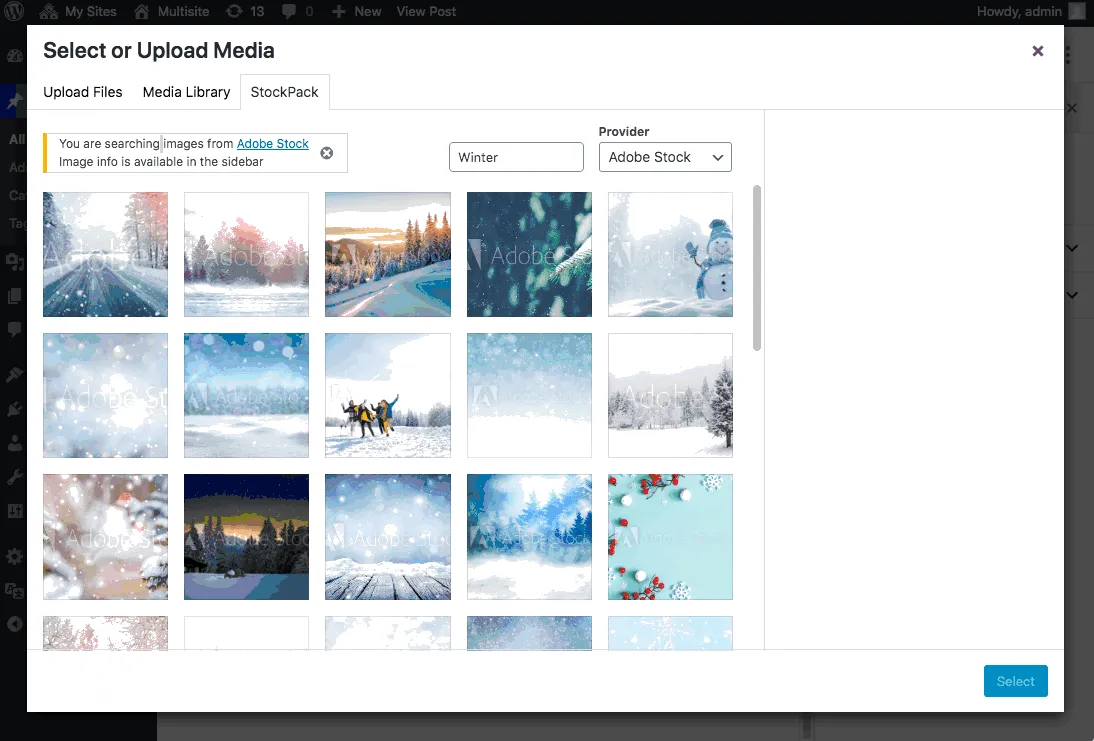
Searching images -
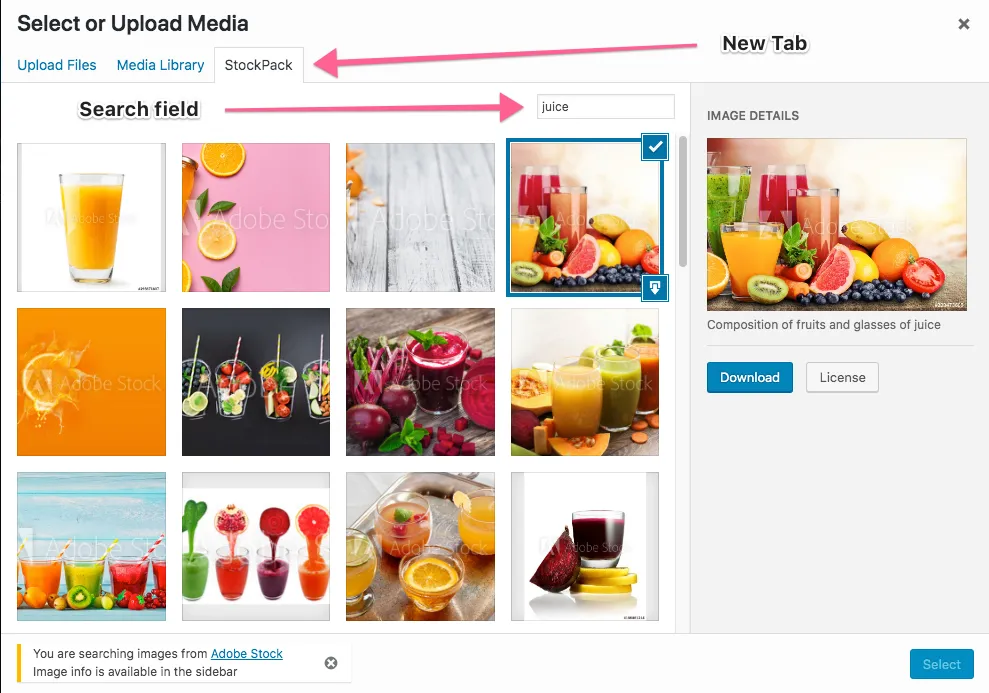
Inserting images -
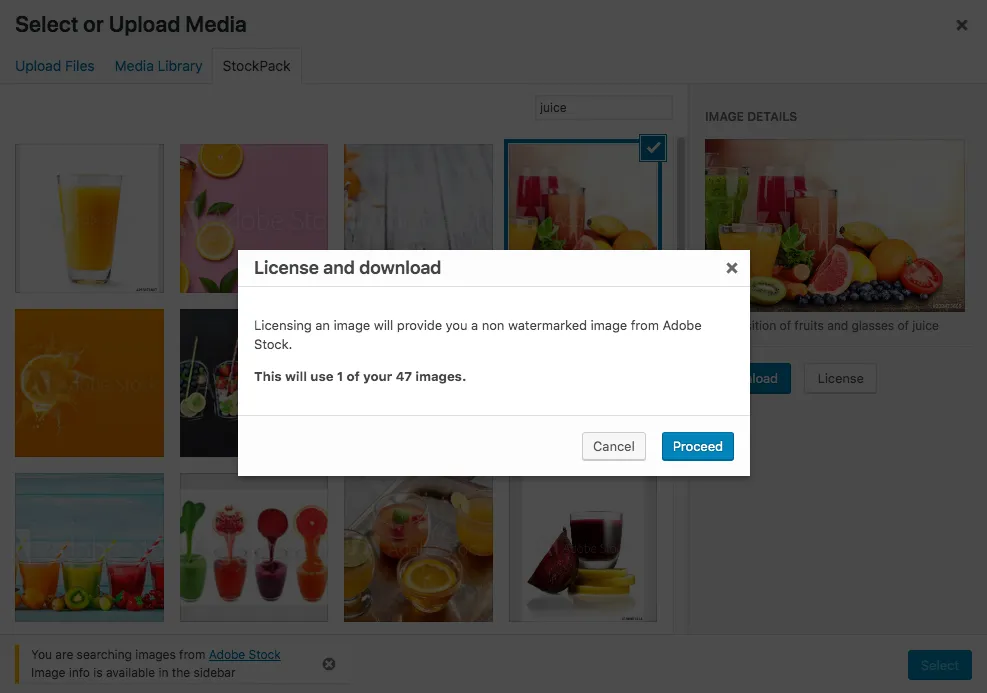
Licensing images -
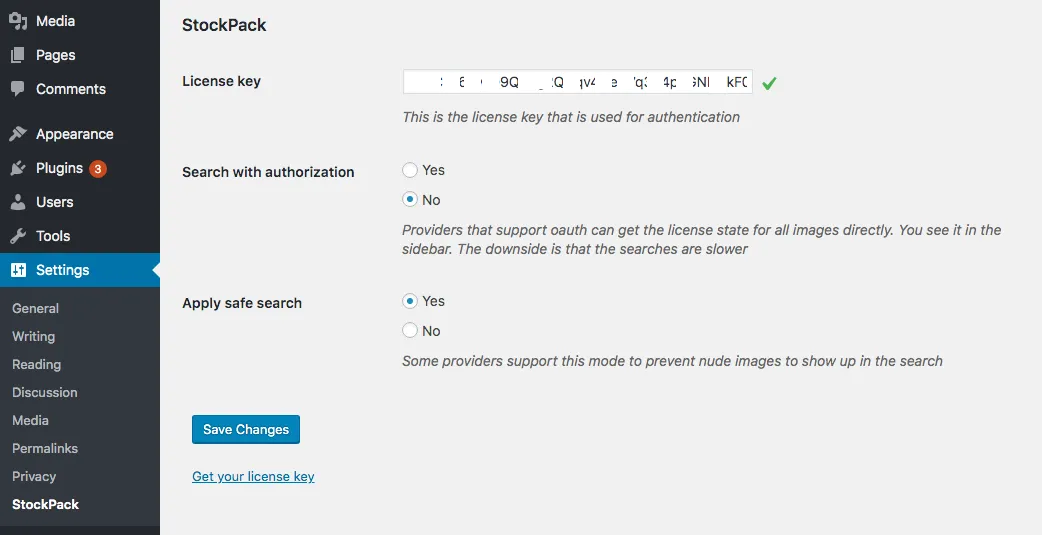
Settings page
Important information
- Requires WordPress 4.6 or higher. No minimum PHP version is stated in the data.
- Licensing rules vary by provider. Free sources have conditions, and Adobe Stock or Depositphotos need a subscription. StockPack does not give legal advice.
- A Freepik download uses one download from your Magnific plan and is always the full image, since there is no watermarked preview.
- AI generation always uses credits or your Magnific balance, even if your Magnific app shows unlimited generation. Generated image links from some models are short-lived, so download what you want to keep.
- Upscaled files are kept at full size and can be tens of megabytes. Magnific caps results at about 10,000 pixels wide.
- License history only records images inserted from 13 October 2026 onward.
From the StockPack readme
Straight from the developer's WordPress.org listing.
Full description
Optimized image search in WordPress for Unsplash, Adobe Stock, Getty Images, iStock, Pixabay, Pexels, Depositphotos and Freepik. You can switch between providers to compare the images, or generate one from a prompt with Magnific AI.
This plugin adds a media library tab for instant image search. It streamlines the process of finding and inserting stock images in WordPress.
430 million+ images available via StockPack. Direct download to save at least 50% on time and bandwidth!
With this WordPress plugin, you will get access to a 430 million+ images from your favorite stock image providers, currently including:
• Adobe Stock
• Deposit Photos
• Freepik (Magnific)
• Getty Images
• iStock
• Pexels
• Pixabay
• Unsplash
More providers will follow.
Watermarked assets can also be used for testing as demo images.
License history: a record of every image you insert
Free images from Unsplash, Pexels and Pixabay come without an invoice. When a copyright claim letter arrives, the first thing it asks is when and where you downloaded the image, and Unsplash only shows your last 100 downloads.
Since October 13, 2026 StockPack records every image you insert from WordPress, free or licensed: the download date and time, the site, the source page, the author and the license. On the Standard and Premium plans you open the list under License history in your StockPack dashboard, filter it by site, and every image in your Media Library gets a License history link in its attachment details. You can also import your earlier Adobe Stock licenses. Images inserted before October 13, 2026 are not recorded.
Freepik is now Magnific
Freepik renamed itself to Magnific in 2026. If you have a Magnific account, connect it in your StockPack dashboard and the Freepik library becomes searchable right inside your media library. Downloads use your own Magnific plan, at their prices, so StockPack never marks anything up.
Magnific does not offer watermarked previews, so a Freepik download is always the full image and always uses one download from your plan. StockPack tells you that before you commit, and re-inserting an image already in your library costs nothing.
AI image generation and upscaling
Pick Magnific AI in the provider dropdown and you get a prompt box instead of a search box. Describe the image, choose a model, and the result lands in your media library like any other image.
• Choose your own models. Enable the ones you want in Settings > StockPack, from a fast model at a fraction of a cent per image up to Mystic 2.5 for final artwork. The price per image is shown next to the button, and it follows the model you pick. On StockPack credits the choice is Mystic 2.5, because Magnific only lets us resell the models they build themselves; the rest stay available on your own key.
• Refine instead of starting over. Select an image you generated and tick “refine the selected image” to send it along with your next prompt.
• Upscale from the media library. Hover any image and use Upscale 2x or 4x. It asks first, because upscales are priced by the size of the result. Magnific caps the result at 10060×10060 pixels, so 4x needs a source under about 2500px wide and refuses larger ones before anything is charged. The upscaled file is kept at full size rather than scaled down, so a large one can be tens of megabytes.
• Your generations stay on screen so you can compare a prompt against what it came from, and a Clear action empties them when you are done. They are listed for as long as Magnific keeps hosting them: some models hand back short lived image links, so download anything you want to keep rather than treating the list as a gallery.
It works two ways. Connect your own Magnific API key in the StockPack dashboard and everything you generate or upscale is charged to your Magnific account at their prices, with nothing added on top. Or skip the key and pay from StockPack credits: prepaid packs start at $5, one credit is one US cent, the price per image in credits is shown next to the button and your balance beside it. There is no free tier or trial for generation. Credits buy Mystic 2.5, and prices are listed at https://stockpack.co/credits. Note that generating through an API always consumes credits, even on a Magnific plan that shows unlimited generation in their own app.
Features
• Search 430 million+ of images from stock providers
• Generate images from a prompt with Magnific AI, and upscale existing ones (with your own API key or StockPack credits)
• The cost per image is shown before you spend anything
• Seamless WordPress integration with the media library
• Direct download to your server
• License history: the download date, site, source page, author and license of every image you insert
• Automatic caption fill in to be in line with licensing requirements
• Set custom filename prior to the upload
• Compatible with Gutenberg, Elementor,Bricks, Divi, Beaver Builder, Visual Composer, Avada Fusion Builder, Oxygen Builder, WPBakery, Thrive Themes, Breakdance
• Compatible with WPML
• Featured image caption
• Source citation option for all images
SUPPORT
We provide year-round priority email support. You can reach us anytime at support@stockpack.co, or you can create a ticket on the WordPress support portal here.
Account
A free account is only required after a certain limit. You will be able to register from the WordPress admin or at stockpack.co.
Provider details
• Unsplash
All images on Unsplash are available for search and download directly in the plugin. You don’t need to register on Unsplash prior to using the plugin. Captions are automatically created for attribution as Unsplash recommends. An api key from Unsplash is not required. The last count provided by Unsplash is 1.5M+ images
• Adobe Stock
Images from Adobe Stock can be searched, downloaded, as well as licensed. You can download watermarked images from Adobe Stock for testing purposes. You do not need an api key from Adobe Stock. To license images you will need to connect your Adobe Stock account. The last count provided by Adobe Stock is 90M+ media assets.
• Getty Images
You can search and download all images on Getty Images instantly with the plugin. You can download watermarked images for testing purposes for up to 30 days. An api key from Getty Images is not required. To license images you need to connect to your Getty Images account. The last count we managed to find was 200M+ assets combined with iStock.
• iStock
You can search and download all images from iStock directly with the plugin. You can download watermarked images for testing purposes. You do not need an api key from iStock. Licensing images is only possible if you connect your iStock account. The total number of assets available on iStock is not publicly available, but the company suggests that Getty and iStock provide access to 200M+ combined.
• Pixabay
You can search and download all images on Pixabay instantly with the plugin. No account is needed to use Pixabay. As Pixabay recommends the attribution is already generated for you. You do not need an api key from Pixabay. The last count we could find for the number of assets from Pixabay is 1.7M+.
• Pexels
All images on Pexels can be searched and downloaded directly with the plugin. You do not need an account to use Pexels. The Pexels attribution is automatically generated for you. The Pexels api key is not required. The last count we could estimate for the number of assets from Pexels is 3.5M+.
• Depositphotos
Every asset on Deposit Photos is available within the plugin search. You do not need a Deposit Photos account to search or download images. Licensing from Deposit Photos is available, you will need to connect your account to use it. You do not need an api key from Deposit Photos. The last count from Deposit Photos is 130M+ media assets.
• Freepik, now part of Magnific
Searching and downloading the Freepik photo library requires your own Magnific API key, which you create in your Magnific account and connect in the StockPack dashboard. There is no watermarked tier, so every download is the full image and uses one of the stock downloads included in your Magnific plan. Search is restricted to photos, because Freepik delivers vectors and PSDs as archives that WordPress cannot attach as images.
• Magnific AI (generate)
Generation and upscaling run on your Magnific API key when you have connected one, or on StockPack credits when you have not; the balance is shown next to the price and on the settings page. Models and their per-image prices are listed in Settings > StockPack, where you choose which ones appear in the dropdown. On credits that list is limited to the models Magnific allows us to resell. Upscaling runs on your own key for now and is priced by the size of the result; on credits it will follow once that size-based pricing is settled, and until then the plugin says so before anything is sent. Magnific will not produce anything larger than 10060×10060 pixels. This is a beta.
External services
This plugin talks to one external service: the StockPack API. Nothing is sent until you search, download, generate or upscale.
StockPack API (api.stockpack.co)
Every search, download, license check, generation and upscale goes to the StockPack API, which contacts the stock providers on your behalf. Your site never calls a provider’s API directly. Each request sends your StockPack API token, your search terms or prompt or the id of the image you selected, and the address of your site, used as the referral so downloads can be attributed to your account. Provider accounts you connect, including Magnific, are stored on the StockPack API and not in your WordPress site. Buying credits happens on stockpack.co in your browser; the plugin only links there and never talks to a payment provider.
Terms of service: https://stockpack.co/terms
Privacy policy: https://stockpack.co/privacy
When you insert an image your server fetches the file itself from the address the StockPack API returns, which is the provider’s own CDN. Your browser loads result thumbnails from there as you browse.
Installation
• Upload the plugin files to the /wp-content/plugins/stockpack directory, or install the plugin through the WordPress plugins screen directly.
• Activate the plugin through the ‘Plugins’ screen in WordPress.
• Open media library and go to the StockPack tab as highlighted in the first screenshot
Developer FAQ (15)
- Is this free?
- Yes, the stockpack account has a free plan and the plugin is free.
- When will my favourite provider be supported?
- We are aiming to support all providers that give us api access. However that takes time and we prioritize based on request. Open a support ticket for your provider if one doesn’t exist and we will take that into account. If a ticket exists already, add a comment there so that it gets more priority.
- Can I load images from my own source?
- We are considering adding Google Photos, Dropbox as well as Amazon S3. Please create a support forum request so that we can see how much demand there is. If you already find a thread for that, please comment on it.
- How do I use it?
- There is a step by step guide available at https://stockpack.co/about
- How can I prove when I downloaded a free image from Unsplash, Pexels or Pixabay?
- StockPack records the download date and time, the site, the source page, the author and the license of every image you insert since October 13, 2026. On the Standard and Premium plans the list is under License history in your StockPack dashboard, and each image links to its record from the attachment details in the Media Library.
- Does StockPack keep a record of the image licenses on my site?
- Yes. Every image inserted with StockPack, free or licensed, gets a License history record. You can filter the list by site, which helps when you manage several sites, and import your earlier Adobe Stock licenses.
- Can StockPack help me answer a copyright claim letter?
- Claim letters usually ask when and where you downloaded the image and under which license. The License history record for the image has the download date, the source page, the author and the license, so you can answer from it. StockPack does not give legal advice.
- Can I use multiple providers?
- Yes, you are allowed to change the provider you want to use at any time. You can do that from the stockpack dashboard or from the select inside the plugin.
- Can I restrict the number of providers?
- Yes, you can remove some of the providers using the stockpack_providers filter. You can read more about it at https://stockpack.co/blog/how-to-filter-the-visible-stock-image-providers-select/
- Can I change file names for SEO?
- Yes, enable this setting from the settings page and you will be able to overwrite file names
- Can I download multiple images at the same time?
- When you select an image you will see that in the bottom right corner there is a small download button. If you use that, you won’t get redirected to the Media Library tab, and you can use that for all the images you want to download. If you are inserting a gallery, all the downloaded images will be added to the selection.
- Can I use the images for free?
- There are some providers like unsplash and pixabay which allow you to use the images for free, but certain conditions apply. Some providers like Adobe Stock or Deposit Photos will require you to create a subscription to get access to the images. You can read more about free images licensing at https://stockpack.co/blog/free-images-licensing-explained/
- Where can i learn about filters, actions, cli commands available?
- The available filters actions and cli commands for stockpack are documented at StockPack Documentation . You can also contact us if you have a request for a filter or action and we will consider it.
- Can I generate captions for attribution for all images including the featured image caption?
- Yes, you can enable fields that generate the caption and also display the caption for featured images. You can read more at: How to provide image credit in WordPress
- Can I use this on multisite with a global token
- Yes, you can define a global token using the STOCKPACK_TOKEN constant in your wp-config.php file like so: define( ‘STOCKPACK_TOKEN’, ‘your-token-will-go-here’ ); This will allow sites to set their own tokens via settings page, but if they don’t add one they can use the global token.
Downloads, last 30 days
Trend vs previous period: -6.5%
Average daily downloads: 814 over the last 7 days , 465 over 30 days.
Security history
No known CVEs · 0 published vulnerabilities (Wordfence)
Recent releases
- v3.8.0
New search filters at the top of the StockPack window: Orientation (horizontal, vertical or square) and AI images (include, exclude or only AI). Options a provider cannot do are hidden for that...
- v3.7.4
New setting, Image file name: build the downloaded file name and the media library title from the image title, the provider file number (for example AdobeStock_123456789), or both. A file name...
- v3.7.3
License history links in the attachment details now open the record for that image. * The limit dialog shows when the request limit resets again, and has an Upgrade button.
- v3.7.2
Images inserted with StockPack show a License history link in the attachment details.
- v3.7.1
Magnific AI is no longer marked beta.
Show 10 older releases
- v3.7.0
Generate, refine and upscale without a Magnific key: sites that have not connected one pay from prepaid StockPack credits, with the price per image and your balance shown next to the button. * On...
- v3.6.1
Fixed: with the provider filter on Default, a search could use a provider you had turned off in Settings > StockPack. The default now stays within the providers you enabled; picking which enabled...
- v3.6.0
Add the Freepik library, now part of Magnific, as a provider, plus Magnific AI image generation and upscaling. Both are a beta and run on your own Magnific API key, which you connect in the...
- v3.5.2
Fix overlapping search and provider labels in the media modal on WordPress 7.0.
- v3.5.1
Surface the actual provider error message on download/license failures instead of showing a misleading "reconnect the account" notice.
- v3.5.0
Add big image threshold compatibility with download (only supported by Unsplash) to reduce image size.
- v3.4.7
Added BreakDance compatibility
- v3.4.6
Fixed a compatibility issue with Beaver builder
- v3.4.5
Fixed backwards compatibility issue with DIVI
- v3.4.4
Fe load bugfix
StockPack FAQ
Is StockPack free?
Yes. The plugin is free and the StockPack account has a free plan. Licensed images, paid plans and AI generation cost extra.
Can I use more than one provider?
Yes. You can switch providers whenever you like, and you can hide some of them using a filter if you want fewer options.
Can I prove when I downloaded a free image?
License history records the date, site, source page, author and license of each image inserted since 13 October 2026. On Standard and Premium plans you can view and filter it in the dashboard.
Does it help with copyright claim letters?
The record gives the details such letters usually ask for. StockPack does not give legal advice.
Can I rename files for SEO?
Yes. Turn on the setting to overwrite file names before upload.
Can I download many images at once?
Yes. Use the small download button on a selected image to save without leaving the tab. Gallery inserts bring in all the images.
Does it work on multisite?
Yes. You can define a global token in wp-config.php, and each site can still set its own.
Can I add attribution captions?
Yes. You can fill captions automatically, show them for featured images and add a source citation.
StockPack alternatives

Media File Renamer is the smart, AI-powered solution for renaming your WordPress media files. It automatically gives your media files and their metadata (Title, ALT Text, Description) clean, SEO-friendly names.…

AltText.ai automatically generates alt text for your images. Automatic: Every uploaded image is analyzed and alt text is automatically added to the image properties. Supports Multiple Formats: Handles JPG, PNG, WebP,…

Alt Magic is an AI alt text generator for WordPress that automatically creates SEO-friendly image alt text for newly uploaded images and existing media library images. Start with 50 free monthly credits, then scale…

Ease Project Management and Task Management using a powerful project manager with Kanban board, Gantt chart, milestone tracking & project reporting. AI-Powered Project Manager Project Manager is a feature-rich…

wp-admin forgets. OpenStation doesn’t. You know the moment. You’re deep in a post and you need one image from the Media Library. You click over, find it, click back, and everything you had going is gone. Your scroll…

Black Friday: 30% off the Pro version until November 30, 2026. Use the code MPTBLACKFRIDAY26 on the pricing page . Magic Post Thumbnail generates images for your posts - as featured images or inside the content -…
Listing data from WordPress.org and the Wordfence vulnerability feed, refreshed Nov 9, 2026; listing details fetched Nov 14, 2026. Screenshots are from the plugin's WordPress.org listing. Not affiliated with StockPack.