
ThinkRank SEO
ThinkRank SEO - AI SEO Plugin for SEO & Google Search Console · by WPDeveloper
- active installs
- 20K+
- 37 ratings
- 4.9
- since last update
- 0d
- releases in 12 months
- —
- support threads resolved
- 75%
- avg daily downloads
- 2,990
- on WordPress.org
- 15 months
ThinkRank SEO at a glance
ThinkRank SEO is a free WordPress AI SEO plugin by WPDeveloper with 20K+ active installs and a 4.9/5 rating from 37 reviews. It was last updated on Nov 9, 2026, is tested up to WordPress 7.1.4 and needs PHP 7.4+. It works with Google Gemini. It has no published security vulnerabilities in the Wordfence database. Our quality score is 94/100.
What is ThinkRank SEO?
ThinkRank SEO is an SEO plugin for WordPress with AI writing help. It manages titles, meta descriptions, focus keywords, schema markup, XML sitemaps, canonical URLs and social metadata. It also shows Google Search Console data inside your dashboard.
It is aimed at site owners, publishers, agencies and stores that want one plugin for on-page and technical SEO. A setup wizard can import existing data from Yoast SEO, Rank Math, AIOSEO, SEOPress, Squirrly SEO and Slim SEO, so switching does not mean starting over.
Two things set it apart. AI generation runs on your own provider key, so ThinkRank sells no credits and your provider bills usage. And it includes a built-in MCP server that lets assistants such as Claude, ChatGPT and Cursor work with your SEO settings, with access you approve by area. Core SEO features work without any AI key.
Best for
- Site owners switching from Yoast or Rank Math
- Publishers writing metadata at scale with AI
- Agencies managing SEO across client sites
- Teams that want an AI assistant to run SEO tasks
ThinkRank SEO features
AI titles and descriptions
Generate suggestions for posts, pages, products and custom post types. You check a search preview and edit before applying.
Focus keyword analysis
Scores how your content uses a chosen keyword in titles, headings and body text. It also gives tips on links, readability and structure.
Schema markup
Outputs JSON-LD for Article, FAQ, HowTo, Organization, Local Business, Breadcrumb and more. Blocks for FAQ and HowTo help you add structured content while writing.
XML sitemaps
Four modes: Basic, Complete, E-commerce and Segmented, with a sitemap index and robots.txt discovery.
Search Console in the dashboard
See clicks, impressions, queries and keyword opportunities without leaving WordPress.
Built-in MCP server
Off by default. An administrator enables it and approves each connection, with read or write access per area and an activity log.
llms.txt generator
Builds a Markdown index of important content for AI tools. The listing notes it does not guarantee rankings or citations.
Site SEO Analyzer
A whole-site audit with a 0 to 100 score and per-category results, without needing a Google connection.
Builder and multilingual support
Has SEO panels in Elementor, Divi and Oxygen, and works with WPML and Polylang.
ThinkRank SEO free vs pro
Free WordPress.org version
- Metadata controls, content analysis and schema controls
- XML sitemaps, canonical URLs, robots meta and social metadata
- Search Console connection and the Site SEO Analyzer
- Built-in MCP server and llms.txt generator
- Product metadata, Local Business schema and an E-commerce sitemap mode
Pro Paid version
- Redirect manager and 404 monitoring
- Broken-link checker and AI internal linking
- Google Analytics 4 integration
- Advanced WooCommerce product SEO and multi-location local SEO
The plugin is free, and a paid ThinkRank Pro version adds the extra tools above. AI generation needs your own key from OpenAI, Anthropic, Google Gemini or OpenRouter, or a compatible custom endpoint, and that provider bills the usage. ThinkRank does not sell AI credits.
How to use ThinkRank SEO
- Install the plugin
In wp-admin go to Plugins, then Add New, search for ThinkRank, then install and activate.
- Run the Setup Wizard
Import data from your old SEO plugin if you have one, then choose your AI provider and enter its API key.
- Set the basics
Configure metadata, schema, sitemaps, canonical URLs, social metadata and llms.txt to fit your site.
- Optimize your content
Open a post, set a focus keyword, generate a title and description with AI, and review them in the search preview.
- Connect Search Console or an assistant
Link Google Search Console for traffic data. If you want an AI assistant, enable MCP and approve its connection.
ThinkRank SEO screenshots (9)
-
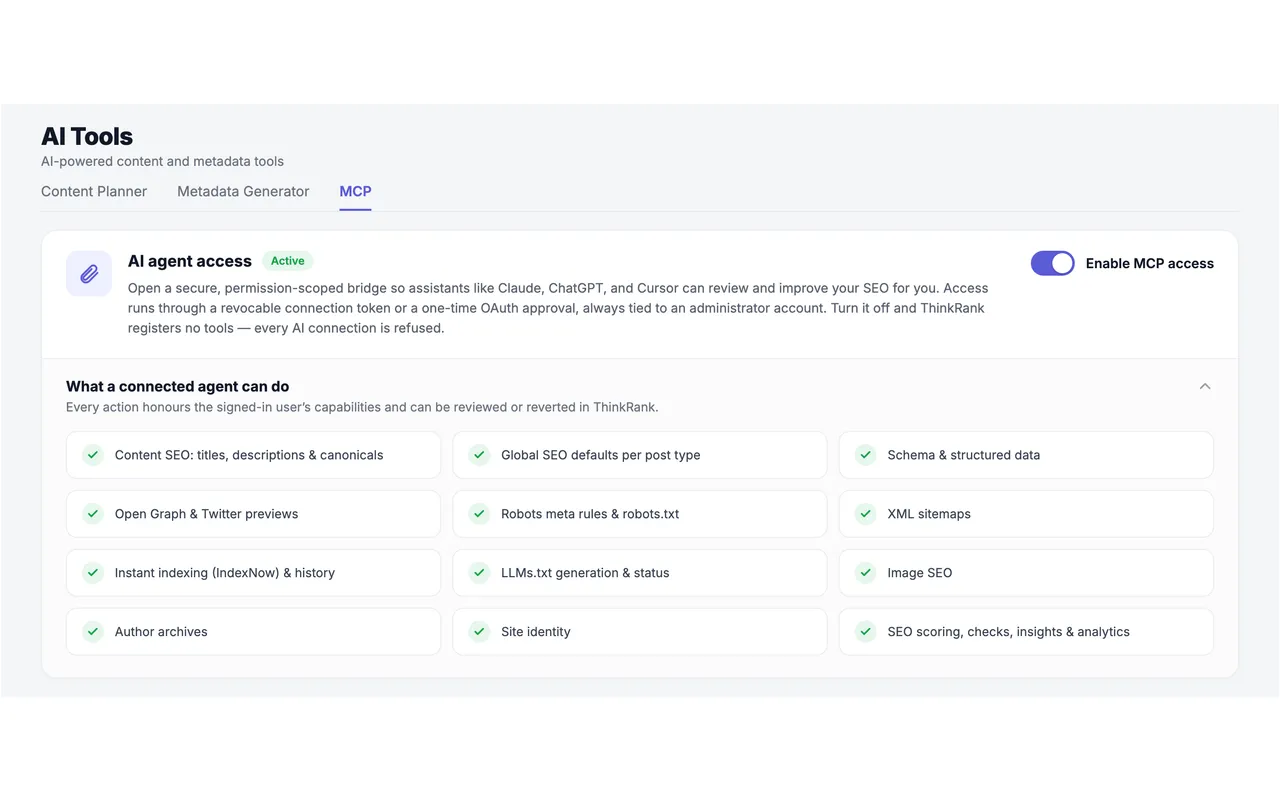
Agentic AI SEO - connect Claude, ChatGPT, or Cursor to your WordPress SEO with the built-in MCP server. -
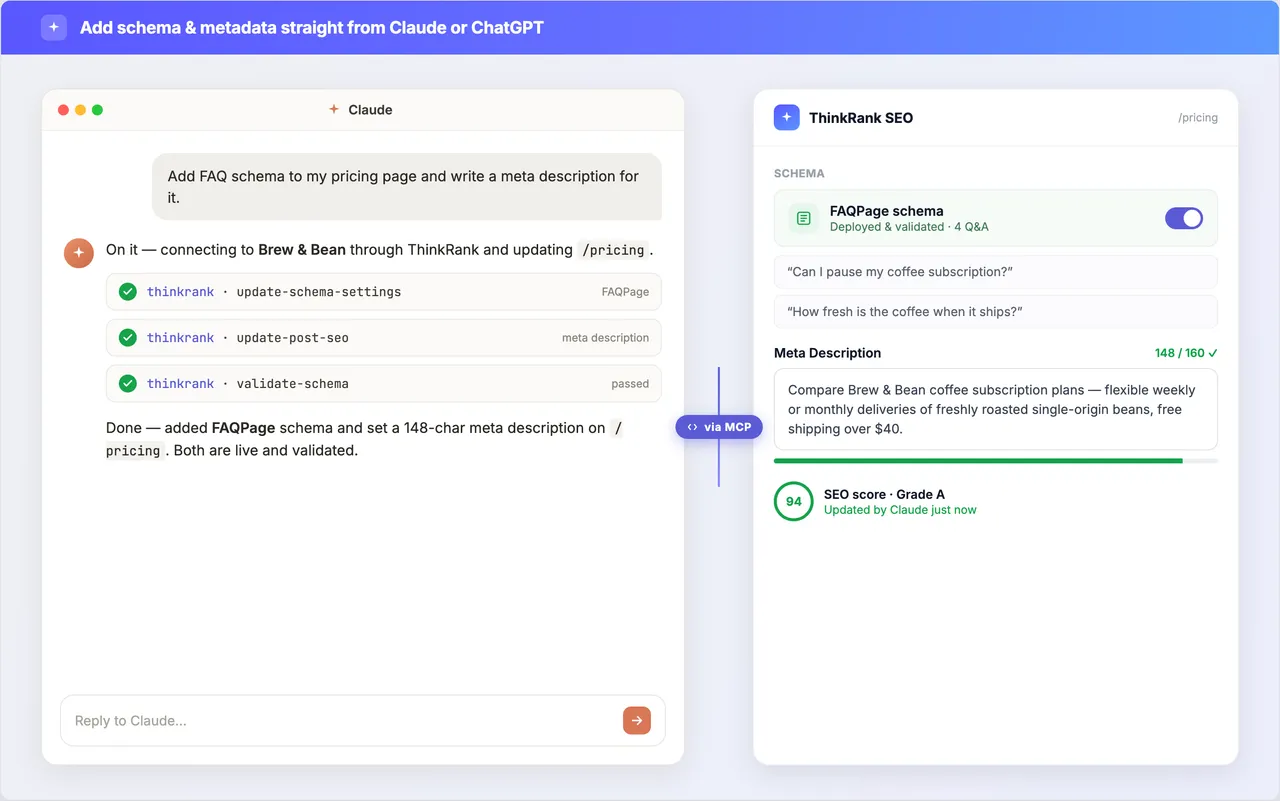
Your AI assistant generating and updating WordPress SEO metadata in plain language via ThinkRank's MCP tools. -
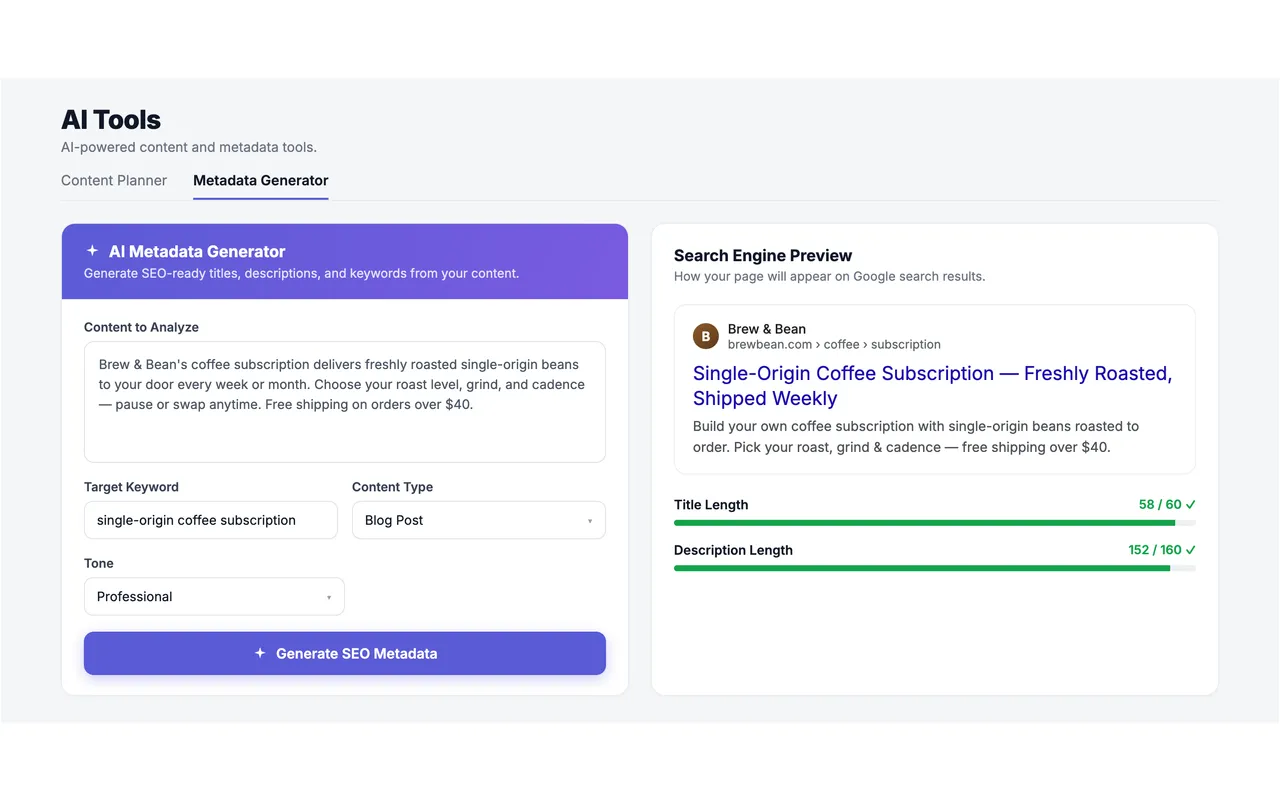
AI Metadata Generator - SEO title and meta description with a live SERP preview. -
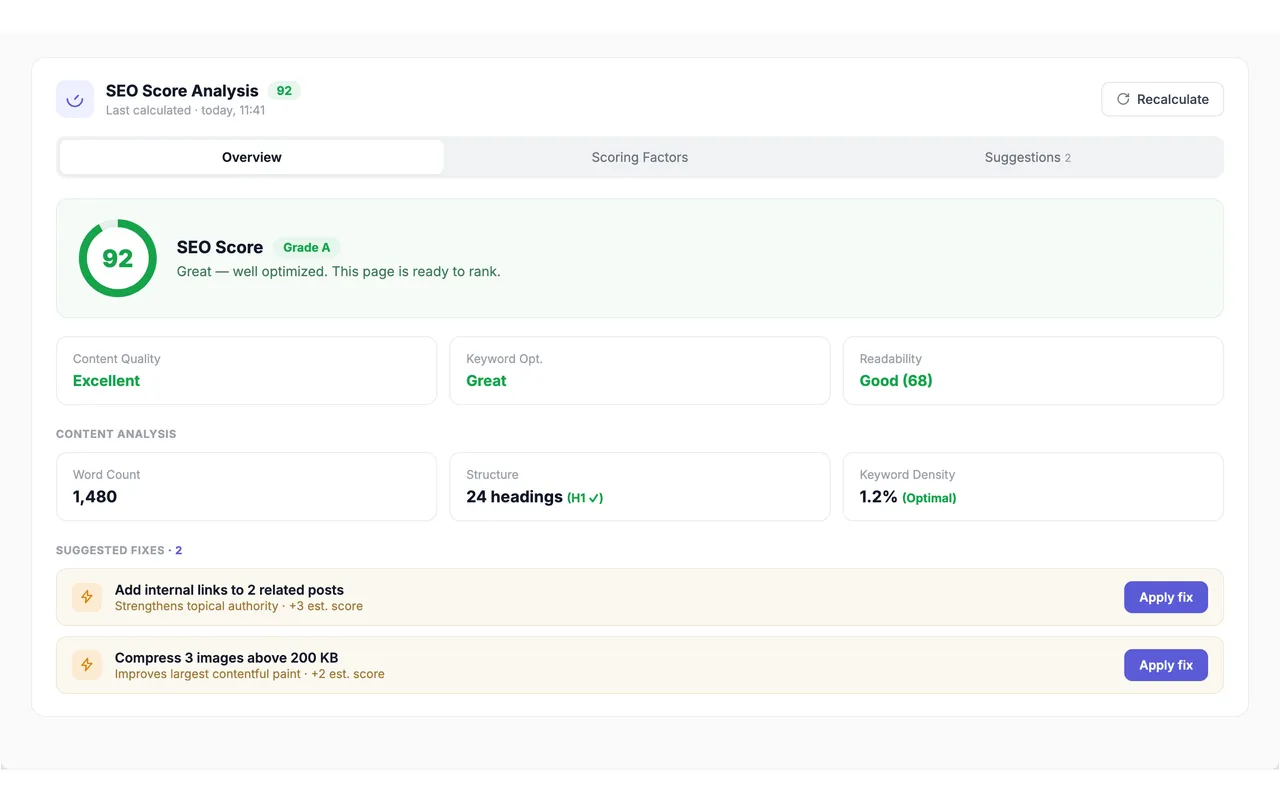
SEO content analysis dashboard - 13-factor score, focus keyword, and one-click apply suggestions. -
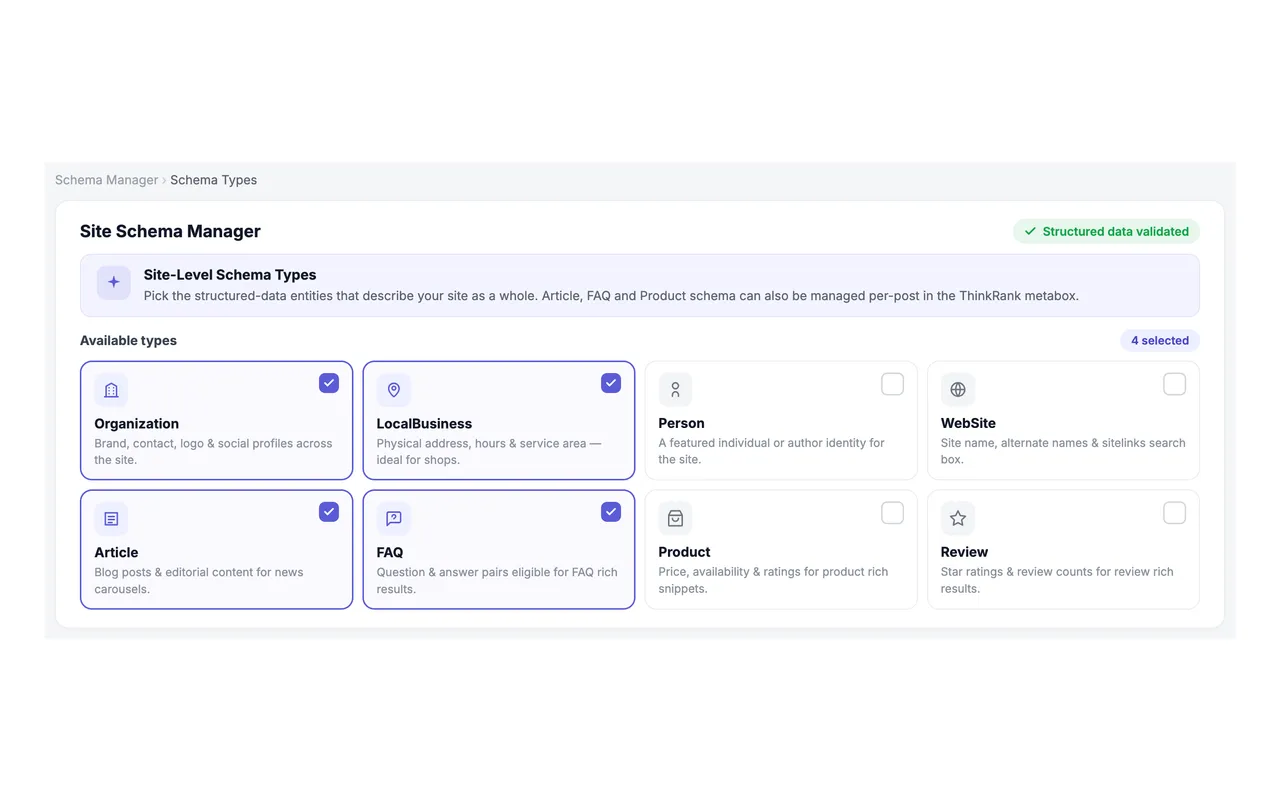
Schema Manager - choose Article, FAQ, Local Business, or Review schema with validation. -
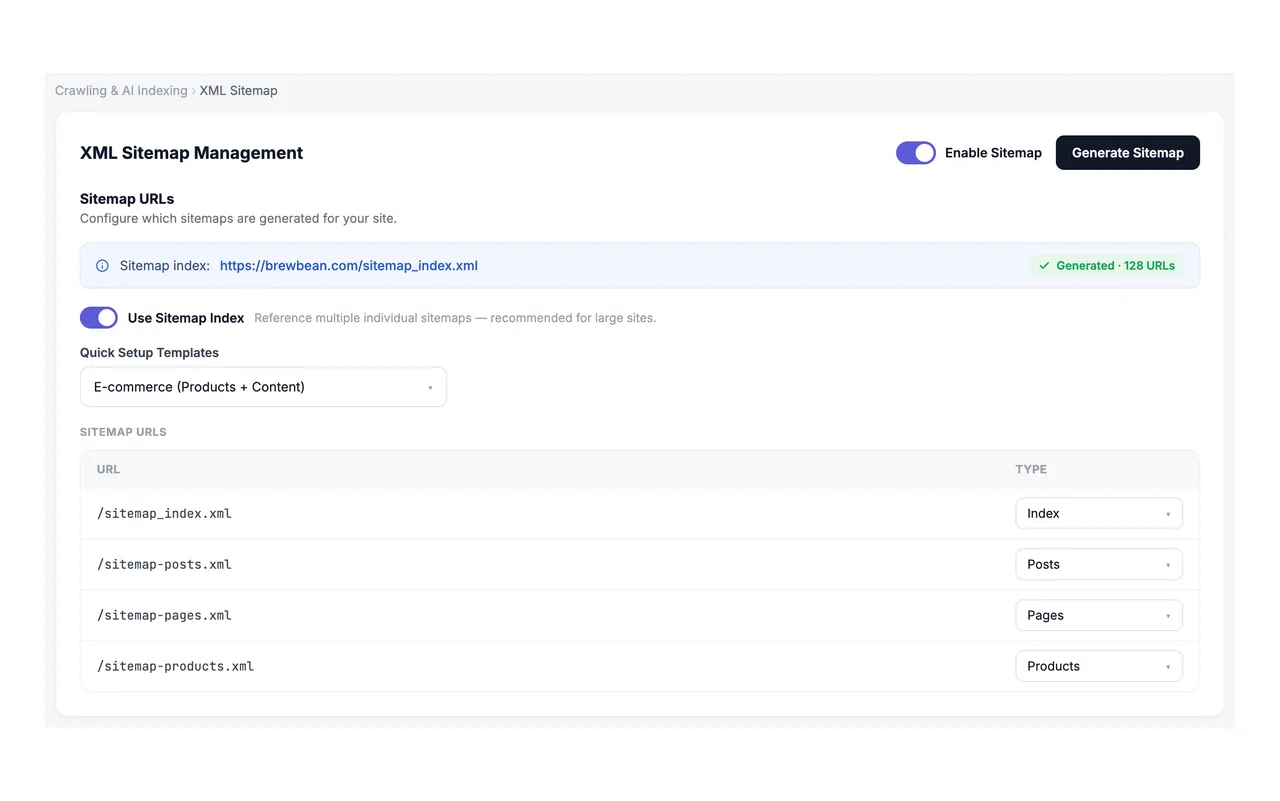
XML Sitemap generator - Basic, Complete, E-commerce, and Segmented modes with post-type controls. -
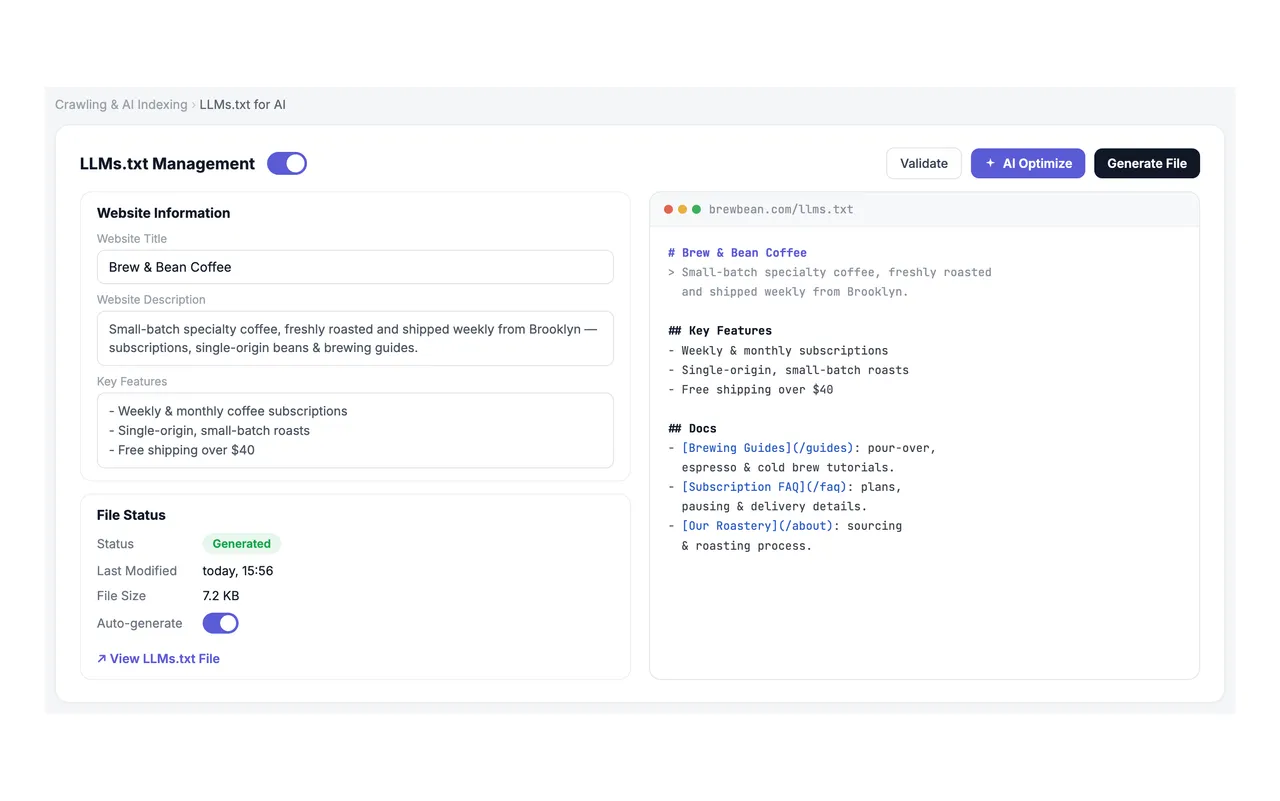
llms.txt generator - a maintained Markdown index of your content for AI agents and tools. -
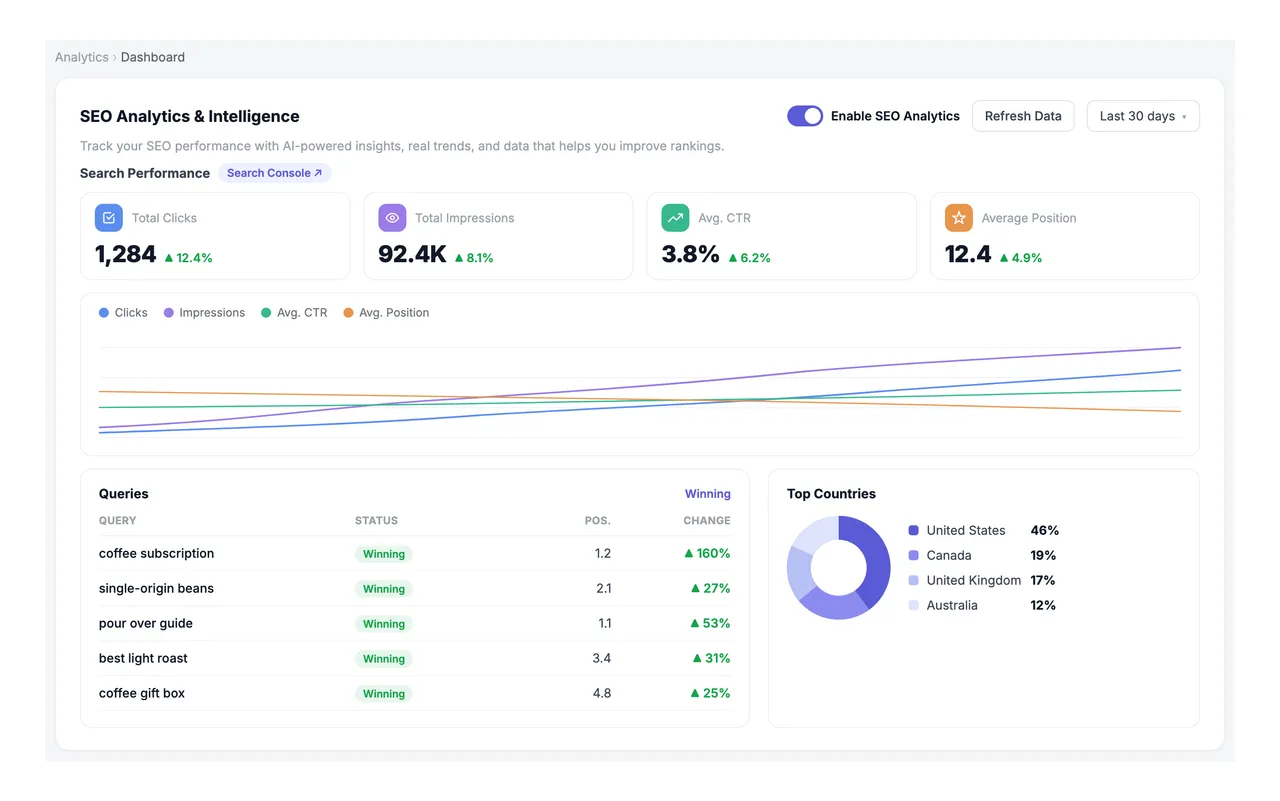
Google Search Console insights with Core Web Vitals inside WordPress. -
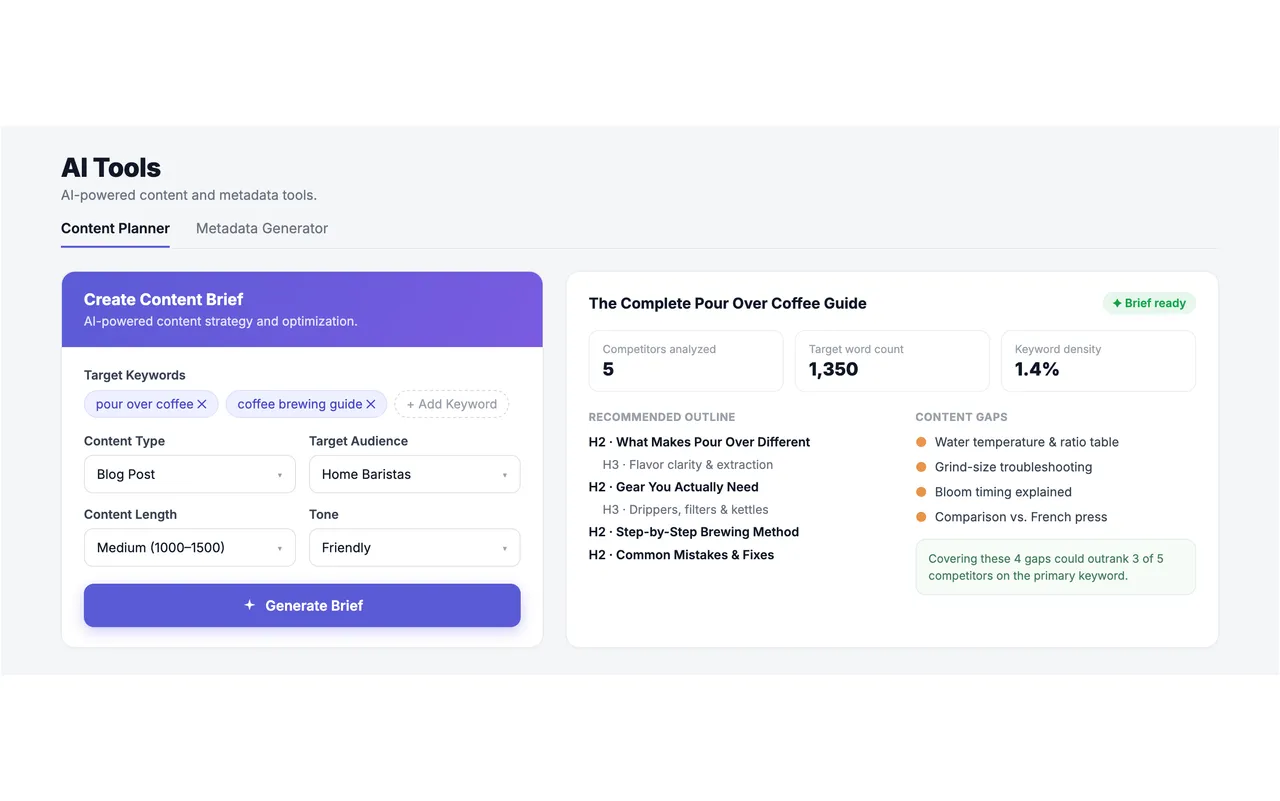
AI Content Brief Generator with competitor analysis and content gaps.
Important information
- AI features need your own API key from a supported provider. Usage charges apply from that provider.
- Requires WordPress 6.0 and PHP 7.4. Tested up to WordPress 7.1.4.
- Use one main SEO plugin at a time to avoid duplicate meta tags and schema. The wizard can deactivate your old plugin after migration.
- AI generation sends content to the provider you choose. A custom OpenAI-compatible endpoint such as Ollama keeps it on your own infrastructure.
- The MCP server and the optional ThinkRank Hub for multi-site viewing connect your site to outside services, so review the permissions you approve.
- No published vulnerabilities are recorded in the data.
From the ThinkRank SEO readme
Straight from the developer's WordPress.org listing.
Full description
ThinkRank is an AI SEO plugin for WordPress that helps you write SEO titles and meta descriptions, optimize content around a focus keyword, add schema markup, generate XML sitemaps, and review Google Search Console data in your dashboard.
Manage SEO inside WordPress or connect a compatible AI assistant through the built-in MCP server. Use your own AI provider key for generation, review the results, and control which tasks connected assistants can perform.
AI SEO Titles and Meta Descriptions
Create and edit an SEO title and meta description for posts, pages, products, and supported custom post types. Generate suggestions with AI, review the search preview, and adjust the wording before applying it. Use bulk optimization to review metadata across your content and find duplicate titles and descriptions.
Focus Keyword Optimization and Content Analysis
Choose a focus keyword and check how your content uses it in titles, descriptions, headings, and body text. ThinkRank provides an on-page SEO score and recommendations for links, readability, and content structure. Review suggestions in the editor as you improve each page.
Schema Markup and Structured Data
Add JSON-LD schema markup for supported content types, including Article, FAQ, HowTo, Organization, Local Business, and Breadcrumb. Use structured data to describe your content to search engines. FAQ and HowTo blocks help you add structured content while writing; rich-result eligibility depends on the search engine and its requirements.
XML Sitemap Generator
Generate an XML sitemap to help search engines discover your public content. Choose which post types to include and use a sitemap index with paginated child sitemaps. ThinkRank supports Basic, Complete, E-commerce, and Segmented modes, with sitemap discovery through robots.txt.
Google Search Console Inside WordPress
Connect Google Search Console to review clicks, impressions, search queries, and keyword opportunities without leaving your dashboard. Use those insights to decide which pages and metadata need attention. Core SEO settings work without connecting Google.
Built-in MCP Server for AI Assistants
Connect compatible assistants such as Claude, ChatGPT, and Cursor to ThinkRank’s SEO tools. Ask an assistant to review missing metadata, inspect SEO issues, or help manage schema and sitemap settings.
An administrator enables MCP and approves each connection. Choose access by area, review changes in the activity log, and revert supported changes when needed. ThinkRank Hub is an optional way to view connected sites together.
llms.txt Generator for AI Tools
Generate and maintain an llms.txt file: a Markdown index that points AI agents and tools to important content on your site. Treat it as a content-discovery aid for compatible tools. It does not guarantee Google rankings, AI Overview inclusion, or citations in AI answers.
Technical SEO and Site Audits
Manage canonical URLs, robots meta, robots.txt, breadcrumbs, and social sharing metadata. Review the Site SEO Analyzer for site-wide issues and guidance. ThinkRank also includes image SEO controls, Local Business information, and product metadata for WooCommerce.
Free SEO Features, AI Usage, and ThinkRank Pro
The free plugin includes core metadata controls, content analysis, schema controls, XML sitemaps, and a Google Search Console connection. AI generation requires your own supported provider key or a configured compatible endpoint. Provider usage charges may apply; ThinkRank does not sell AI credit packs.
ThinkRank Pro adds advanced tools such as redirects, 404 monitoring, broken-link checking, AI internal linking, keyword rank tracking, custom schema, advanced WooCommerce SEO, multi-location Local SEO, GA4 integration, and News and Video sitemaps.
Switch to ThinkRank
Use the setup wizard to import supported SEO data from Yoast SEO, Rank Math, AIOSEO, SEOPress, Squirrly SEO, or Slim SEO. ThinkRank supports Gutenberg, the Classic Editor, and popular page builders. Configure your SEO settings, review your imported data, and connect an AI provider or assistant when you need one.
External services
Core SEO features need no external service. Each service below is contacted only when you use or switch on the feature that needs it – never to license or unlock ThinkRank features.
AI providers: OpenAI, Anthropic, Google Gemini, OpenRouter
For AI features: metadata and content brief generation, AI insights, “Explain with AI”, image alt text, and the generative MCP tools. Only providers you add an API key for are contacted. ThinkRank sends that key and the content the task needs (such as a post’s title and content, your prompt, or image data) when you run an AI action, or in the background for automatic AI features you switch on.
• OpenAI (api.openai.com): Terms, Privacy
• Anthropic (api.anthropic.com): Terms, Privacy
• Google Gemini (generativelanguage.googleapis.com): Terms, Privacy
• OpenRouter (openrouter.ai): Terms, Privacy
OpenAI-compatible endpoint you configure
Optional. If you choose the “Custom endpoint” AI provider and enter a base URL, the AI features above send the same content – and the API key you enter, if any – to that URL instead of to a provider above. Nothing is sent until you configure it, and where it goes is entirely your choice: a model on your own server (Ollama, LM Studio, vLLM), your Azure OpenAI deployment, your company gateway, or a hosted service. ThinkRank has no relationship with that endpoint, so its own terms and privacy policy apply.
ThinkRank Google connection (api.thinkrank.ai)
Clicking Connect Google (Search Console, plus GA4 with ThinkRank Pro) signs in through api.thinkrank.ai, which holds ThinkRank’s Google app credentials. It receives your site URL and a one-time sign-in code on connect, and your Google refresh token whenever the access token is renewed. Terms, Privacy
ThinkRank Hub (hub.thinkrank.ai, optional)
Only if you click Connect to ThinkRank Hub under ThinkRank > AI Tools > ThinkRank Hub, or on the Setup Wizard’s ThinkRank Hub step. Connecting turns on MCP access and sends your browser to hub.thinkrank.ai with this site’s address and a one-time ticket. You then approve the hub on this site’s own approval page, the way any AI client is approved, choosing for each area whether the hub can read only or also make changes it can undo. At the approval the site tells the hub its address, its blog ID, the ThinkRank (and ThinkRank Pro) versions and its public WordPress site icon URL. MCP initialization repeats these public facts so the hub can refresh them without another connection, which means every MCP client you have approved also receives them.
Under that approval, within the areas you approve, the hub and the AI assistants you connect to the hub can read over MCP: SEO Analyzer reports, settings, posts’ and pages’ content and SEO fields, Search Console and PageSpeed data (plus Google Analytics with ThinkRank Pro), indexing history and the MCP activity log. The hub keeps the reports and figures it reads, never your posts’ content. With changes allowed, they make only the changes the approval and ThinkRank allow, each recorded in the MCP activity log where it can be reverted. The hub also checks this site’s public pages from outside (the home page, robots.txt, the sitemap and llms.txt) to report uptime and crawlability. No license key, AI provider key or Google token travels. Connecting is optional: every feature works without the hub, and you can end its access at any time with Disconnect on the same screen. Terms, Privacy
Google APIs: Search Console, PageSpeed Insights, OAuth, and Analytics Data with ThinkRank Pro
After you connect Google or add a PageSpeed Insights key, ThinkRank sends your access token or API key, your Search Console property, and page URLs to test, to www.googleapis.com – when you open analytics or performance screens or the dashboard widget, and when scheduled reports or checks run. Disconnecting sends the token to oauth2.googleapis.com to revoke it. Terms, Privacy
IndexNow (api.indexnow.org)
Only with Instant Indexing on: your host name, IndexNow key and key file location, and the URLs you publish, delete or submit, shared with participating search engines. Terms, Privacy
WP Insights usage tracking (send.wpinsight.com, opt-in)
Nothing is sent unless you opt in, from the admin notice or by choosing “Allow & Continue” on the Setup Wizard’s first step (“Skip” sends nothing). Then, on opt-in and daily after: site URL and name, admin email, WordPress, PHP and server versions, active and inactive plugins, active theme, the plugin’s file path, and which ThinkRank features you use. Optional deactivation feedback is sent too. The email may be used for ThinkRank news and offers. Terms, Privacy
Websites you enter
Content brief competitor analysis and schema import fetch the URLs you type in, from your server. Nothing else is sent to those sites.
Source code and build
The JavaScript and CSS in assets/ are compiled. Their human-readable source ships with the plugin in src/.
The assets are built from src/ with @wordpress/scripts (webpack), which writes the compiled files to assets/.
Installation
Minimum Requirements
* WordPress 6.0 or higher
* PHP 7.4 or higher
* An OpenAI, Anthropic Claude, Google Gemini, or OpenRouter API key (for AI-powered features)
Automatic Installation
1. Go to Plugins → Add New in your WordPress admin.
2. Search for “ThinkRank”.
3. Click “Install Now”, then “Activate”.
4. Run the ThinkRank Setup Wizard.
Setup Workflow
1. Open the ThinkRank Setup Wizard.
2. Import existing SEO data from Rank Math, Yoast SEO, AIOSEO, SEOPress, Squirrly SEO, or Slim SEO if needed.
3. Choose your AI provider and enter your API key for AI features.
4. Configure metadata, schema, XML sitemaps, robots meta, canonical URLs, social meta, Search Console, and llms.txt (GA4 with ThinkRank Pro).
5. (Optional) Enable the MCP server under ThinkRank → AI Tools → MCP and connect Claude, ChatGPT, or Cursor.
Connect the MCP Server
* Claude: enable the MCP server, copy your site’s MCP URL, add it in Claude, and approve the connection through the guided OAuth 2.1 flow – no manual API key required.
* ChatGPT, Cursor & other MCP clients: use the Application Password fallback and the ready-made configuration details ThinkRank provides.
Getting API Keys
* OpenAI: https://platform.openai.com/api-keys
* Anthropic Claude: https://console.anthropic.com/
* Google Gemini: https://ai.google.dev/gemini-api/docs/api-key
* OpenRouter: https://openrouter.ai/
Developer FAQ (27)
- What is ThinkRank?
- ThinkRank is an AI SEO plugin for WordPress that helps manage metadata, on-page SEO, technical SEO, schema markup, XML sitemaps, robots meta, canonical URLs, Open Graph social meta, Google Search Console insights, llms.txt, and AI-powered SEO recommendations. It also includes a built-in MCP server so AI assistants like Claude, ChatGPT, and Cursor can help run SEO tasks in plain language.
- What is the ThinkRank MCP server?
- The ThinkRank MCP server is a built-in Model Context Protocol server that lets compatible AI assistants connect to your WordPress site and work with ThinkRank’s SEO tools. After authorization, your AI assistant can help generate metadata, review SEO opportunities, work with schema, manage llms.txt, inspect SEO scores, and guide optimization workflows – without constant dashboard switching.
- How do I connect ThinkRank to Claude?
- Enable the MCP server in ThinkRank, copy your site’s MCP URL, add it to Claude, and approve the connection through the guided authorization flow. ThinkRank uses an OAuth 2.1 flow with PKCE protection, so you don’t need to manually copy API keys into Claude for the standard connection.
- Does ThinkRank work with ChatGPT, Cursor and other MCP clients?
- Yes. ThinkRank is designed for MCP-compatible clients. Claude has a guided one-click-style setup, and ChatGPT, Cursor, and other compatible tools connect with a connection token and the ready-made configuration details ThinkRank provides.
- Is the MCP connection secure?
- Yes. The MCP server is off by default and only an administrator can turn it on. Every connection is approved by an administrator, gets Read or Read & Write access per area (Content, Settings, Indexing, Analytics), and uses tokens that expire and are only accepted in the request header. Every change an assistant makes is recorded in the MCP Activity log with the value it replaced, so you can see who changed what and revert it in one click. You can narrow or revoke any connection under Connected AI apps.
- What is ThinkRank Hub?
- ThinkRank Hub (hub.thinkrank.ai) is an optional service for people who look after several sites. Connect a site from ThinkRank > AI Tools > ThinkRank Hub, or from the Setup Wizard, and approve it on your own site the way you approve any AI app, choosing Read or Read & Write per area. The Hub then shows every connected site’s SEO reports in one view and lets one AI connection work across all of them. No license key, AI key or Google token is shared, the Hub never stores your posts’ content, and Disconnect ends its access at any time. Every ThinkRank feature works without it.
- Is ThinkRank beginner friendly?
- Yes. The Setup Wizard configures the essentials and imports from your previous SEO plugin, and a Basic / Advanced switch in the Essential SEO header lets each user keep the menu to the sections a site owner needs day to day. Switching changes no settings, and every screen still opens when you need it.
- Does ThinkRank work with Elementor, Divi and Oxygen?
- Yes. ThinkRank adds a native SEO panel inside the Elementor editor, the Divi Visual Builder, and the Oxygen/Breakdance builder, alongside the Gutenberg launcher and the Classic Editor metabox. Just as importantly, ThinkRank reads the content those builders store outside post_content, so SEO scoring, bulk optimization, the post-list SEO column, and AI assistants analyze the real page content instead of reporting a builder page as empty.
- Does ThinkRank support WPML, Polylang and TranslatePress?
- Yes. ThinkRank detects WPML and Polylang automatically. SEO fields appear in the WPML Translation Editor, each translated page advertises its own og:locale and links to its alternates, XML sitemaps cover every language, and hreflang tags are only added when your multilingual plugin isn’t already printing them – so you don’t end up with two competing sets. On monolingual sites the integration stays completely inactive.
- What is the Site SEO Analyzer?
- The Site SEO Analyzer is a crawl-free, whole-site audit that gives your site a 0–100 score and a letter grade without requiring a Google connection. It runs checks across Basic SEO, Advanced SEO, Content, Performance & Technical, Security, and AI Search (GEO), and shows per-category results with “how to fix” guidance that deep-links to the relevant setting. Common problems, such as a missing sitemap, schema that is switched off, or images without alt text, can be fixed in one click.
- Can I control which team members access ThinkRank?
- Yes. The Role Manager lets you decide which roles can access Essential SEO, AI Tools, and Settings, using a role × capability matrix. The rules are enforced on ThinkRank’s REST API as well as in the admin menu, so access is genuinely restricted rather than just hidden.
- Do I need an AI API key to use ThinkRank?
- You don’t need an AI key for every core SEO feature. Metadata fields, schema controls, XML sitemaps, robots meta, canonical URLs, breadcrumbs, Open Graph, the Site SEO Analyzer, multilingual output, page-builder integrations, and the Search Console connection work without AI generation. AI-powered features – AI metadata generation, content briefs, AI insights, and generative MCP tools – require your own OpenAI, Claude, Gemini, or OpenRouter API key, or an OpenAI-compatible endpoint you run.
- Which AI providers and models does ThinkRank support?
- ThinkRank supports OpenAI, Anthropic Claude, Google Gemini, and OpenRouter, plus a custom endpoint for any OpenAI-compatible server such as Ollama, LM Studio, vLLM or Azure OpenAI, so content can stay on your own infrastructure. Model availability depends on your provider account and configured API key. A daily request limit and a Pause all AI switch keep AI spending under your control.
- Does ThinkRank generate SEO titles and meta descriptions?
- Yes. ThinkRank can generate SEO titles and meta descriptions with AI and lets you edit them before publishing, across posts, pages, products, and supported custom post types.
- Does ThinkRank include SEO content analysis and focus keywords?
- Yes. ThinkRank includes real-time SEO content analysis and focus keyword optimization so you can see how well your content targets important search terms and improve title, description, headings, structure, and keyword usage before publishing.
- Does ThinkRank generate schema markup?
- Yes. ThinkRank generates JSON-LD schema markup and structured data for Organization, Website, Article, FAQ, HowTo, VideoObject, Review, Local Business, and Breadcrumb schema, and includes Gutenberg blocks for FAQ, HowTo, and Table of Contents that output FAQPage, HowTo, and SiteNavigationElement structured data. Schema markup helps search engines understand your content and can support rich snippets.
- Does ThinkRank create XML sitemaps?
- Yes. ThinkRank includes an XML sitemap generator with Basic, Complete, E-commerce, and Segmented modes, plus a real sitemap index with paginated child sitemaps, controls for post types, and sitemap discovery through robots.txt.
- What is llms.txt and why does ThinkRank support it?
- llms.txt is an emerging convention: a Markdown index of your important content, kept at a fixed URL, that AI coding agents and agentic tools read to discover site content. ThinkRank generates and maintains it automatically. To be straight with you: Google has said llms.txt does not affect Google Search or AI Overviews, and we don’t claim it earns AI citations – it is useful infrastructure for AI tooling, and that is the claim we stand behind.
- Does ThinkRank work with Google Search Console and GA4?
- Yes. ThinkRank connects with Google Search Console to show clicks, impressions, queries, and keyword opportunities inside WordPress – including a dashboard widget with your last 30 days of traffic. Google Analytics 4 (GA4) is a ThinkRank Pro feature: Pro lets you pick your GA4 account, property, and data stream and adds GA4 traffic and engagement data to the dashboard and email reports.
- Does ThinkRank support Open Graph, canonical URLs and noindex?
- Yes. ThinkRank includes Open Graph and social meta controls for Facebook, LinkedIn, Pinterest, and X/Twitter, plus canonical URL controls and robots meta settings such as noindex and nofollow.
- Is ThinkRank a Yoast, Rank Math, AIOSEO or SEOPress alternative?
- Yes. ThinkRank combines core WordPress SEO tools with a built-in MCP server and bring-your-own-key AI generation. Use the setup wizard to import supported SEO data from your previous plugin. Compare the features and plans you need before switching; AI provider usage is billed separately by your provider.
- Can I migrate from AIOSEO, SEOPress, Squirrly SEO or Slim SEO?
- Yes. ThinkRank’s Setup Wizard imports supported SEO data from All in One SEO (AIOSEO), SEOPress, Squirrly SEO and Slim SEO (including Slim SEO Pro’s focus keywords and schemas), along with Rank Math and Yoast SEO – including title formats, Knowledge Graph details, role permissions, author archive settings, IndexNow keys, breadcrumb settings, and social defaults.
- Does ThinkRank include a redirect manager, 404 monitor, or internal linking?
- Redirect management, 404 monitoring, the broken link checker, and AI internal linking are available in ThinkRank Pro. The free plugin shows these sections with an option to upgrade.
- Does ThinkRank help with WooCommerce and Local SEO?
- Yes. The free plugin supports product metadata, an E-commerce sitemap mode, Local Business schema, business information, and a local sitemap. Advanced WooCommerce product SEO and multi-location Local SEO are available in ThinkRank Pro.
- Will ThinkRank conflict with my current SEO plugin?
- For best results, use only one primary SEO plugin at a time – running two can create duplicate meta tags, duplicate schema, conflicting robots meta, and sitemap confusion. ThinkRank’s migration workflow imports supported data and can deactivate the previous SEO plugin when migration is complete.
- Who is ThinkRank for?
- WordPress site owners, bloggers and publishers producing content at scale, SEO professionals and agencies managing client sites, WooCommerce stores and local businesses, and teams that run their work through an AI assistant.
- Is ThinkRank free?
- Yes, ThinkRank is a free WordPress SEO plugin with bring-your-own-key AI features – your AI provider usage is billed by the provider you choose, giving you direct control over model, cost, and privacy. There are no ThinkRank AI credits to buy and no monthly meter, in free or in Pro. ThinkRank Pro adds advanced automation such as the redirect manager, 404 monitor, internal linking, and rank tracker.
Downloads, last 30 days
Trend vs previous period: -1.4%
Average daily downloads: 2,391 over the last 7 days , 2,990 over 30 days.
Security history
No known CVEs · 0 published vulnerabilities (Wordfence)
Recent releases
- v2.21.2
Release Date: 2026-11-09 - New: Ignore a Site SEO Audit check that does not apply, so it no longer counts toward the score - New: Turn off all structured data on a single post from the SEO panel -...
- v2.21.1
Release Date: 2026-11-05 - Improved: The SEO Analyzer grades indexable content of every public post type, not just recent posts - Improved: SEO Analyzer answers over MCP are about half the size -...
- v2.21.0
Release Date: 2026-11-02 - New: Title and description templates for every taxonomy and post type archive - New: Remove the product, product category and category bases from URLs, with 301...
- v2.20.1
Release Date: 2026-10-29 - Fixed: Sitemaps keep their styled view in Chrome 158 and other browsers that drop XSLT - Fixed: AI visits are counted on cached pages and from ChatGPT links with no...
- v2.20.0
Release Date: 2026-10-28 - New: Connect Gemini, Gemini CLI, Grok, Codex, Windsurf and Le Chat from the MCP screen - New: ThinkRank's breadcrumb trail shows in the Kadence theme - Improved: SEO...
ThinkRank SEO FAQ
What does ThinkRank do?
It handles WordPress SEO: metadata, keyword analysis, schema, sitemaps, canonical and robots settings, social tags, Search Console data and llms.txt. AI help and an MCP server are built in.
Do I need an AI key?
Not for core features. Metadata fields, schema, sitemaps, the analyzer and Search Console work without AI. Generation features need your own provider key.
Which AI providers can I use?
OpenAI, Anthropic Claude, Google Gemini and OpenRouter, plus a custom endpoint for OpenAI-compatible servers like Ollama or Azure OpenAI.
How do I connect an AI assistant?
Turn on the MCP server, copy your site's MCP address and add it to the assistant. Claude uses a guided approval flow, while ChatGPT and Cursor use a connection token.
Is the MCP connection safe?
It is off by default and only an administrator can enable it. Each connection is approved separately with read or read and write access per area, and changes are logged.
Can I move from another SEO plugin?
Yes. The wizard imports supported data from Yoast, Rank Math, AIOSEO, SEOPress, Squirrly and Slim SEO.
Does it work with page builders and translation plugins?
Yes. It has panels for Elementor, Divi and Oxygen, and detects WPML and Polylang, with sitemaps covering each language.
What needs the Pro version?
Redirects, 404 monitoring, the broken-link checker, AI internal linking, GA4 and advanced WooCommerce and multi-location local SEO.
ThinkRank SEO alternatives

Real-time SEO guidance, schema, and AI built in. Help search engines and AI systems understand your content. All AI tools included, no hidden fees. Yoast SEO: the #1 WordPress SEO plugin Since 2008, Yoast SEO has…

Rank Math SEO - WordPress AI SEO Plugin to Rank Higher 📈 ★★★★★ Rank Math SEO helps you stay ahead of competitors with AI-powered SEO tools built for today’s search engines and AI assistants. The plugin brings…

AIOSEO - The Original AI SEO Plugin for WordPress All in One SEO is the original WordPress SEO plugin, founded in 2007 and trusted by over 3 million website owners and SEO experts. AIOSEO is a complete AI SEO plugin…

SEOPress - The fast, privacy-first WordPress SEO plugin, ready for AI search Rank higher in Google AND in AI answer engines (ChatGPT, Claude, Perplexity, Gemini). SEOPress is the all-in-one WordPress SEO plugin…

CrawlWP - The WordPress SEO Plugin That Also Gets You Indexed Optimize every page, submit it to search engines (Google, Bing, Yandex, Yep etc) the moment you publish, and see which ones actually indexed it - all…

An AI SEO Plugin That’s Lightweight, Fast & Automated Currently there are many SEO plugins for WordPress in the market. But these plugins often have too many options and are very complicated for ordinary users.…
Listing data from WordPress.org and the Wordfence vulnerability feed, refreshed Nov 9, 2026; listing details fetched Nov 14, 2026. Screenshots are from the plugin's WordPress.org listing. Not affiliated with WPDeveloper.